Notifications
Messages you have not read yet and calls you missed are listed on the lock screen, under the clock, and in the quick settings under Notifications. The most recent comes first: a message shows who sent it and what they wrote last (a blue number when there are several); a missed call shows who called and Missed call in red (2 missed calls when they called more than once). Calls from the same person are listed once. The lock screen lists the four most recent, the quick settings three, then how many more there are.
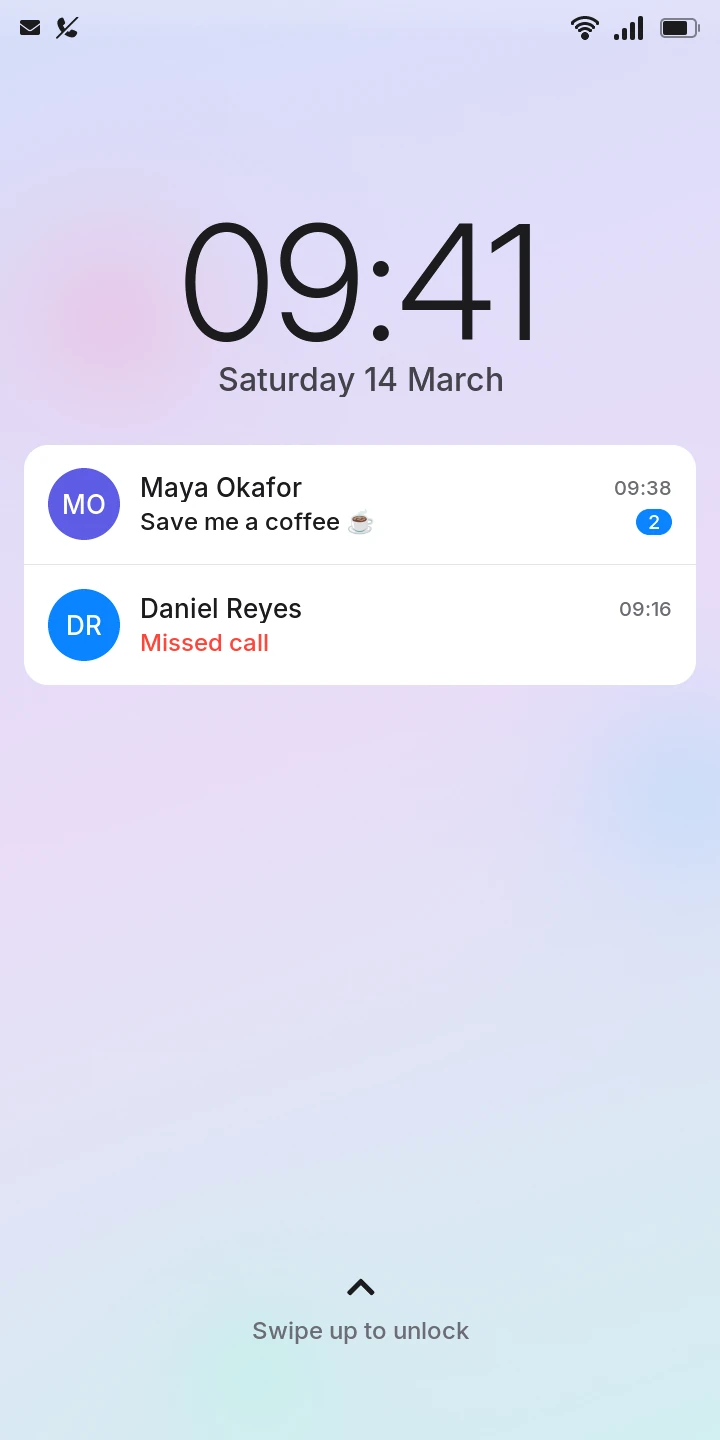
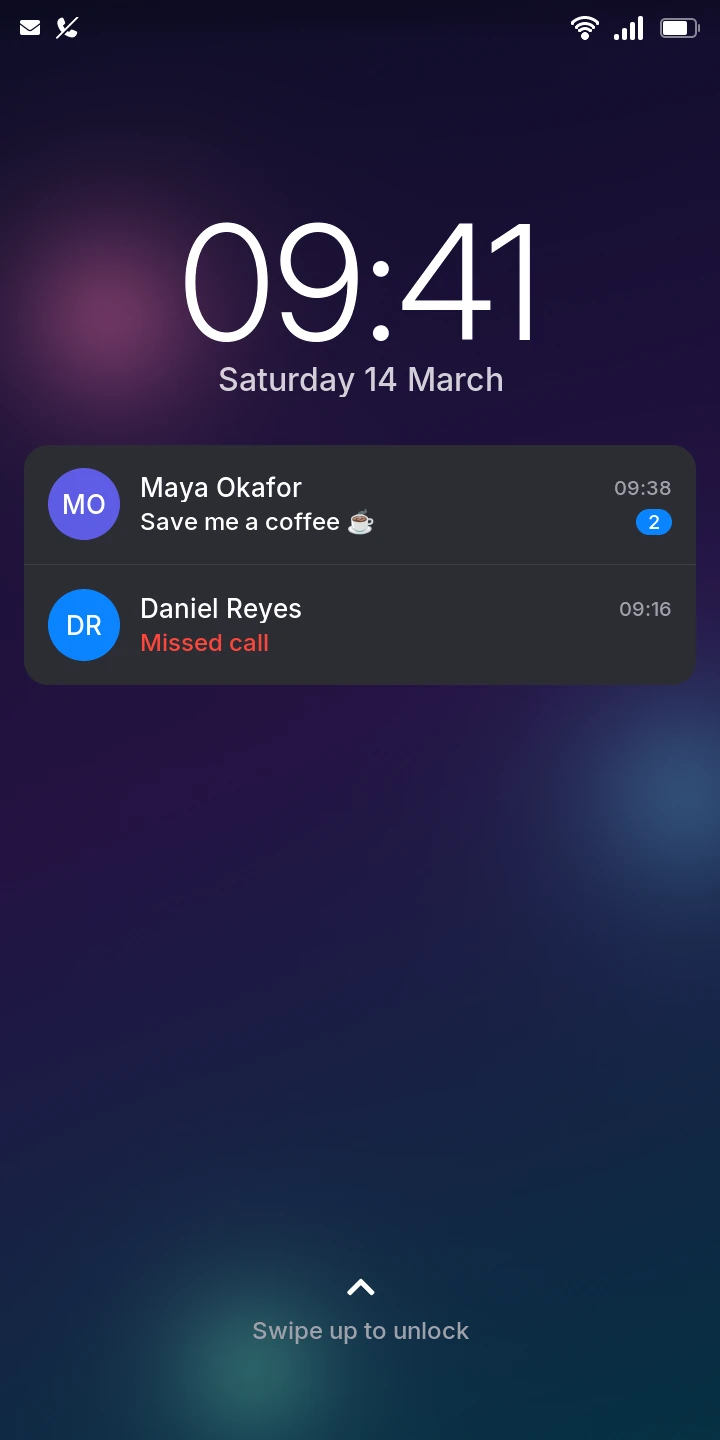
Opening and clearing them
- Tap one to open it: a message opens its conversation in Messages, a missed call opens Recents in Phone. On the lock screen this also unlocks the phone. Swiping up from a notification only unlocks.
- Tap Clear all in the quick settings to dismiss them all: the messages count as read, the calls as seen.
A notification goes once you have seen what it is about: the conversation opened in Messages, or Recents opened in Phone. Notifications stay across restarts.
Where else they show
- While you have any, the left of the status bar shows for unread messages and for missed calls (the operator's name instead while the quick settings are open), and the Phone and Messages icons on the home screen and in the menu show how many in a red badge.
- A message that arrives also slides down from the top of the screen for a few seconds, with who sent it and what they wrote, over the lock screen too: the message wakes the phone. Tap it to open the conversation (on the lock screen, this unlocks the phone). It does not when you are in that conversation already or the quick settings are open (they list it).
From apps you install
Apps you install can post notifications too, for example Telegram's messages. They are listed the same way, with the app's icon, and the status bar shows while there are any.