Bluetooth
The phone connects to Bluetooth speakers, headphones, headsets and game controllers. Music, calls and games play on them, and their buttons work as on the phone.
Turning it on
Bluetooth is off by default. To turn it on, open Settings › Bluetooth and tap the Bluetooth switch, or tap the Bluetooth tile in the quick settings (swipe down from the top of the screen). The phone remembers it when it restarts. Hold the tile to open Settings › Bluetooth.
While Bluetooth is on, the status bar shows the Bluetooth symbol: dim, and lit while a device is connected. The quick settings tile then shows the device's name, and so does Bluetooth in the Settings list (Off or On otherwise).
Pairing a device
A device is paired once; after that the phone connects to it when both are on.
- Put the device in pairing mode (see its manual; for headphones, often holding its power button).
- Open Settings › Bluetooth, with Bluetooth on. The phone looks for devices around it and lists them under Devices nearby, strongest signal first.
- Tap the device. It shows Pairing....
- If the device shows a number, the phone shows Pair with and the device's name with the same number. Check that both show the same number, then tap Pair. Tap Cancel if they differ.
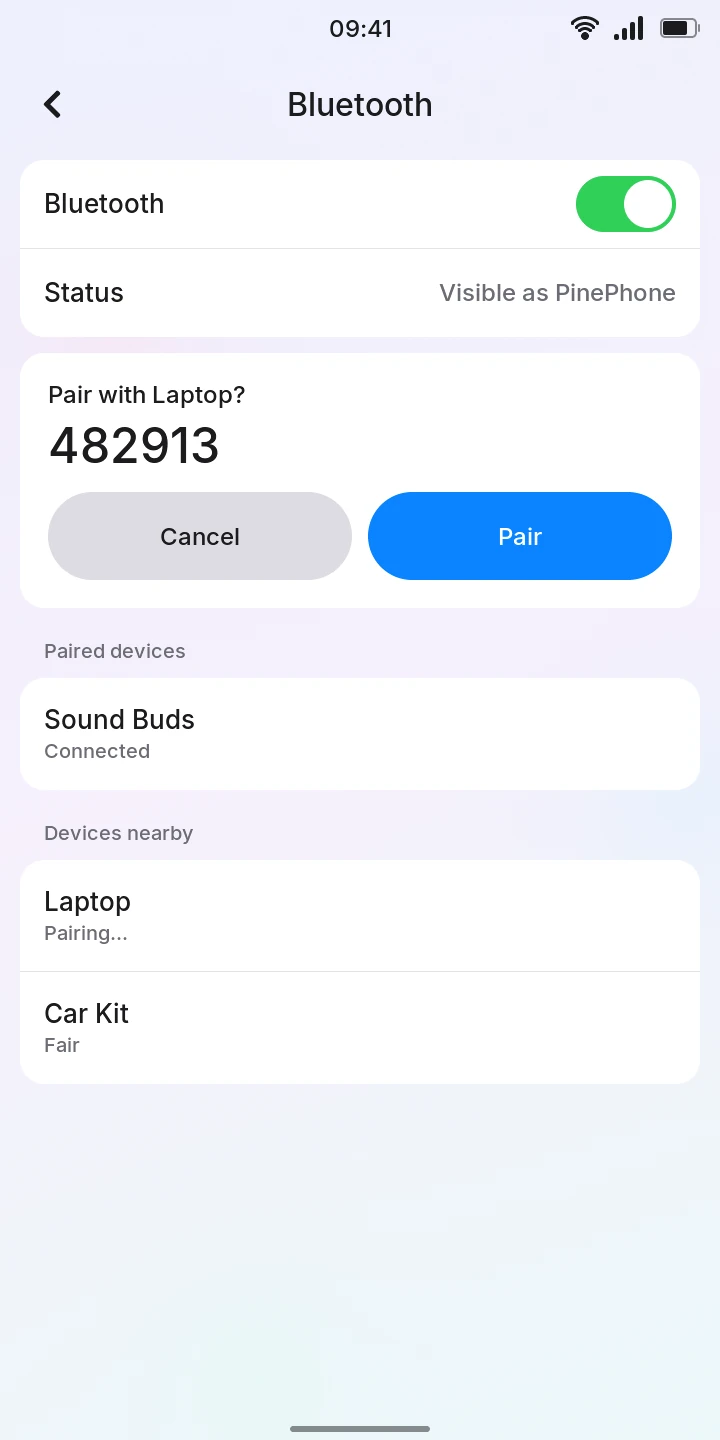
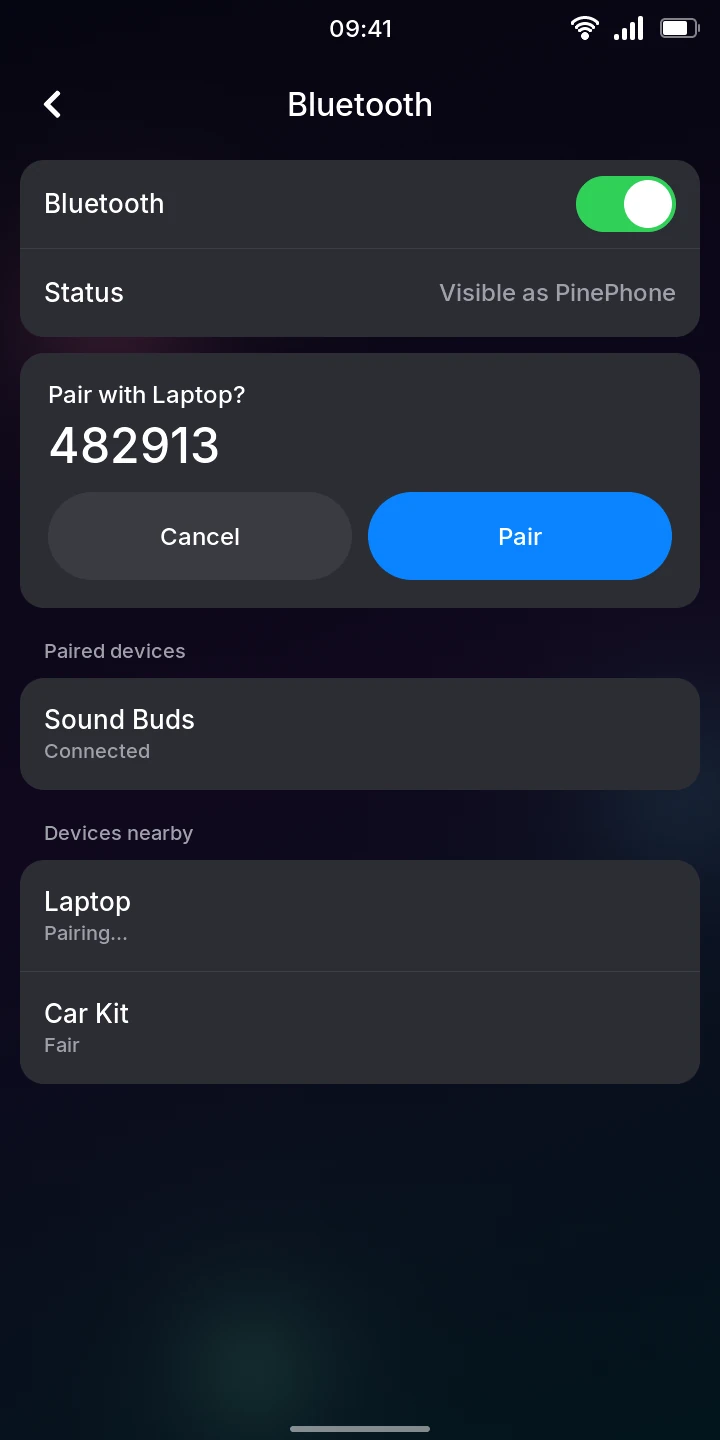
Once paired, the device moves to Paired devices and the phone connects to it. If pairing fails or is cancelled, Status says Could not pair with and the device's name.
To pair from the other device's side (a computer, another phone), open Settings › Bluetooth on the phone first: only while that page is open can other devices find the phone (Status says Visible as PinePhone), and the phone asks the same question there.
To connect to a paired device or disconnect it, tap it under Paired devices in Settings › Bluetooth. See Settings for the rest of the page.
Speakers and headphones
With a speaker or headphones connected, Music, Recorder and the games (Doom, Genesis) play on them. When they disconnect, the sound moves back to the phone's speaker and the song or game goes on from where it was; it moves to them the same way when they connect.
While they play, the volume keys and the volume slider of the quick settings change their volume (the keys' slider then shows the Bluetooth symbol), and follow the speaker's own volume buttons. The phone keeps its own level for when they disconnect.
Their play / pause, next and previous buttons control Music, from any app.
Alarms and the phone's other sounds stay on its own speaker.
Calls on a headset
A call plays in a connected headset, and you talk through its microphone. It goes there by itself, including when the headset connects during the call. On the call screen, Bluetooth moves it to the earpiece and back, and Speaker to the loudspeaker. When the headset disconnects, the call moves to the earpiece. See During a call.
The headset's buttons and gestures for calls do nothing yet: answer and hang up on the phone.
Game controllers
Game controllers pair as any other device, PlayStation's DualShock 4 and DualSense among them. For an 8BitDo controller, turn it on in its Android mode (on the M30, hold Start and B), then hold its pair button until the lights blink quickly.
Genesis and Doom play with one, connected before or during the game: see Genesis and Doom. To check what the phone receives from it, see Settings › Developer mode › Game controller.
Limitations
- A headset's buttons or gestures for calls and its voice assistant do nothing yet.
- Alarms and the other sounds of the phone stay on its own speaker.
- While Settings › Bluetooth is open and looking for devices, Wi-Fi slows down and can drop. Leave the page once your device is paired.
- Devices that need a code typed on the phone (some keyboards) cannot be paired yet.
- A paired device cannot be removed from the phone yet.