Gallery
Gallery shows the photos taken with the Camera and the screenshots you took with Power+Volume Down, newest first.
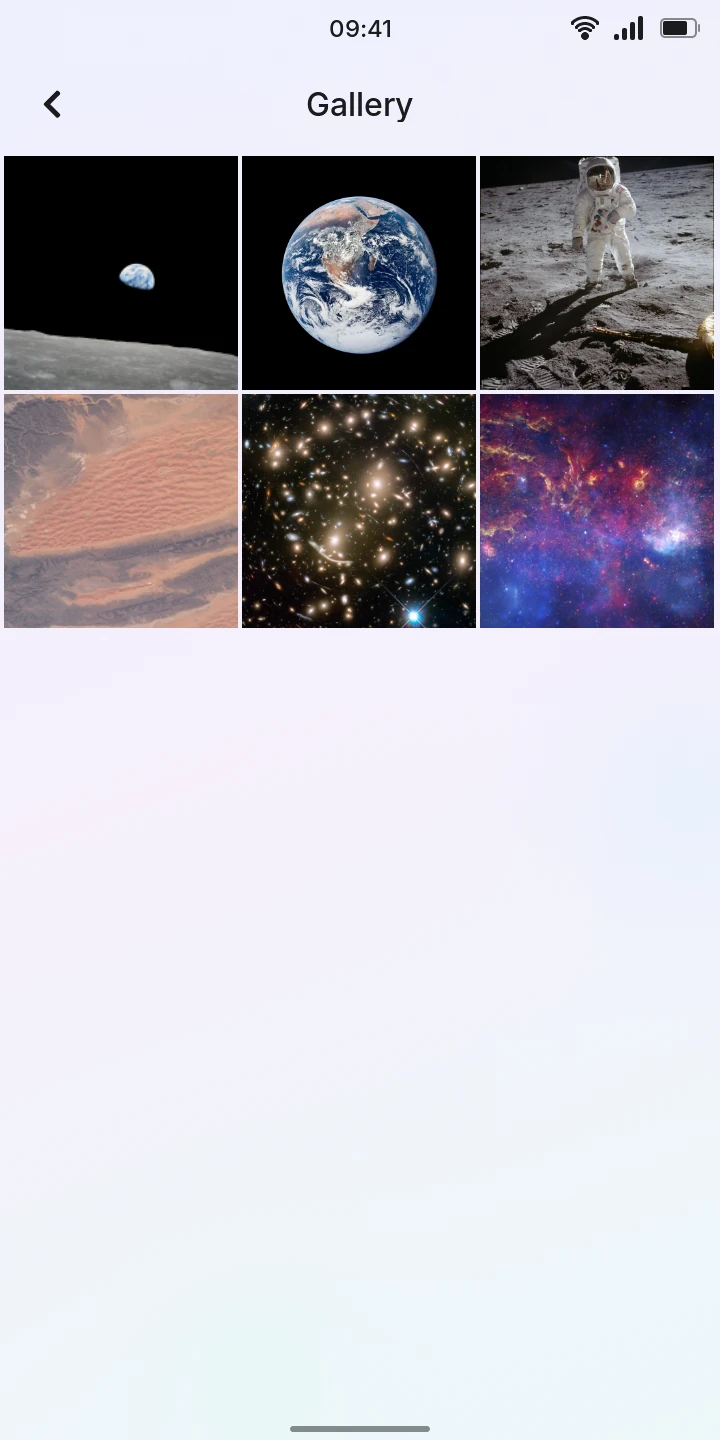
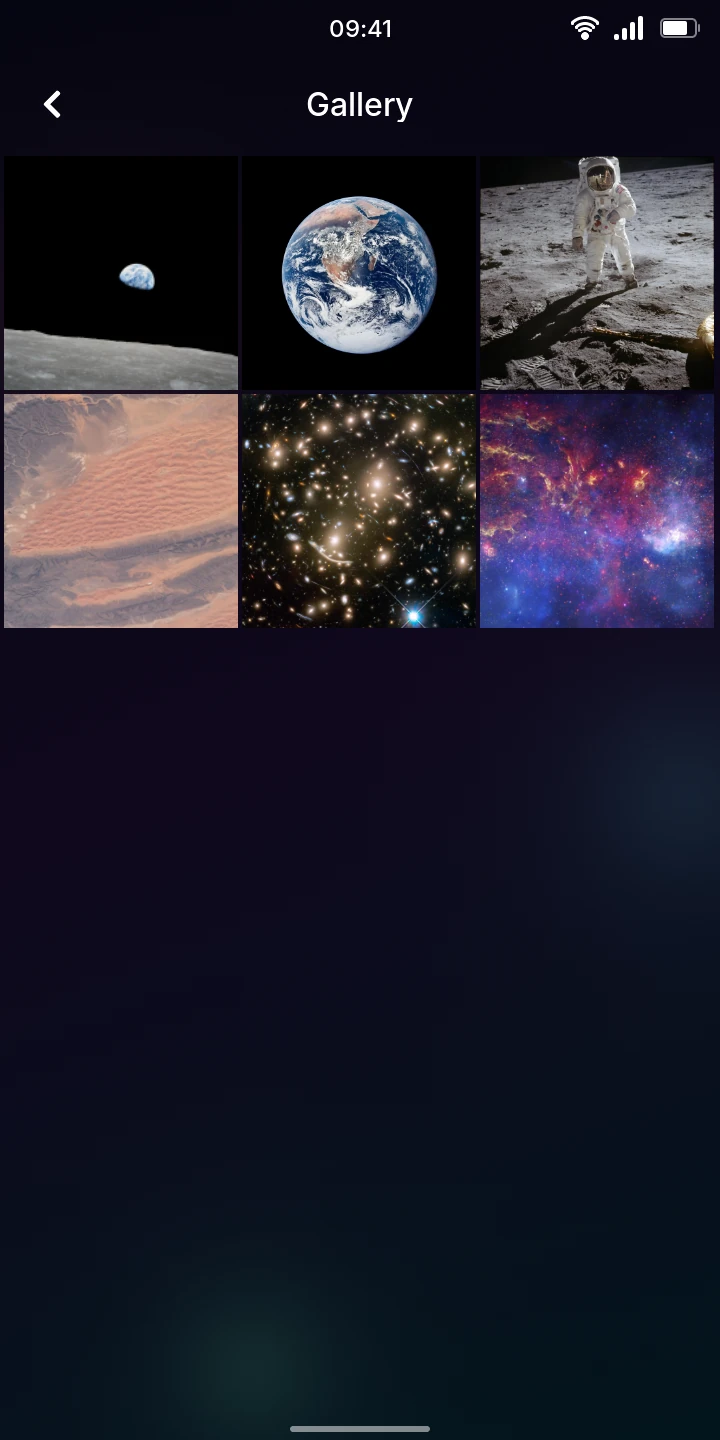
Open Gallery from the menu (under Essentials). The photos are a grid of square thumbnails, three to a row; scroll down for older ones. A thumbnail shows the middle of the photo, the whole photo shows once you open it. With no photos yet, the screen says No photos.
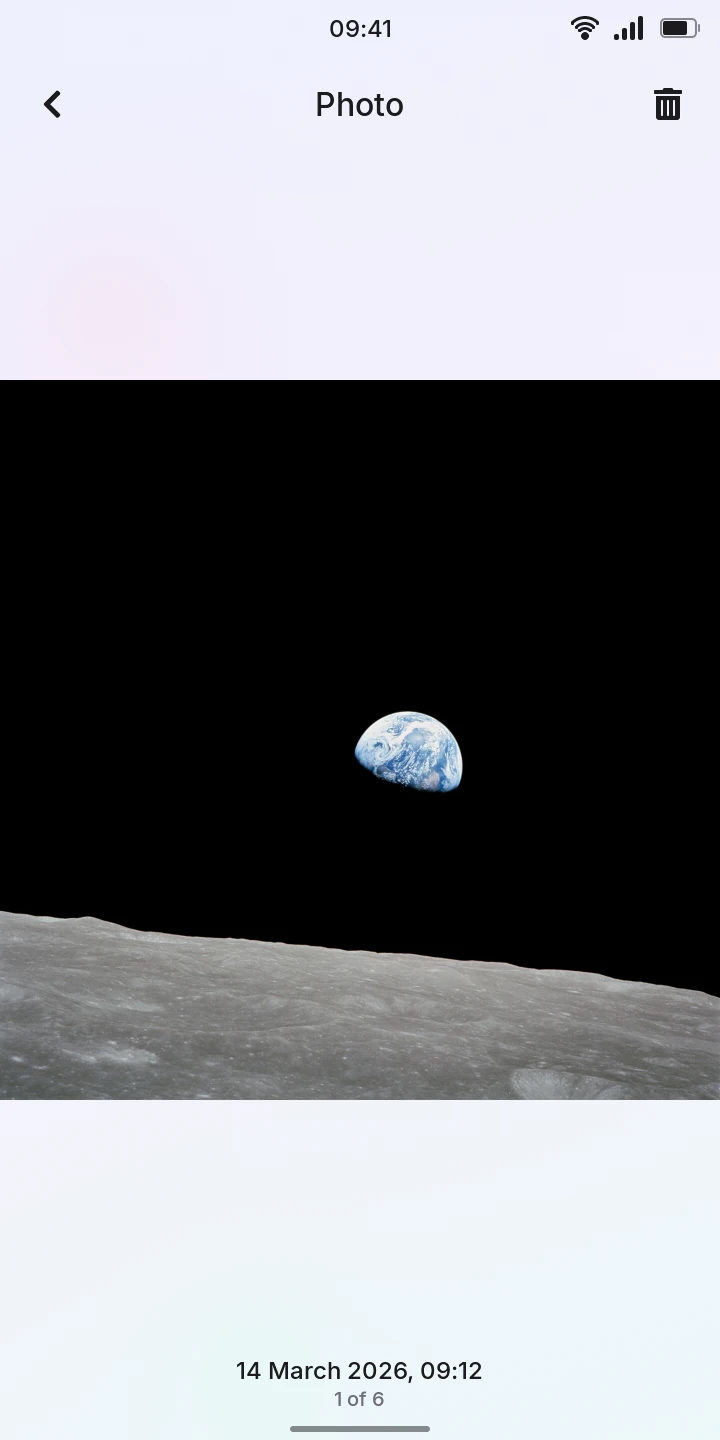
Looking at a photo
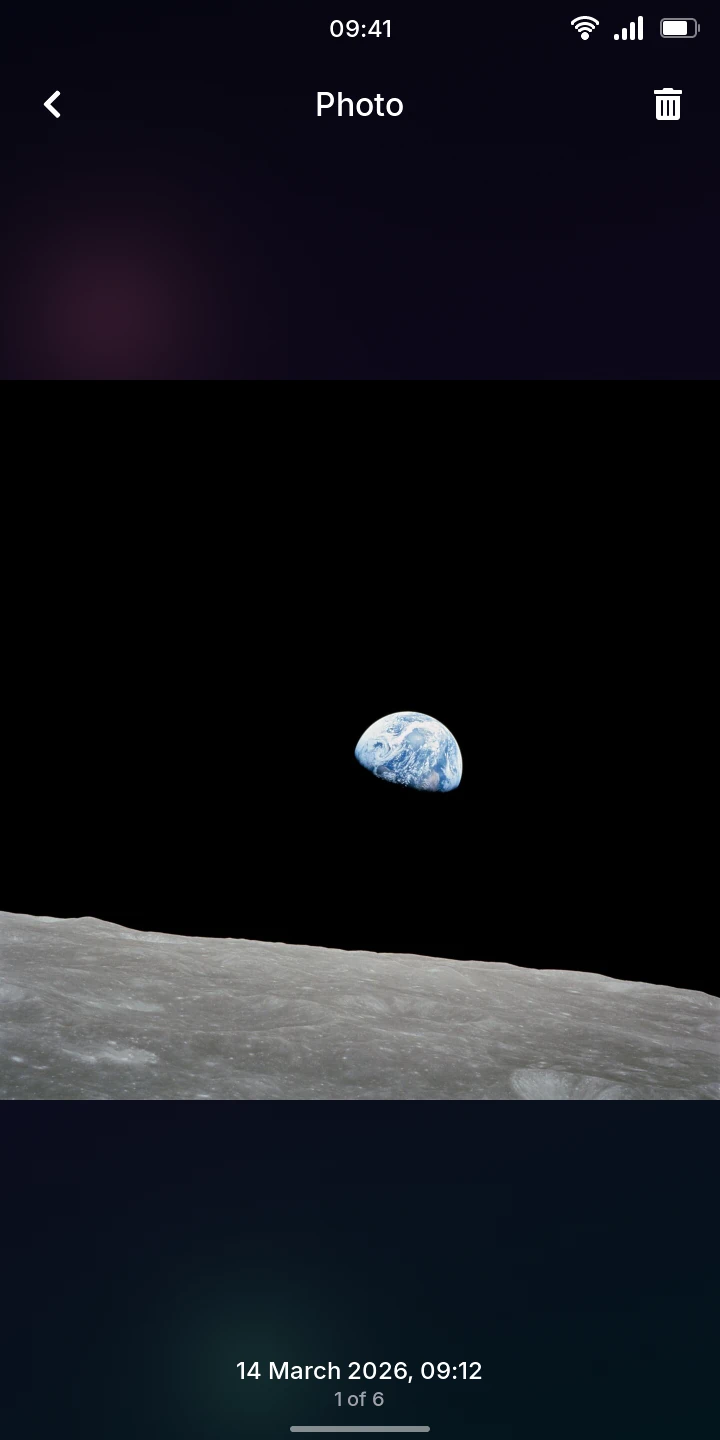
- Tap a thumbnail. The photo opens on its own screen, Photo, fitted to the screen.
- Under it are the day and time it was taken (14 March 2026, 09:12) and where it is in the list (1 of 6).
- Swipe left for the next (older) photo, right for the previous (newer) one. The photo follows your finger; a quick flick is enough. At the first or the last photo it only moves a little and comes back.
- Tap the back arrow at the top left to go back to the grid.
Deleting a photo
- Open the photo.
- Tap the trash can at the top right. A bar appears at the bottom.
- Tap Delete photo to delete it, or Cancel to keep it.
The photo is deleted from the phone at once; there is no bin to get it back from. The viewer then shows the next photo, or goes back to the grid when it was the last one.
Good to know
- Photos are always shown upright: the viewer does not turn when you turn the phone, and a landscape photo shows with dark bands above and below it.
- There is no zoom, editing, sharing or albums.
- The date shown is when the photo's file was last saved on the phone.
- Gallery shows the JPEG photos in the phone's photos folder (/var/lib/photos, which you can browse in Files), not those in folders inside it.