Contacts
Contacts is your address book: a name and a mobile number for each person. Phone and Messages show these names instead of numbers. Open it from the menu under Essentials; the same list is also in Phone, under Contacts at the bottom.
The list
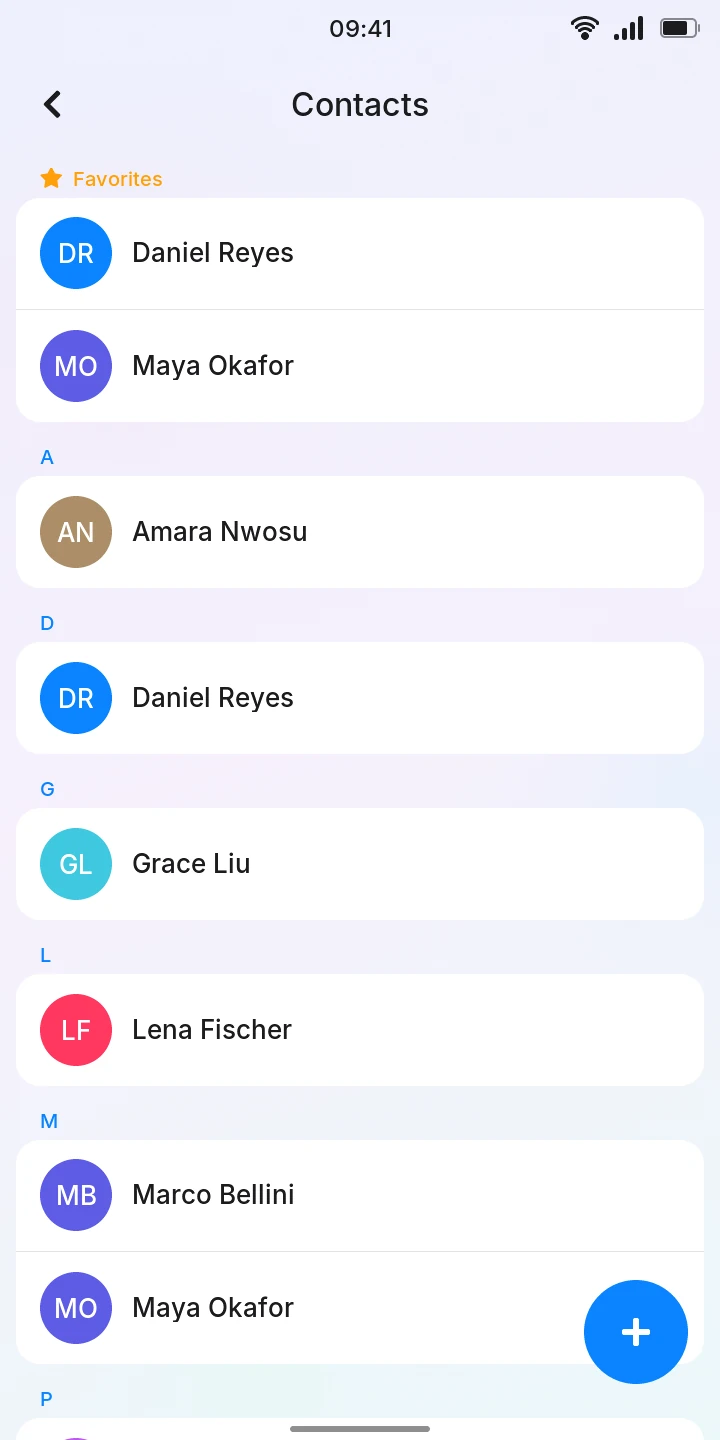
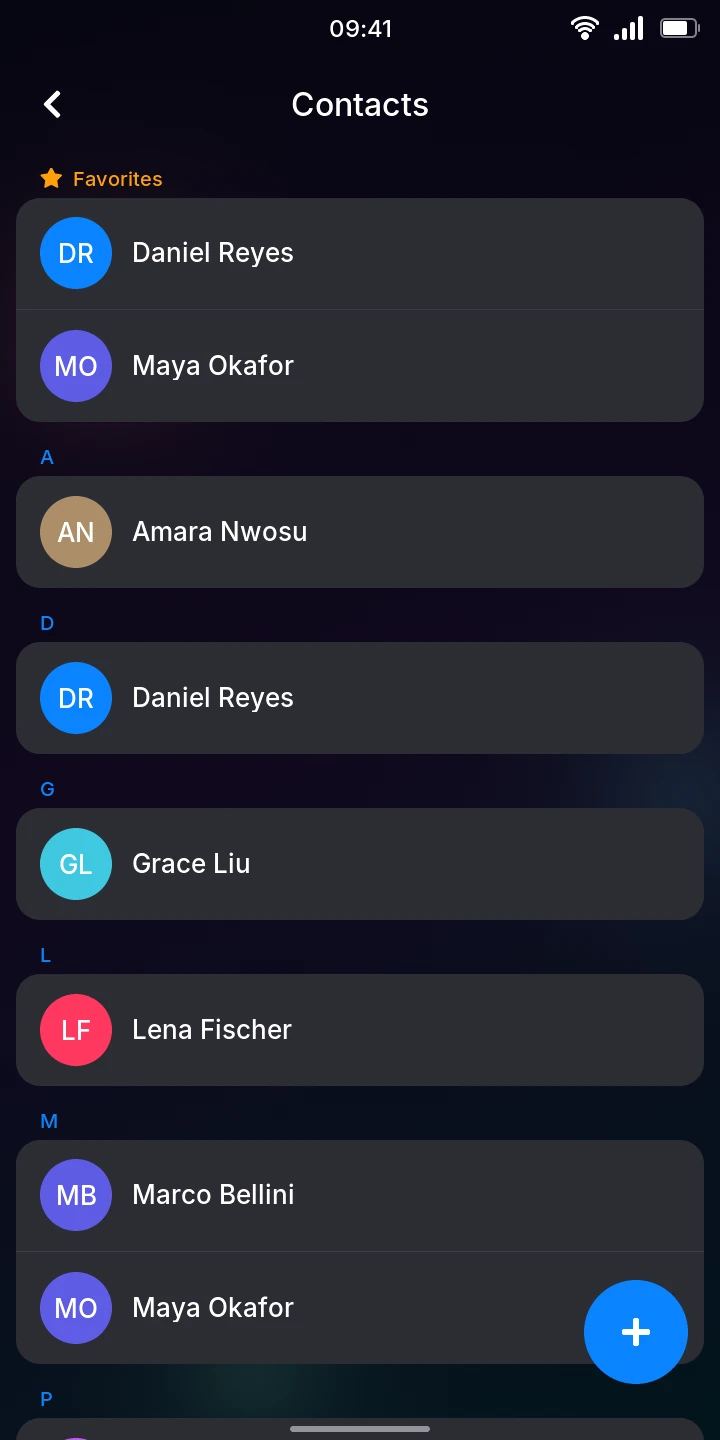
Your favorites come first, under Favorites, then everyone (favorites too) in alphabetical order, under the first letter of their name. Names that do not start with a letter from A to Z (a number, a symbol, an accented letter) are under #, at the end. The number of contacts is at the bottom of the list.
Each person has a colored circle with their initials: the first letters of their first and last names.
Add someone
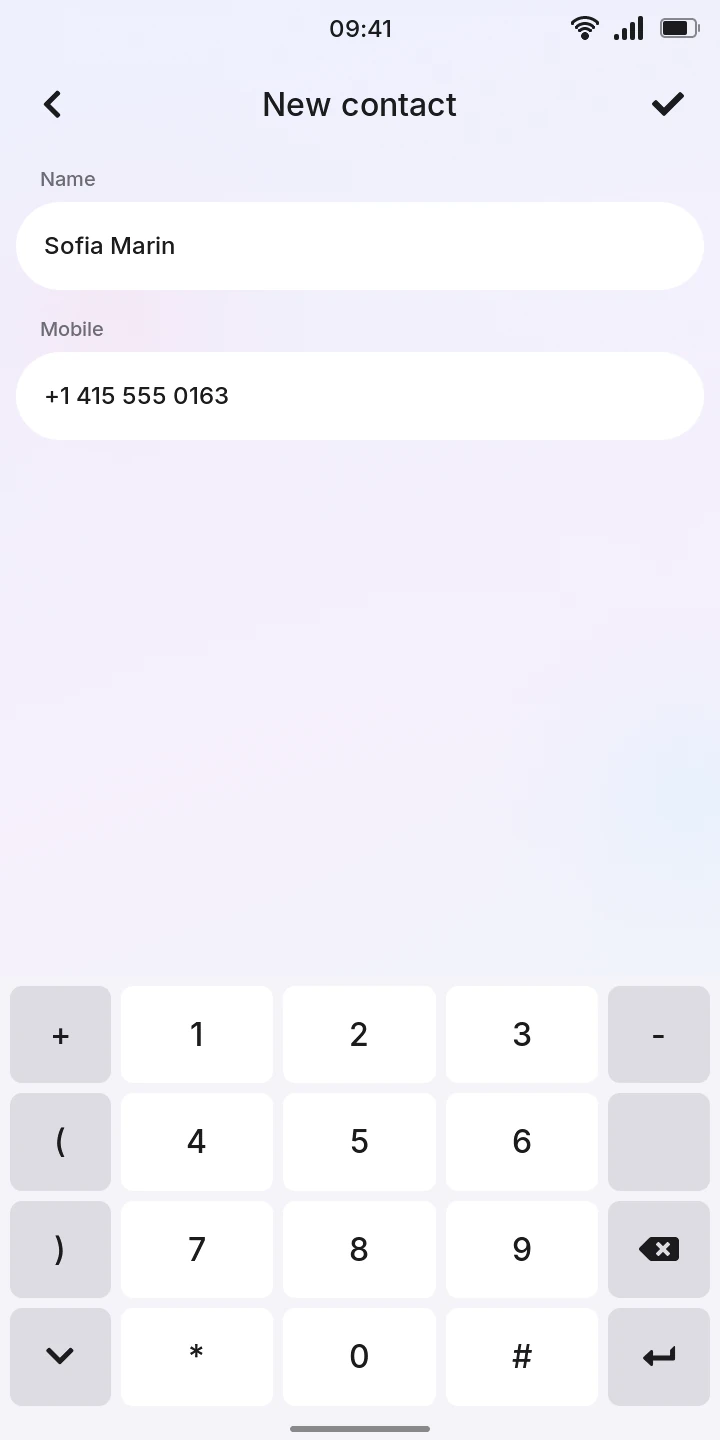
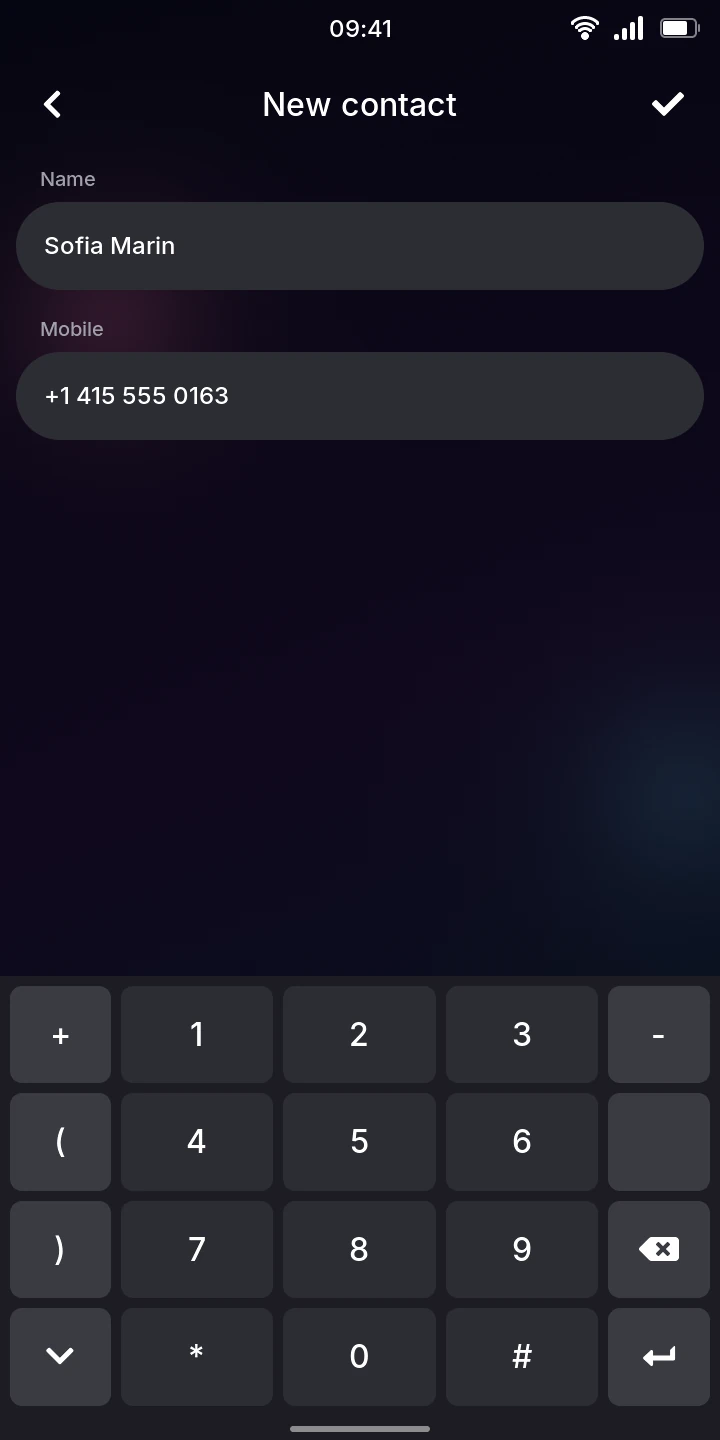
- Tap the round button at the bottom right. New contact opens with the keyboard.
- Type the name in Name, then press Enter.
- Type the number in Mobile. The keyboard is now a dial pad: digits, +, *, #, brackets, dashes and spaces.
- Tap the check mark at the top right, or press Enter, to save.
Both are needed: when the name or the number is missing, the phone vibrates and the keyboard opens on that field. To leave without saving, tap the back button at the top left.
You can also save a number from your recent calls: in Phone › Recents, tap the button of a number that is not in your contacts.
To save someone from a QR code (a contact card shared by another phone), point the Camera at it and tap the Add button: New contact opens with their name and number filled in, ready to save. When their number is already in your contacts, their page opens instead.
A contact's page
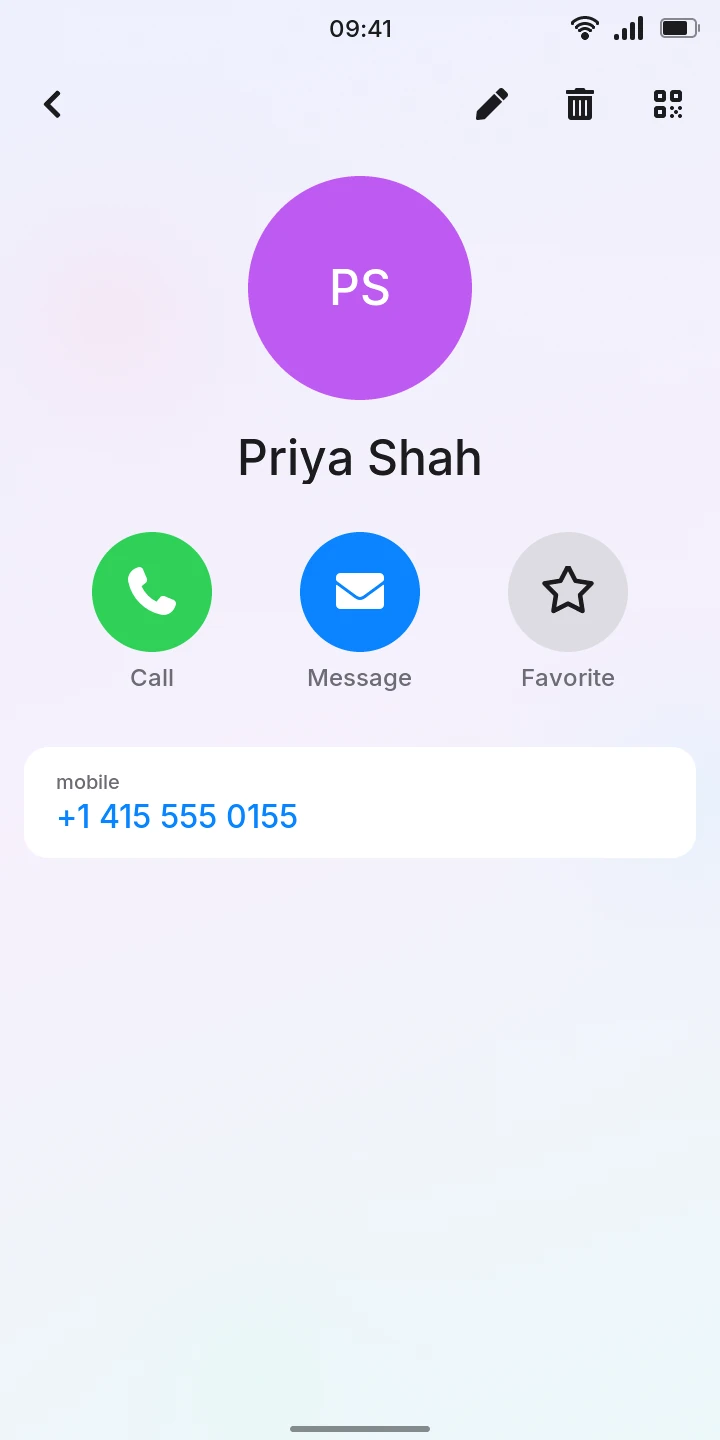
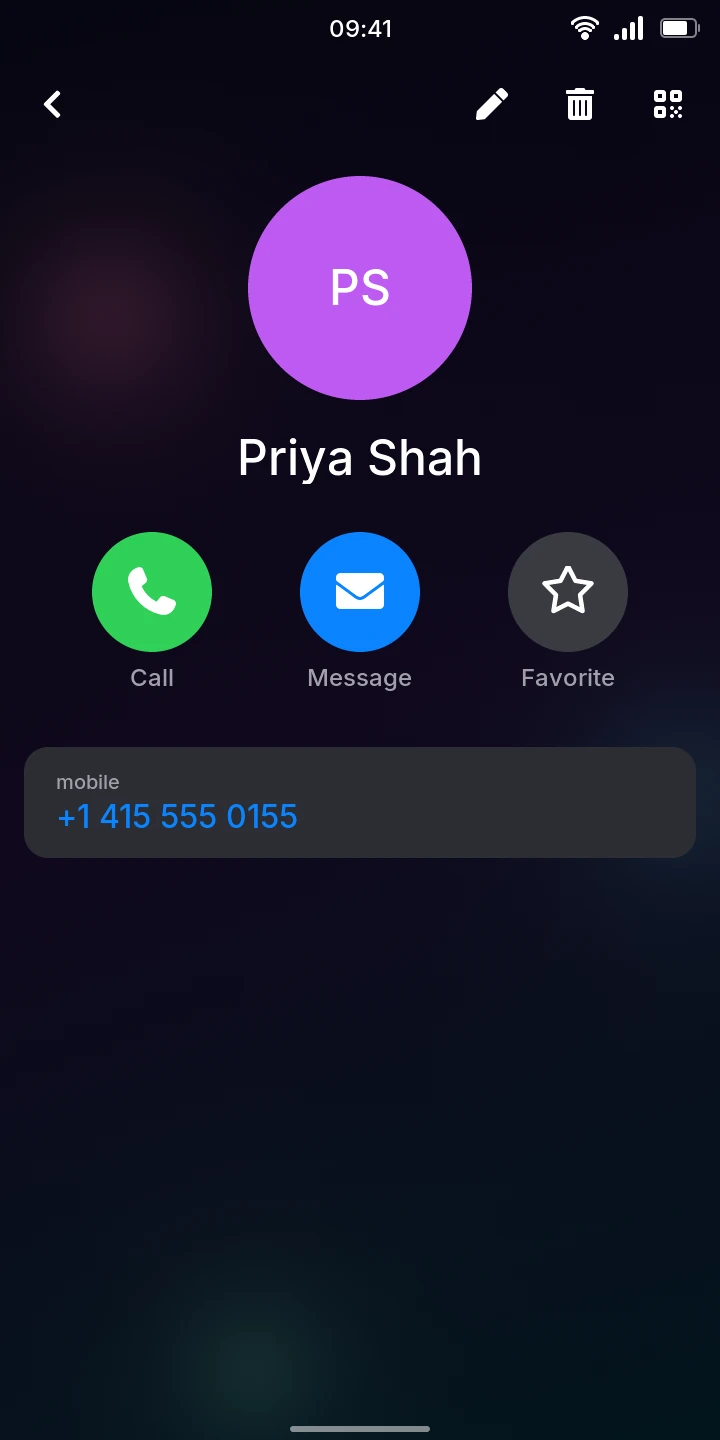
Tap someone in the list to see their page:
- Call calls them (see Phone: calls do not connect yet).
- Message opens your conversation with them in Messages.
- Favorite adds them to the favorites, at the top of the list: the star fills in, in orange. Tap it again to take them out.
- Tapping the number puts it in the Phone's Keypad, to change it before calling.
Change or delete a contact
To change the name or the number:
- Open the contact.
- Tap the edit button at the top right. Edit contact opens.
- Tap the field to change and type.
- Tap the check mark at the top right to save, or the back button to leave it as it was.
To delete someone:
- Open the contact.
- Tap the trash button at the top right.
- Tap Delete contact, or Cancel to keep them.
Their conversations and calls stay, shown with the number instead of the name.
Share a contact
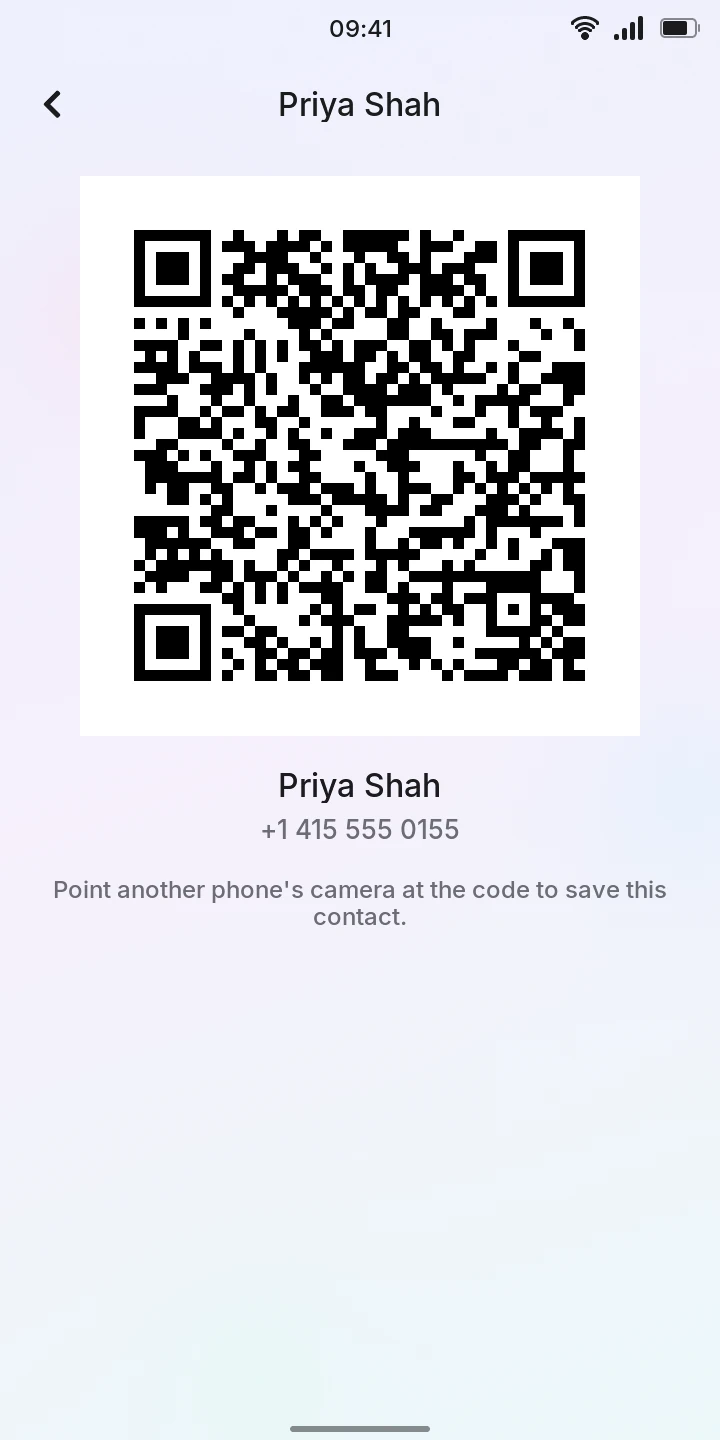
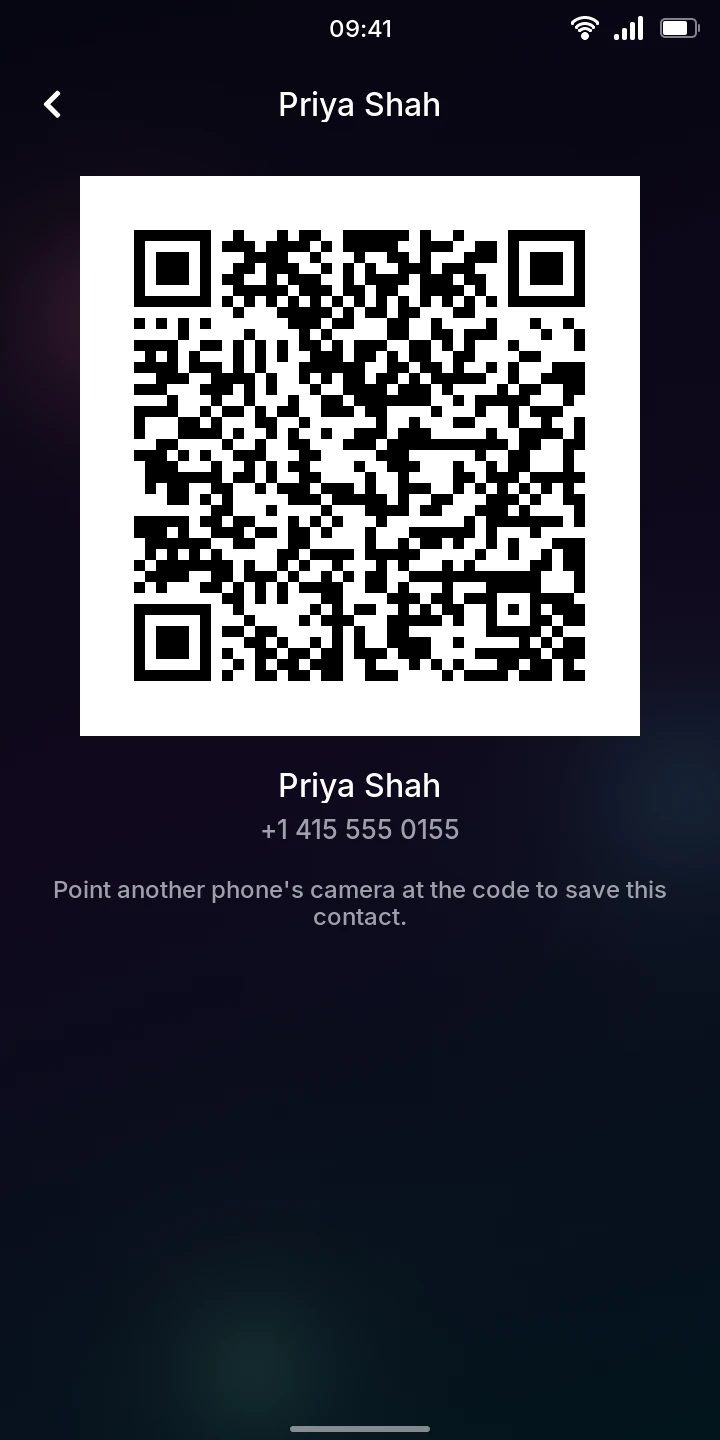
To give someone a contact without typing it:
- Open the contact.
- Tap the QR code button at the top right. A QR code appears, with the name and number under it.
- The other person points their phone's camera at the code, which offers to save the contact (most phones do this from the camera app).
Numbers written differently
A number matches a contact even when it is written another way: with spaces or dashes, or with the country code or without it (+44 7700 900456 and 07700 900456 are the same number). So the name shows in Phone and Messages whichever way the number came.
Limitations
- One number per person, a mobile number. There are no email addresses, photos or other fields.
- Contacts cannot be imported from another phone or from the SIM card yet, other than one at a time from a QR code.