Books
Books reads ePub books, a chapter at a time, and remembers where you stopped in each one.
Putting books on the phone
Books lists the ePub files (.epub) in the phone's books folder, /var/lib/books. Copy
them there from a computer. With no books yet, the app says No books and
Copy ePub files to /var/lib/books.
Books protected with DRM cannot be read: only DRM-free ePub files work, such as those from Project Gutenberg or Standard Ebooks.
The library
Open Books from the menu (under Internet & media).
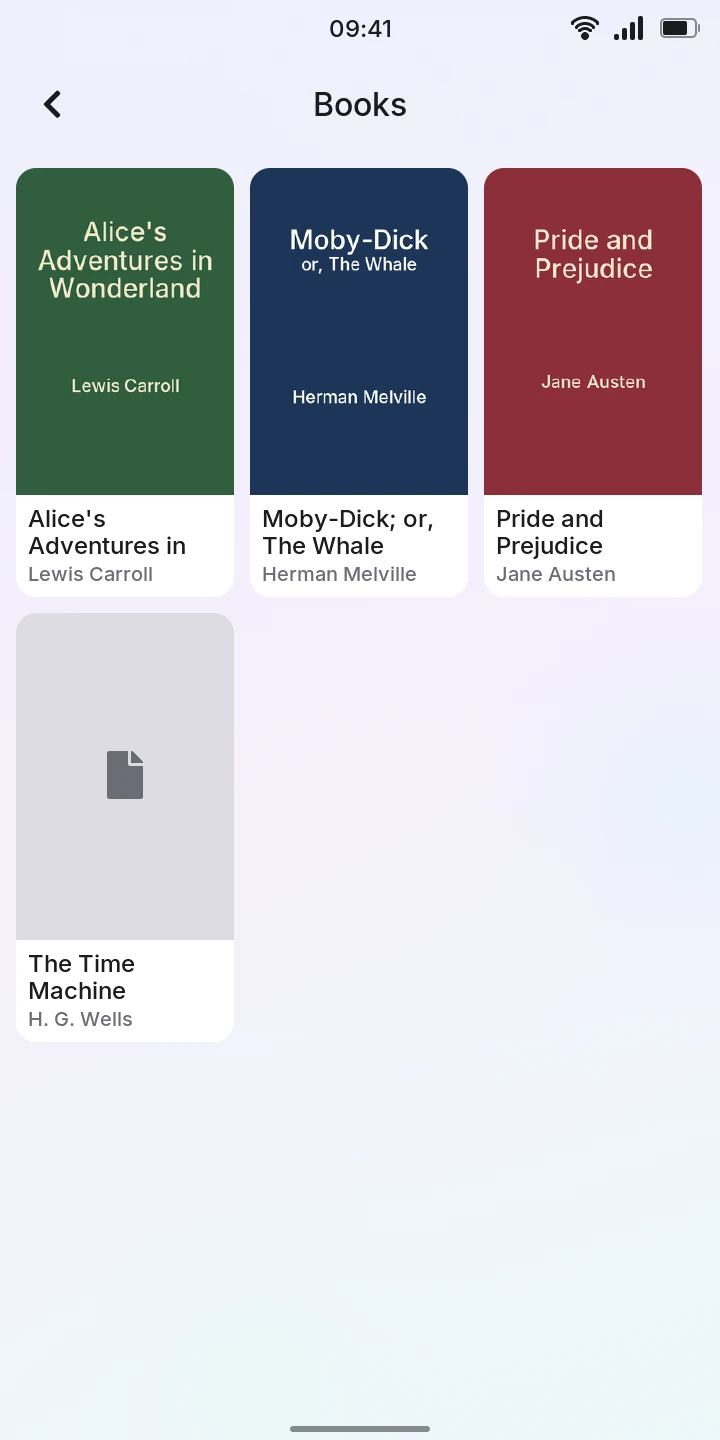
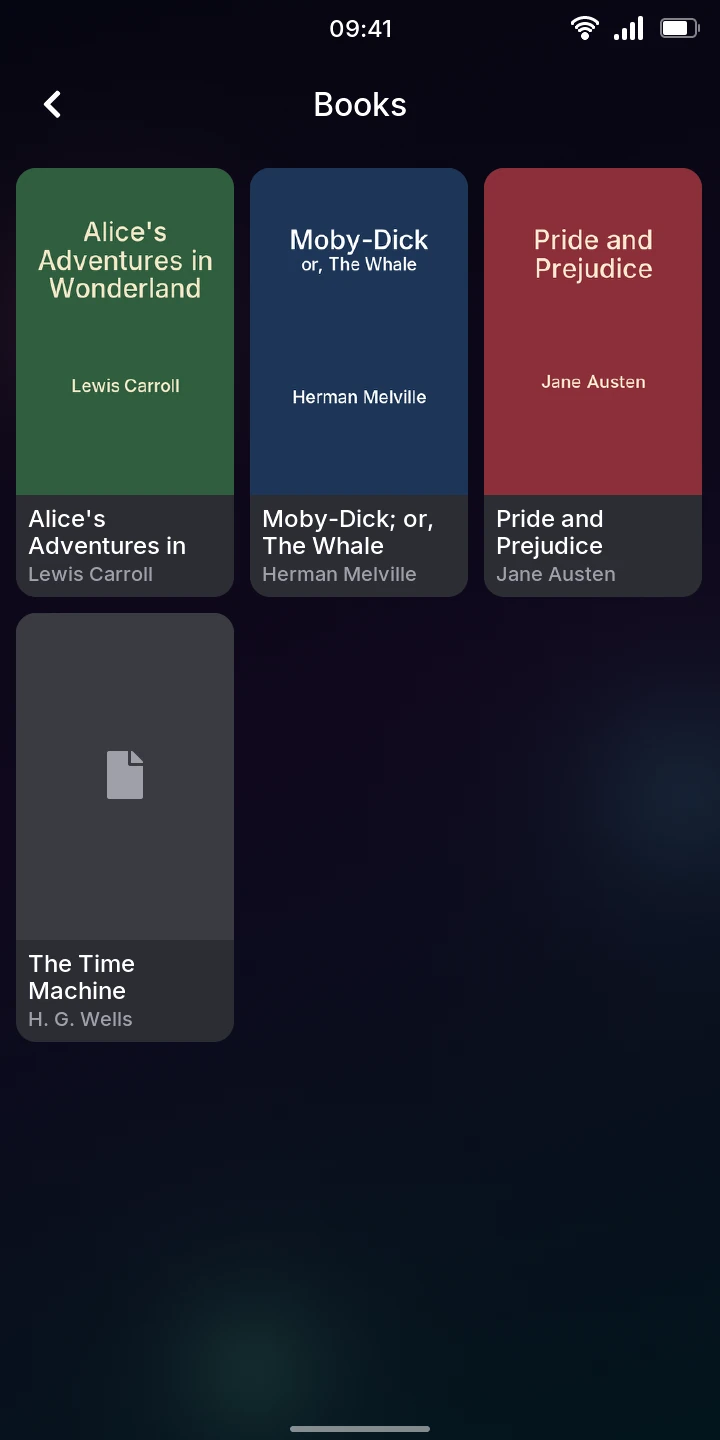
Each book shows its cover, title and author, in alphabetical order of title. The covers come in a moment after the list. A book without a cover shows a gray one with a page symbol instead. A file that is not a readable ePub shows its file name and Cannot be read, and does not open.
The app reads the folder each time you open it, so a new book shows the next time you open Books.
Reading
Tap a book to open it. It opens where you stopped last time, or at its start.
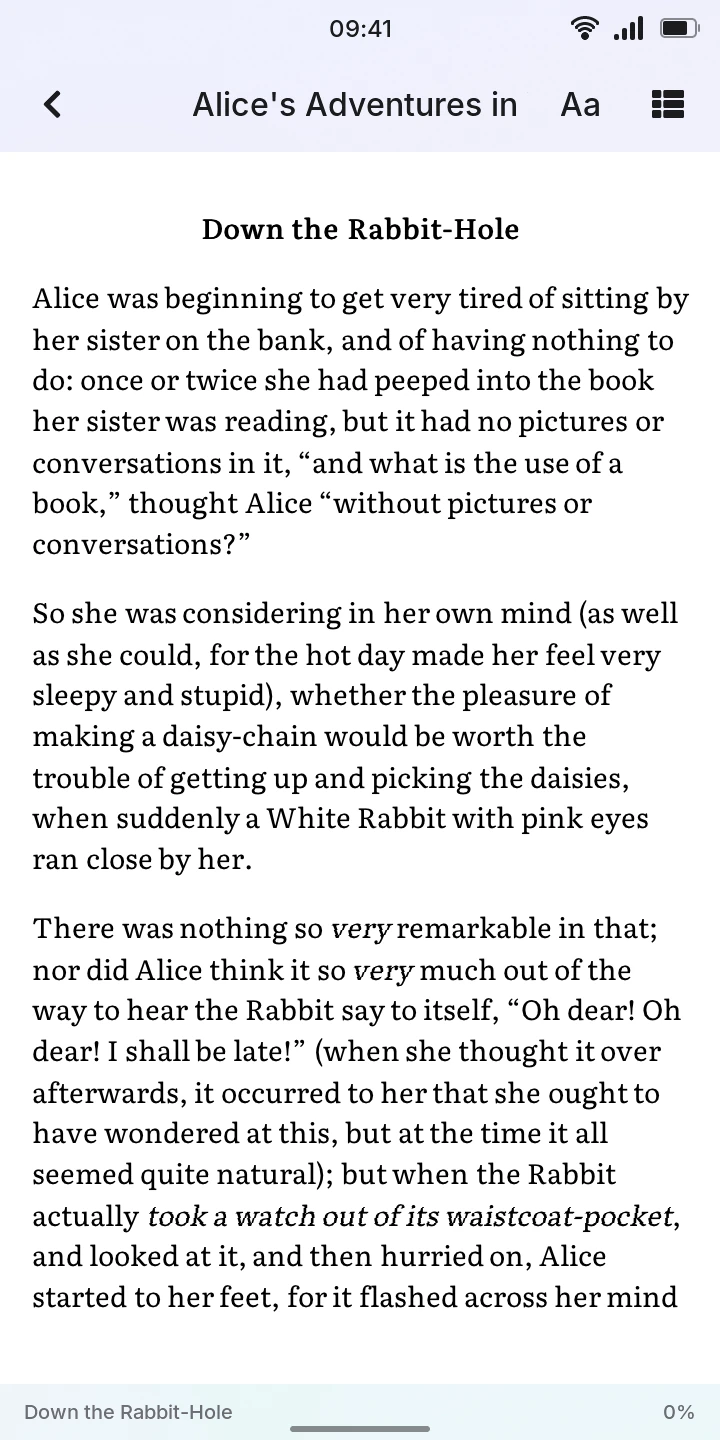
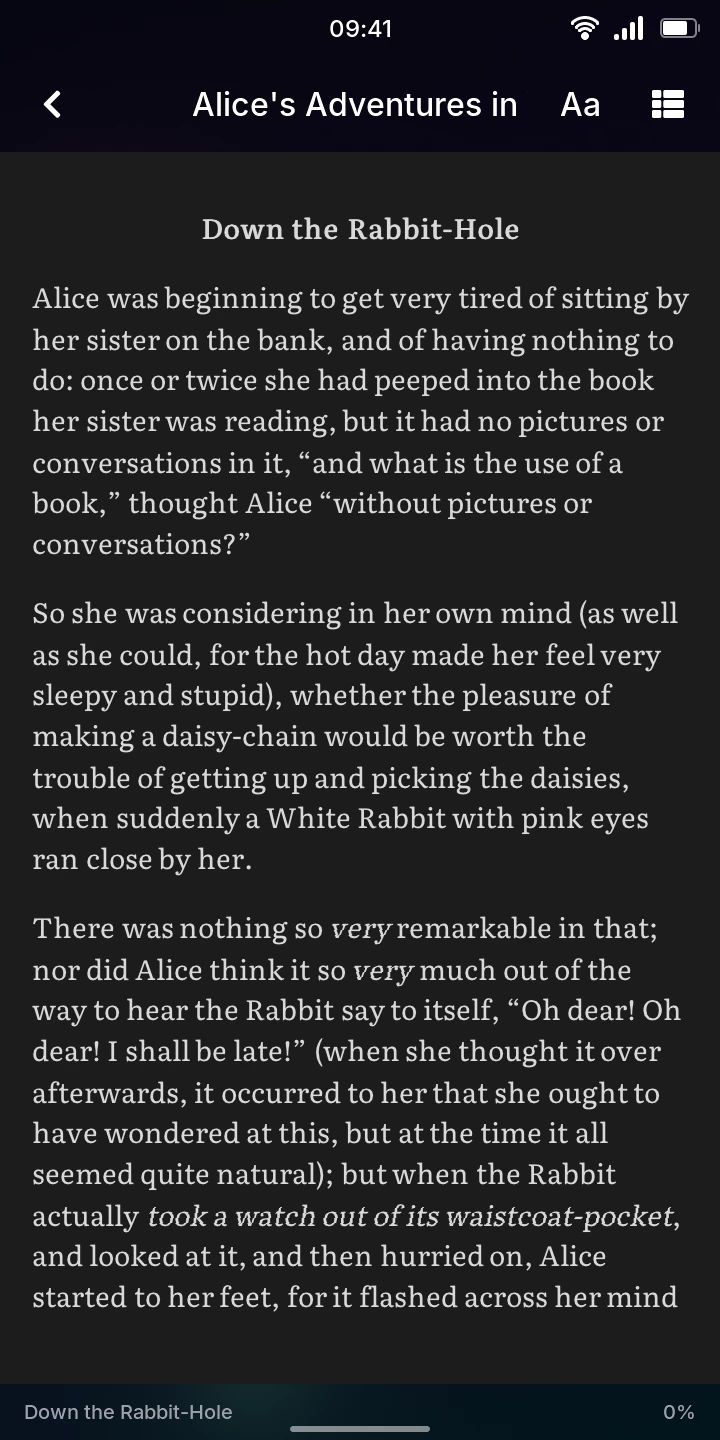
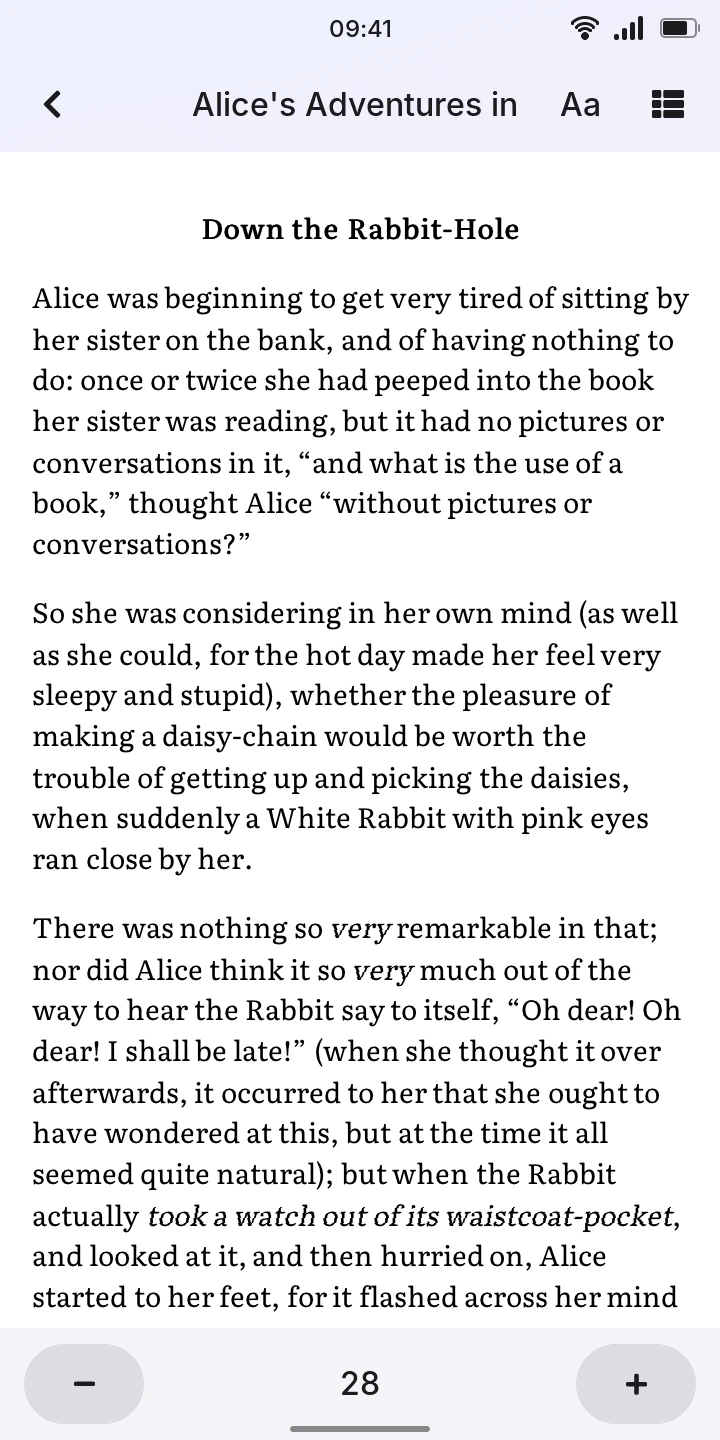
The book is shown a page at a time. Pages end between two lines, so no line is cut in half.
- Swipe left, or tap the right two thirds of the page, for the next page. At the end of a chapter, this goes to the start of the next one.
- Swipe right, or tap the left third, for the previous page, into the end of the previous chapter from the start of one.
- The page follows your finger while you drag it: let go before a quarter of the way and it stays.
- Tap a link in the book (a table of contents inside the book, a note) to go there. Links to web pages do nothing.
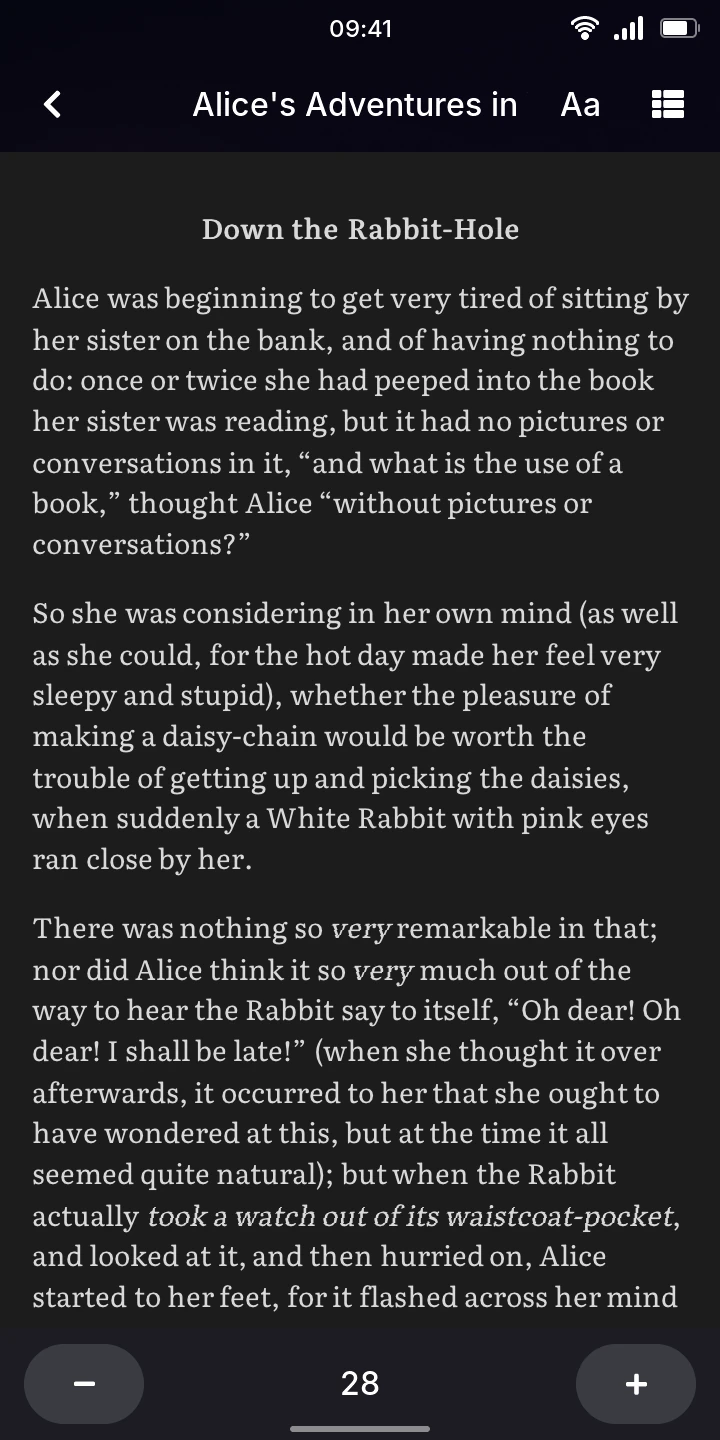
Pages follow the phone's theme (Settings › Display): white in the light theme, dark gray with light text in the dark one. In the dark theme, the book's colors are turned as light as they were dark (a dark red heading becomes a light red one). Black and white drawings, such as engravings, get light lines on the dark page; photos and pictures in color stay as they are.
The line under the page shows the chapter you are in and how far into the book you are, in percent.
Your place is saved as you read, when you leave the book and when you change chapters.
Text size
Tap Aa at the top right for the text size: a bar at the bottom of the page shows the size, with for smaller text and for larger. The page is laid out again at the new size, at the place you were reading (it shows Loading... meanwhile). Tap Aa again to hide the bar.
The size is kept for every book. There are twelve sizes, from 20 to 48, and 28 to start with.
Contents
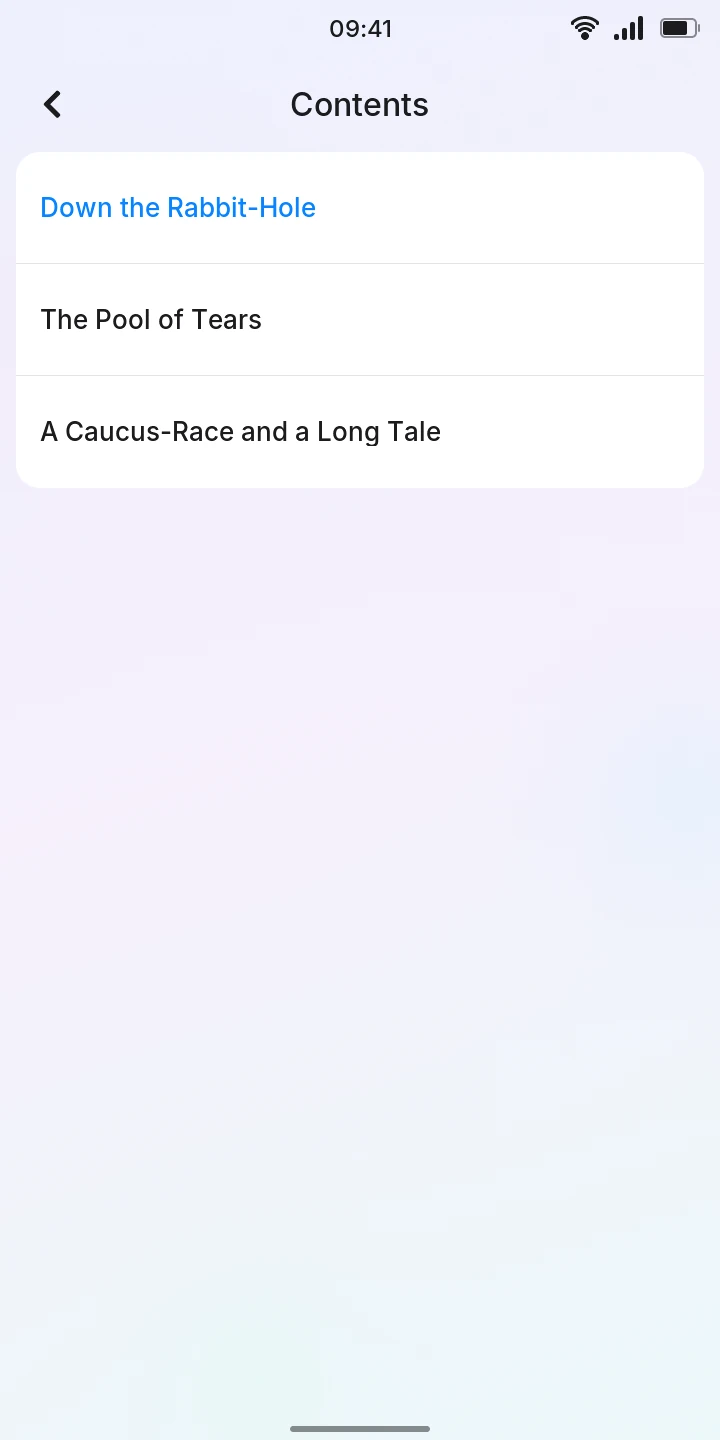
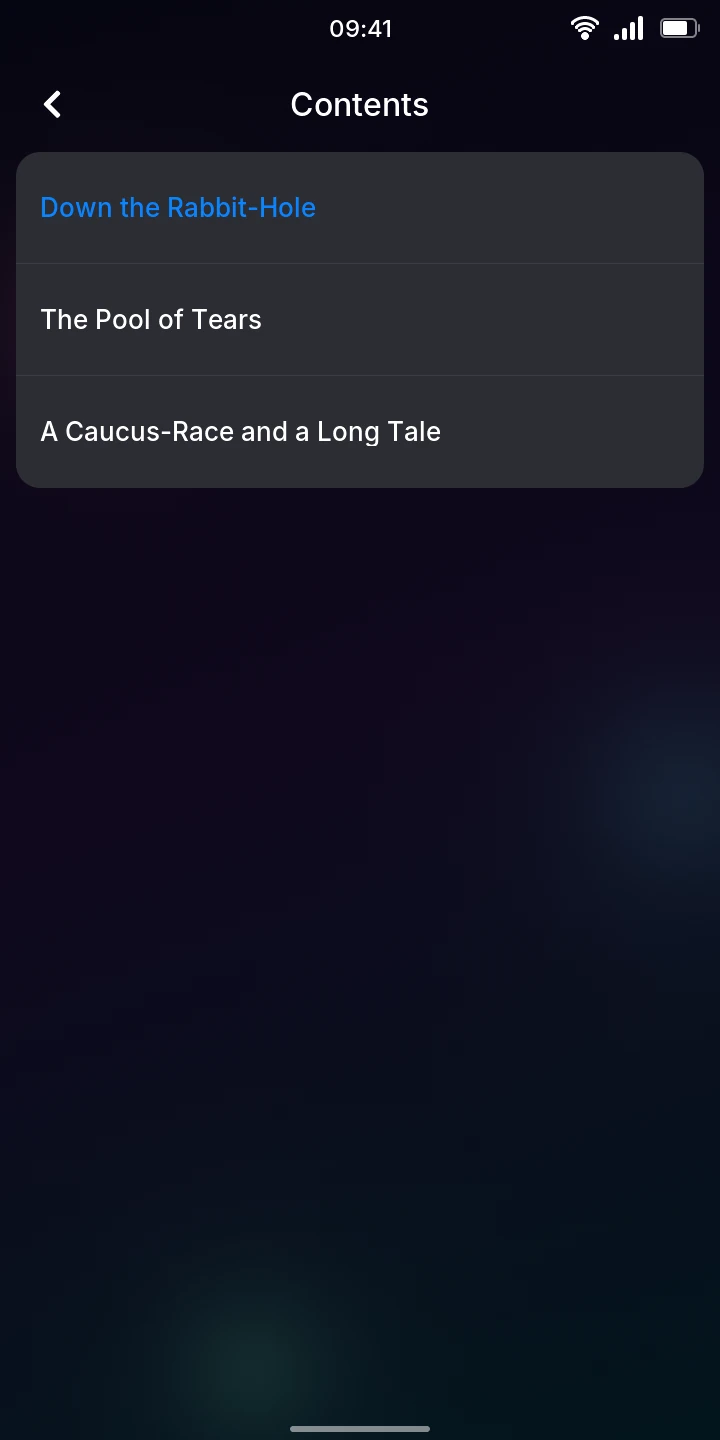
Tap the contents button at the top right for the book's table of contents. The chapter you are in is in blue. Tap a chapter to go to its start.
A book without a table of contents shows No contents: page through it instead.
Limitations
- All the text is in one serif typeface (Literata) at the size you chose, headings too: the book's fonts and text sizes are not used. Bold and italic text are drawn from the same letters, thickened or slanted.
- Opening a book, or going into another chapter, can take a moment when the book keeps several chapters together (about two seconds for The Great Gatsby from Project Gutenberg): the page shows Loading... meanwhile.
- Images in SVG are not shown, except for covers made of a single picture.