Tasks
Tasks is a list of things to do, which you tick off as you do them.
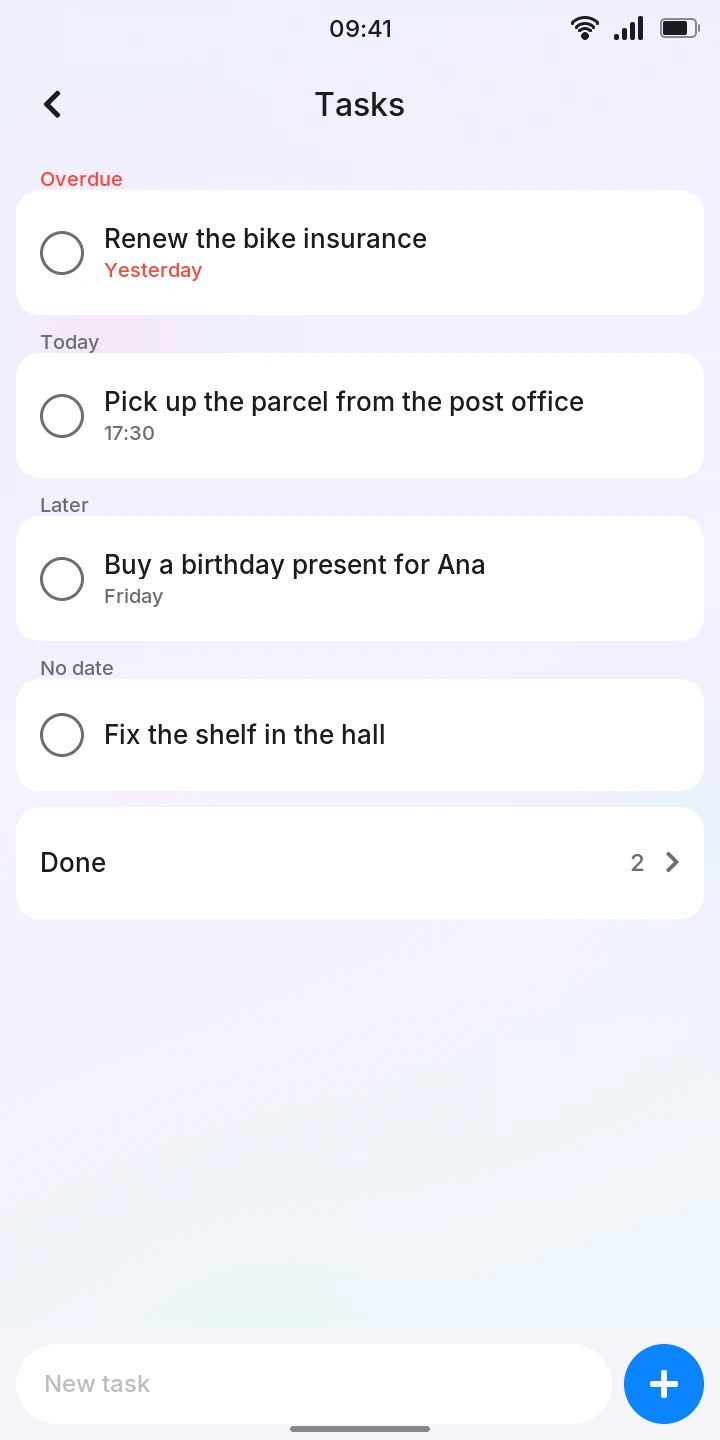
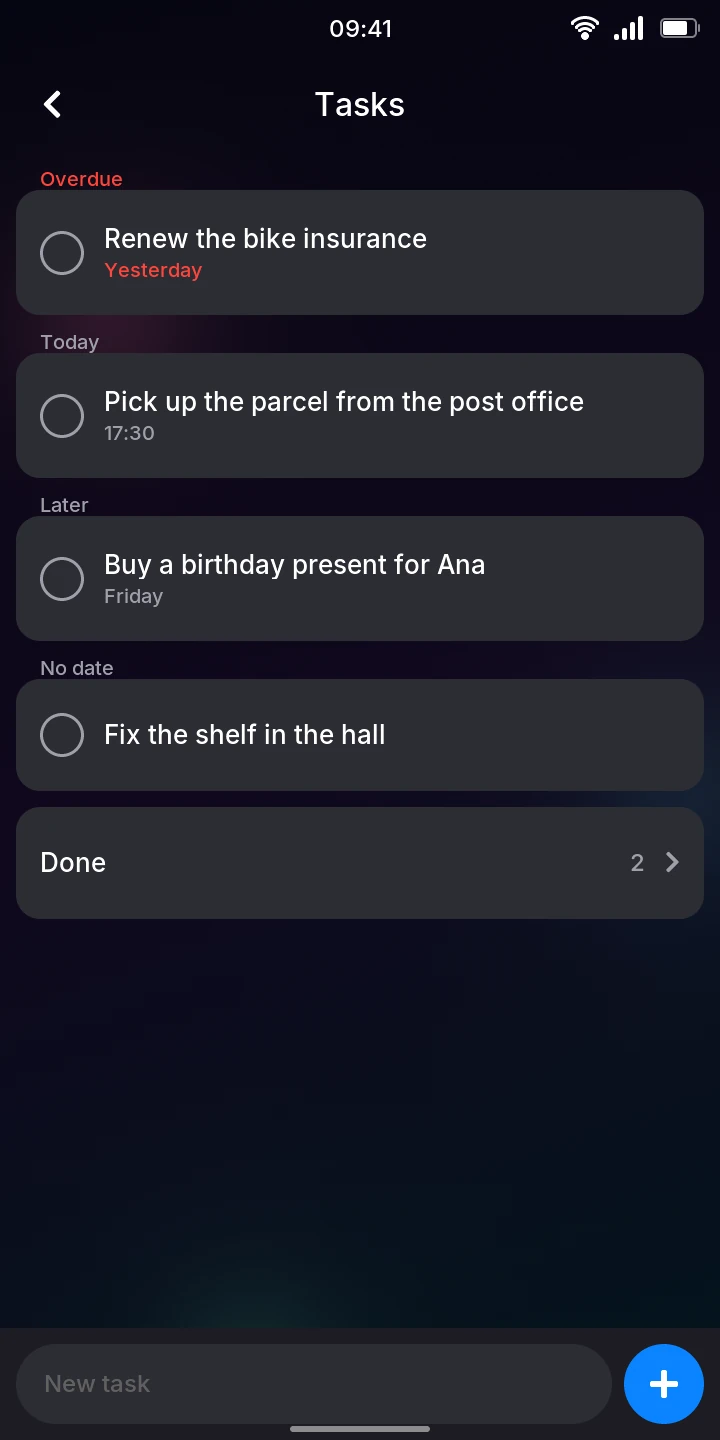
The tasks to do come first, grouped by when they are due:
- Overdue, in red: their day has passed, or their time today has.
- Today and Tomorrow: a task there shows its time, if it has one, under its title.
- Later: the days after tomorrow, each task with its date.
- No date: the tasks without one, in the order you added them.
In each group, the tasks due first come first, and a day's tasks without a time come before those with one. While no task has a due date, the list has no headings. The tasks you ticked off are behind the Done row at the end, with how many there are.
Add a task
- Tap New task at the bottom. The keyboard comes up, with a row of dates above the field.
- To give the task a due date, tap Today or Tomorrow, or Pick… to choose a day of the month. Leave No date for none.
- Type the task.
- Press Enter on the keyboard, or tap the plus button beside the field.
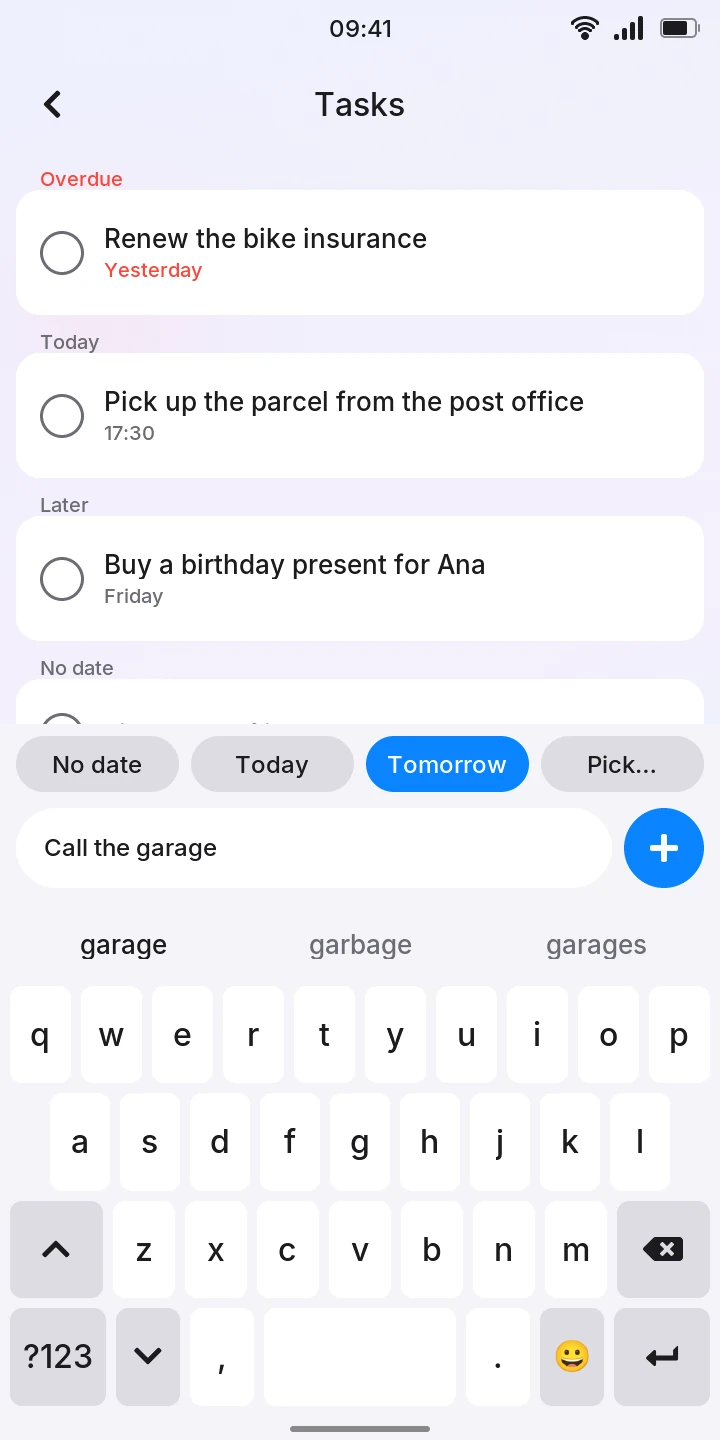
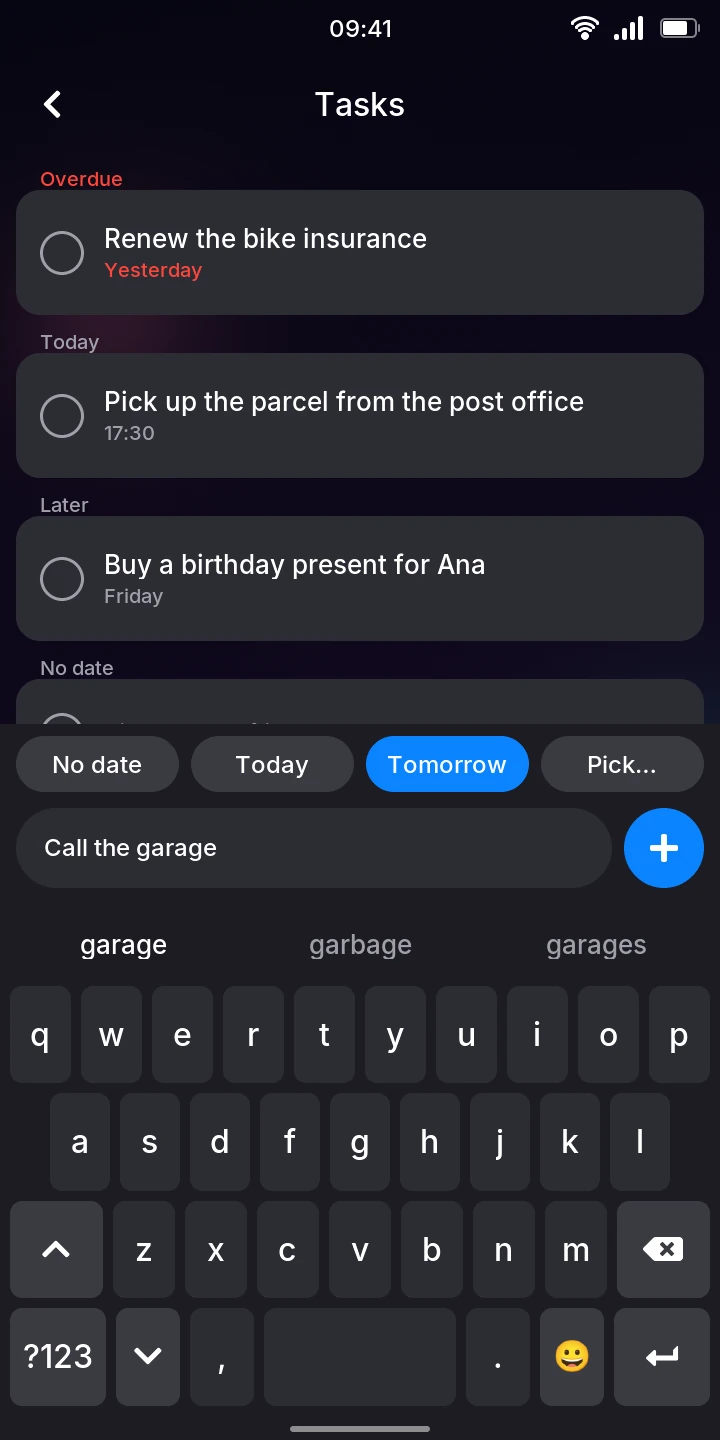
The keyboard stays up, so you can type the next task right away. The date you chose stays chosen for the next tasks too, until you tap another one or leave Tasks. When you are done, hide the keyboard with its key.
Tick off a task
Tap the circle before a task: it fills with a check mark. The Done row at the end counts it at once, and the task stays where it is for a few seconds, then goes. Ticked by mistake? Tap the circle again before it goes: the task stays.
See and clear the tasks done
Tap Done at the end of the list. The tasks you ticked off are there, the most recent first, each with when you did it (the time today, the day this week, the date before that).
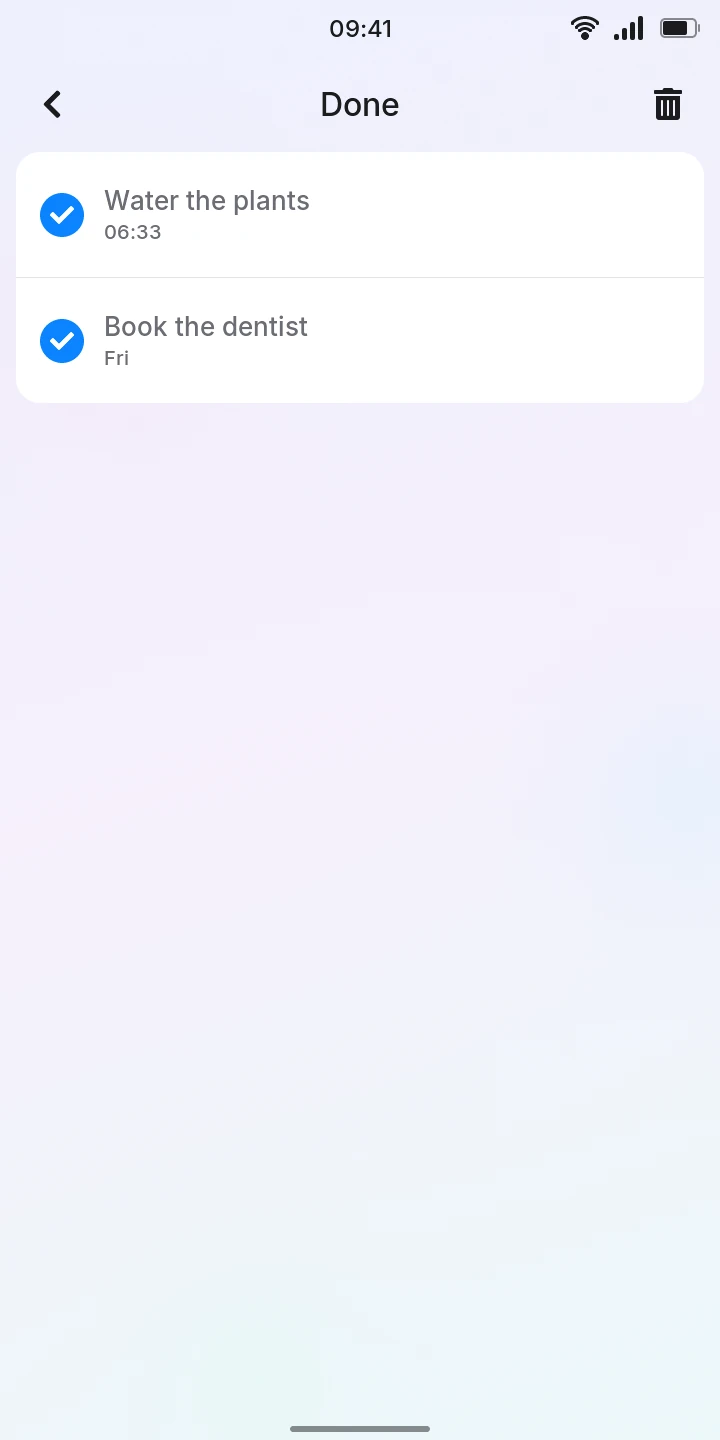
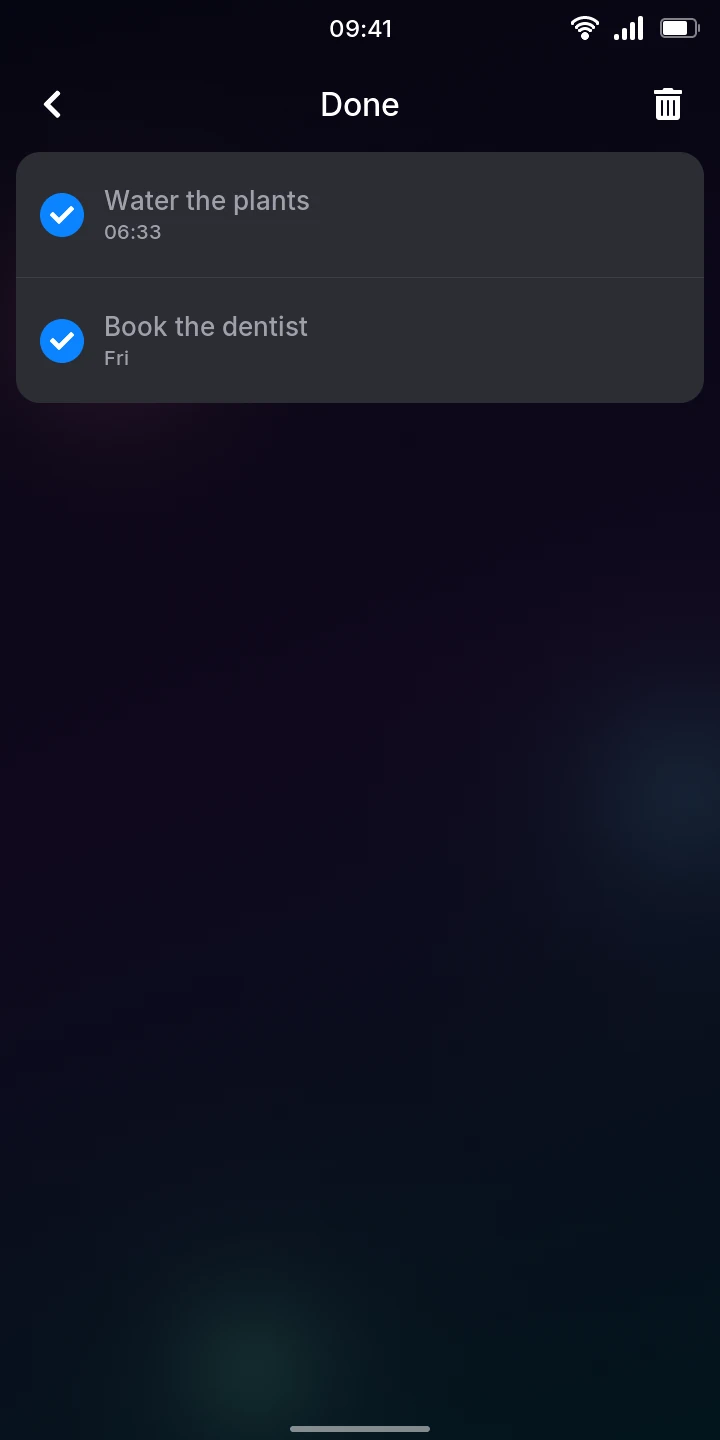
- To put a task back among those to do, tap its circle.
- To delete all the tasks done, tap the bin at the top right, then Delete done tasks, or Cancel to keep them. The tasks to do are not touched.
Change or delete a task
Tap a task's title to open it.
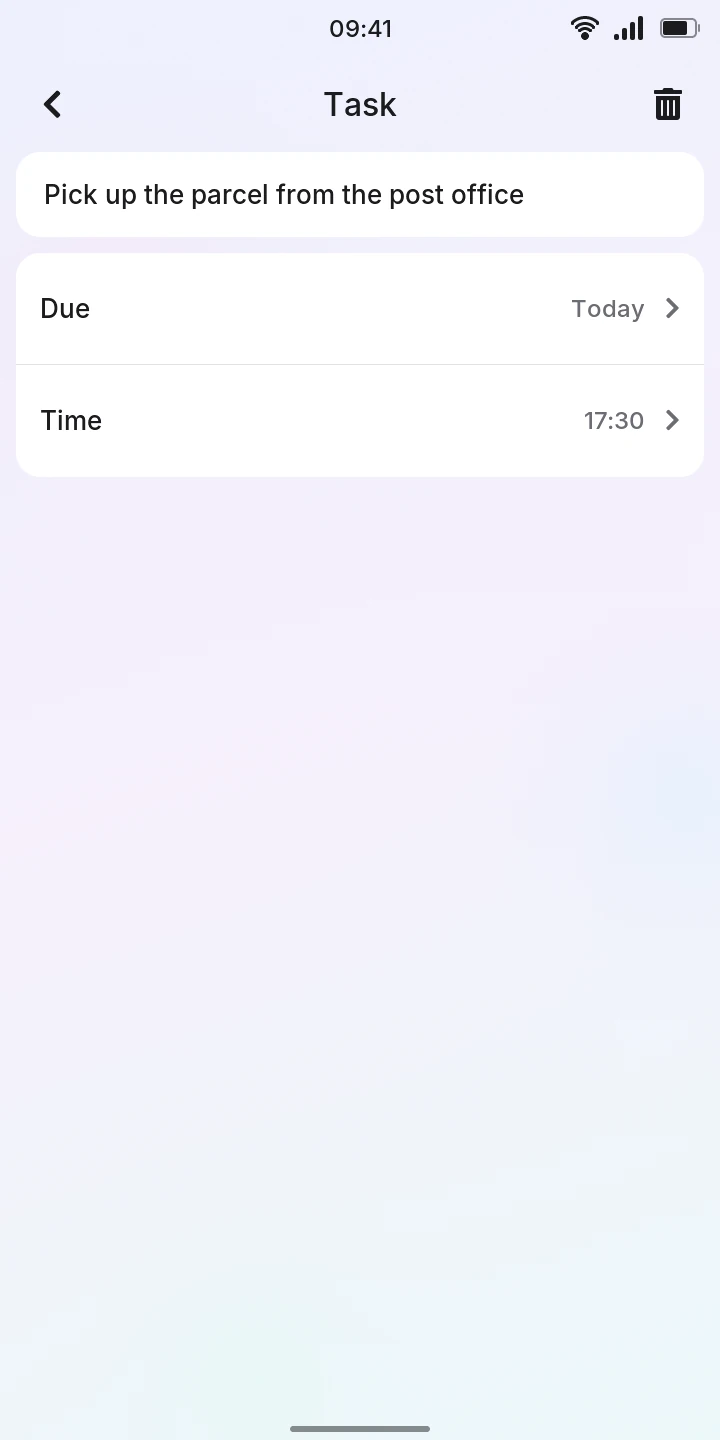
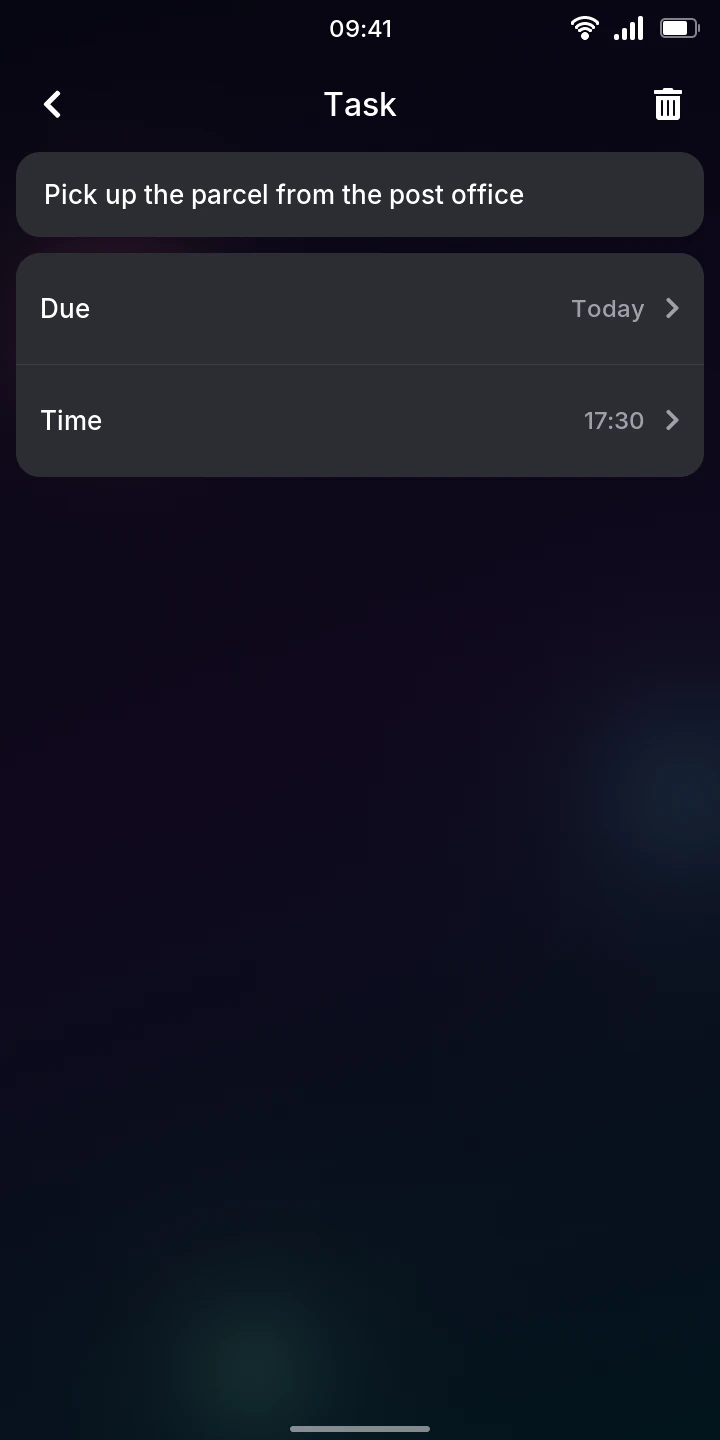
- To change its title, tap it and type. It is saved when you hide the keyboard or go back. A title you empty is not kept: the task keeps the one it had.
- To delete it, tap the bin at the top right, then Delete task, or Cancel to keep it.
Give a task a due date
- Open the task and tap Due.
- Tap Today, Tomorrow or Next week (its Monday), or a day of the month. The arrows, or swiping sideways, show the other months.
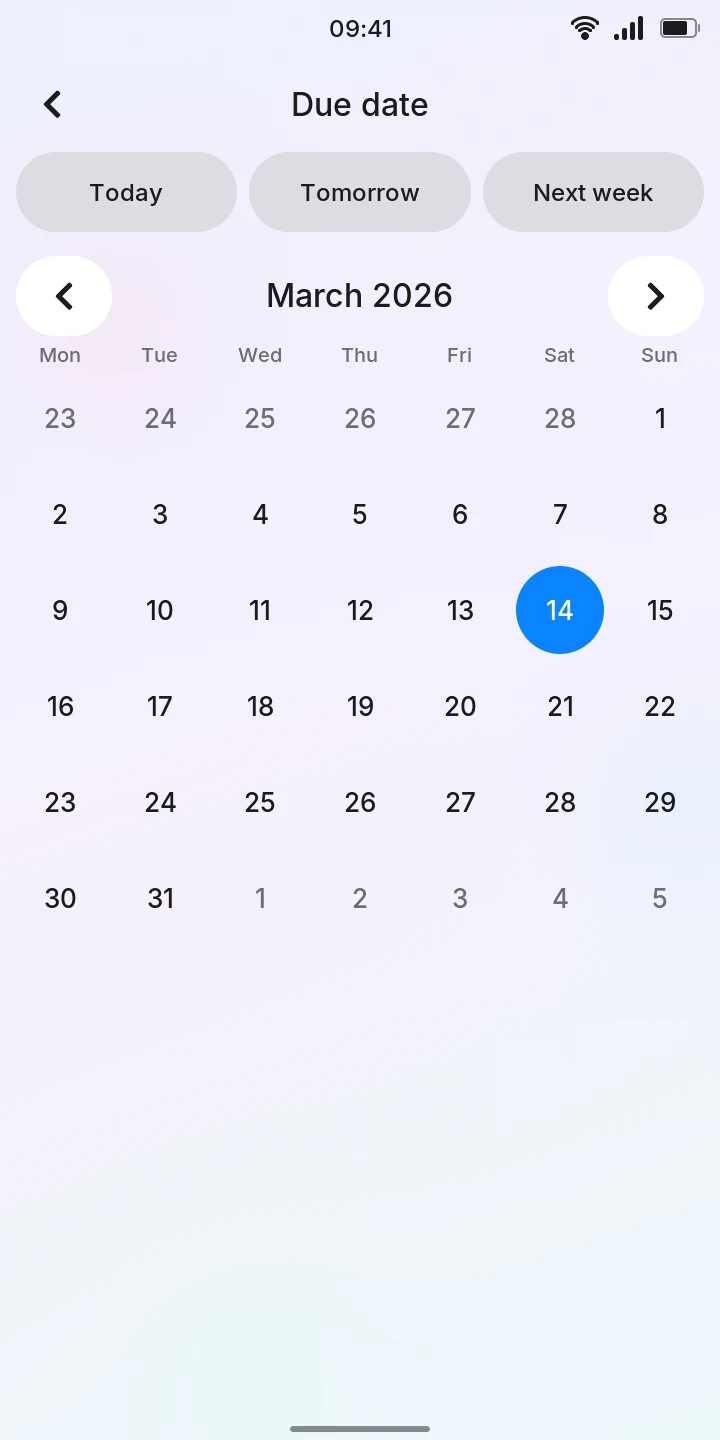
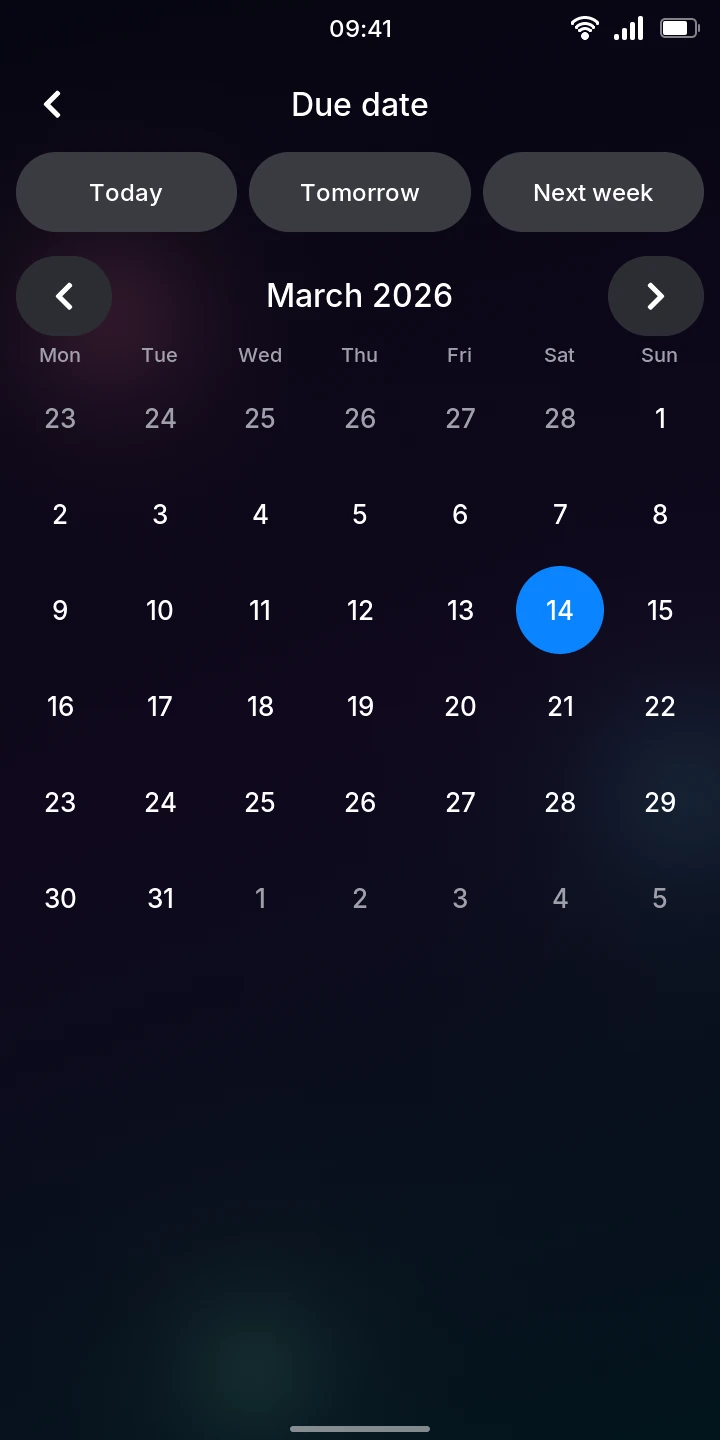
To take the date away, tap Due, then None.
Once a task has a date, you can also give it a time: tap Time, then 09:00, 13:00 or 18:00, or set any time with the and buttons, by quarters of an hour, and tap Set.
Reminders
A task with a date and a time reminds you at that time: the phone vibrates and a banner shows the task at the top of the screen. The reminder stays on the lock screen and in the quick settings until you tap it, which opens the task, or tick the task off. A task with a date but no time does not remind you.
If the phone was off at that time, or phone-ui was restarting, the reminder comes as soon as it is back. Each task reminds you once; give it another date or time and it reminds you again. Setting a time that has already passed today does not remind you.
The phone wakes from sleep for a reminder: the screen lights with the reminder on the lock screen, and if you leave it there untouched, the phone goes back to sleep after 10 seconds.
Tasks stay on the phone when it restarts and when its software is updated.