Genesis
Genesis plays Sega Mega Drive / Genesis games, and also Sega CD, Master System, Game Gear and SG-1000 ones, with a gamepad on the screen, upright or sideways.
Genesis is not part of the firmware: it is installed separately, and then shows up in the menu under Games.
Games
Genesis comes without games: copy the ones you own to the phone, either way:
- with USB file transfer, into the roms folder
of the Genesis folder: copy the game files themselves (
.md,.gen,.smd,.bin,.sms,.gg,.sg; for Sega CD.cue,.chd,.isoor.m3uwith their files), not zips; - from the computer the firmware was built on:
just roms <files>(zips are unpacked).
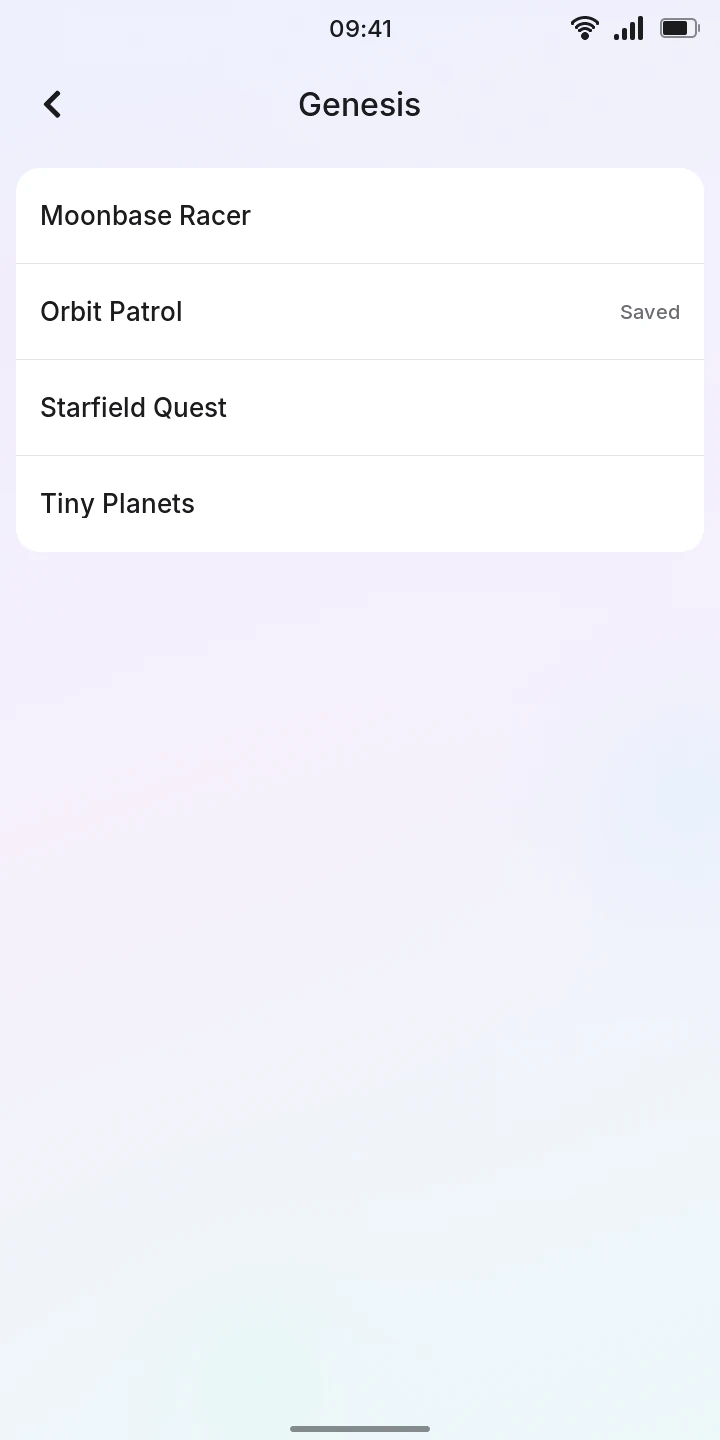
The list shows the games by their file name, without the extension. Pull it down to see games
copied while it was open. A Sega CD game in several files shows once, by its .cue or .m3u.
No games means the folder is empty. Tap a game to play.
Sega CD
Sega CD games also need the console's BIOS, for the game's region: the American Sega CD, the
European or the Japanese Mega-CD. From the computer, just bios <files> recognizes the BIOS
files among the ones given and installs them. With USB file transfer, put the BIOS at the top of
the Genesis folder, named bios_CD_U.bin (America), bios_CD_E.bin (Europe) or
bios_CD_J.bin (Japan). Without the BIOS, the game says Cannot start
this game.
Playing
The game shows at the top, the gamepad under it. Turn the phone sideways for a larger picture: the directions go to the left of it, the buttons to the right.
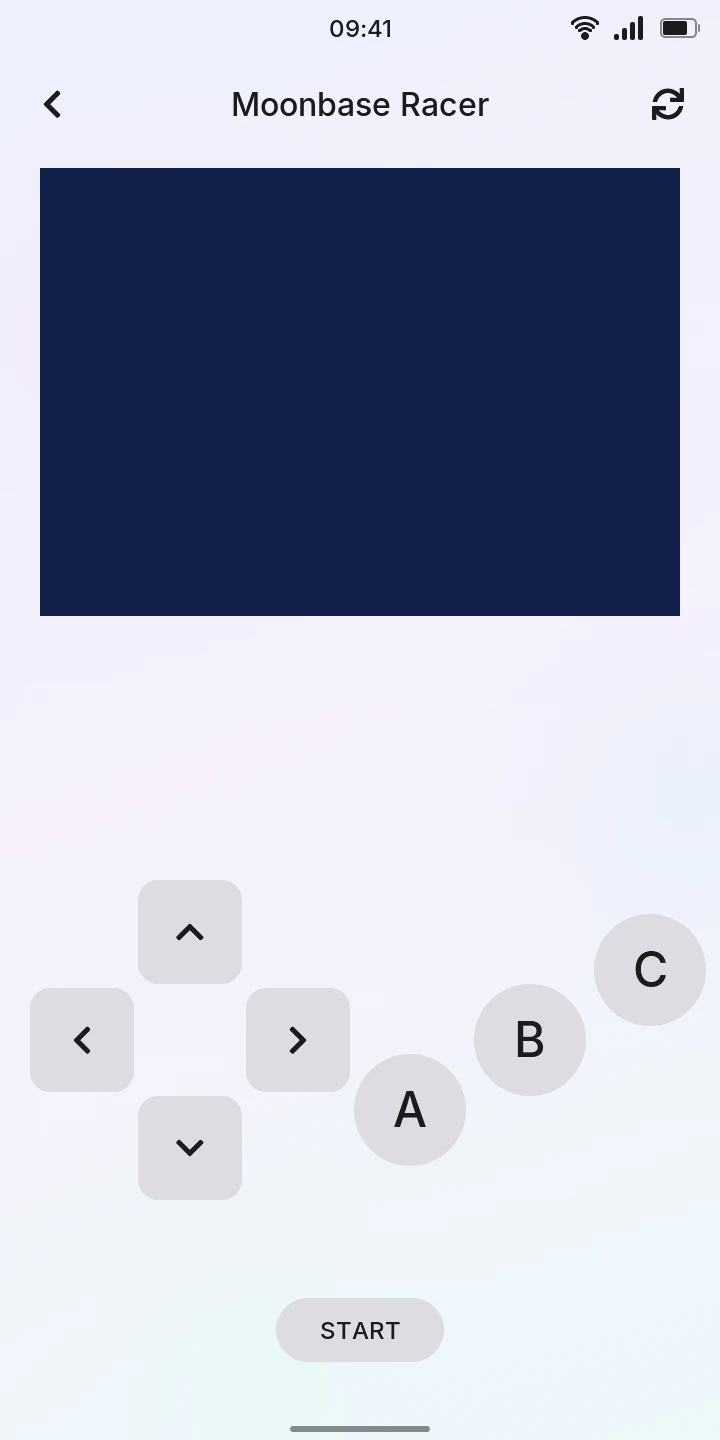
- The direction pad: slide your thumb in any direction, diagonals included; it keeps steering wherever the thumb goes.
- A, B and C: a finger between two of them presses both.
- START pauses most games and starts them from their title screen.
Several fingers work at once, and the keys light up while held. The volume keys set the volume as anywhere else. To start the game over, tap the button at the top: it restarts at once, without asking.
With a game controller
A Bluetooth game controller paired with the phone (see Bluetooth) plays as the Mega Drive's six-button pad, with X, Y, Z and MODE too, for the games that use them. Connect it before or during the game; the screen's keys keep working and light up with it. On an 8BitDo M30 each button is the one printed on it, and Select is MODE. On other controllers, by where the buttons are:
| Mega Drive | Controller | Xbox | PlayStation |
|---|---|---|---|
| A | bottom button | A | cross |
| B | right button | B | circle |
| C | right shoulder (R1) | RB | R1 |
| X | left button | X | square |
| Y | top button | Y | triangle |
| Z | left shoulder (L1) | LB | L1 |
| START | Start | Menu | Options |
| MODE | Select | View | Share |
The direction pad steers, or the left stick pushed past half-way. The Home button (PS on a PlayStation controller, the Xbox button) leaves the game as the back arrow does, saving it.
Saving
Leaving the game with the back arrow saves where you were: the list says Saved next to it, and opening it again goes on from there. Games that save by themselves (battery saves) also keep their saves, written every 30 seconds while you play. The game waits while the phone is locked or asleep, and while the quick settings are open.
Saves stay on the phone when the firmware is updated, in the saves folder of the Genesis folder over USB file transfer.
Limitations
- One saved place per game, overwritten each time you leave it; no save slots, and no way to delete it on the phone.
- On the screen, the three-button gamepad only (X, Y, Z and MODE need a game controller), and one player.
- Restarting cannot be undone: leaving after it saves the new start.
- Without a sound device free (Music playing), the game plays silently.