Telegram
Telegram lets you chat on Telegram from the phone: your chats and groups, their messages and photos, replies, articles in Instant View, and your profile. The phone needs internet (Wi-Fi or mobile data).
Telegram is not part of the firmware: it is installed separately, and then shows up in the menu under Internet & media.
Signing in
Telegram needs API credentials of your own before you can sign in. Make them once, on a computer: sign in at my.telegram.org, open API development tools and create an app. Its page shows an api_id (a number) and an api_hash (32 letters and digits).
Then on the phone:
- Open Telegram from the menu. The first time, it shows Your API credentials.
- Type the api_id, press Enter, type the api_hash, and tap Next. The phone keeps them; if Telegram refuses them later, it asks for them again with Invalid api_id or api_hash. It then shows Your phone number.
- Type your number with the country code, e.g. +40 712 345 678, and press Enter.
- Telegram sends a code, usually as a message in Telegram on your other devices; the app says where it went. Type it in the Code field and press Enter.
- If your account has two-step verification, type your password too.
The phone stays signed in until you log out. Accounts that still need a step the app cannot do (creating a new account, adding an email address) show Not supported yet: finish that in another Telegram app, then sign in again.
Chats, contacts and profile
Once you are signed in, a bar at the bottom switches between Chats, Contacts and Profile. The one shown is in blue. Telegram always opens on Chats.
Chats
Chats lists your chats, newest first: each with its photo (or the first letter of its name), the last message, its time, and in a blue badge how many messages you have not read. Archived chats are behind the Archived chats row at the top. Someone who deleted their Telegram account shows as Deleted Account, with a ghost instead of a photo.
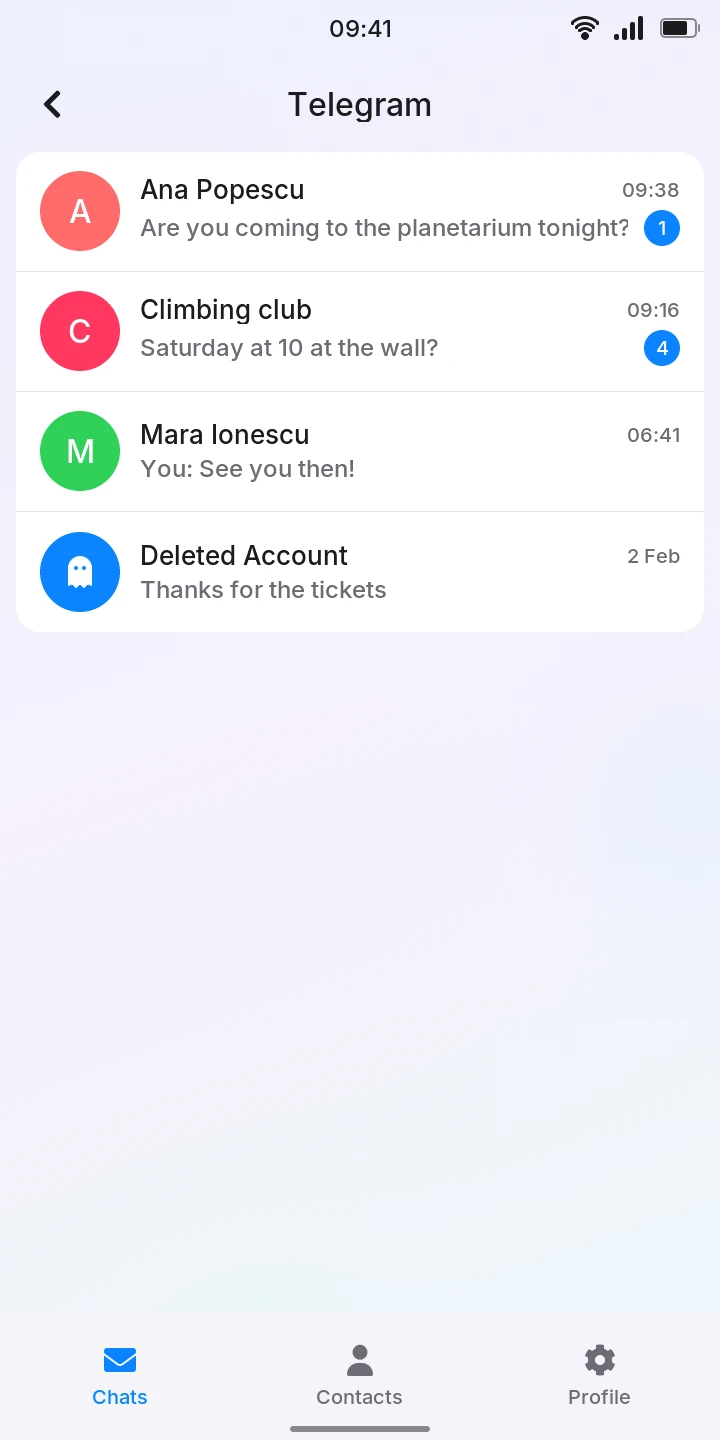
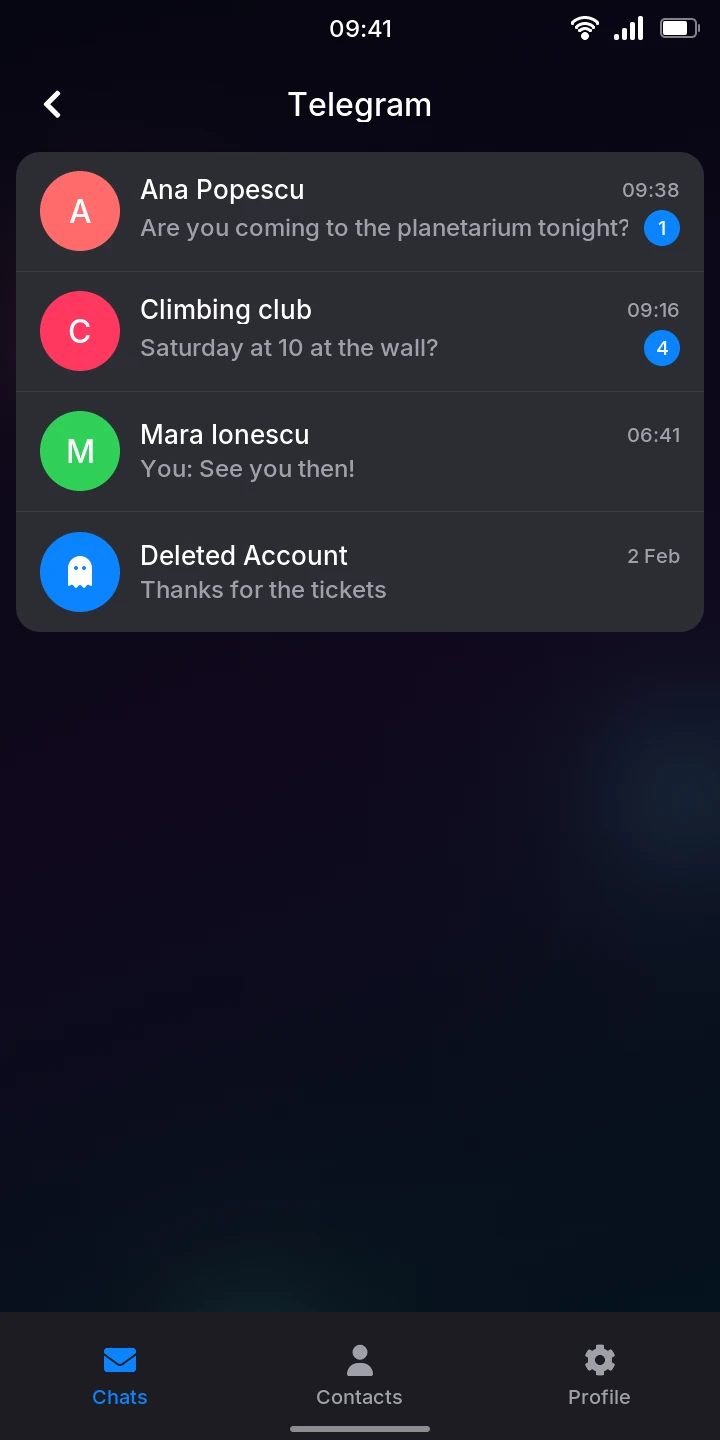
Tap a chat to open it.
In a chat
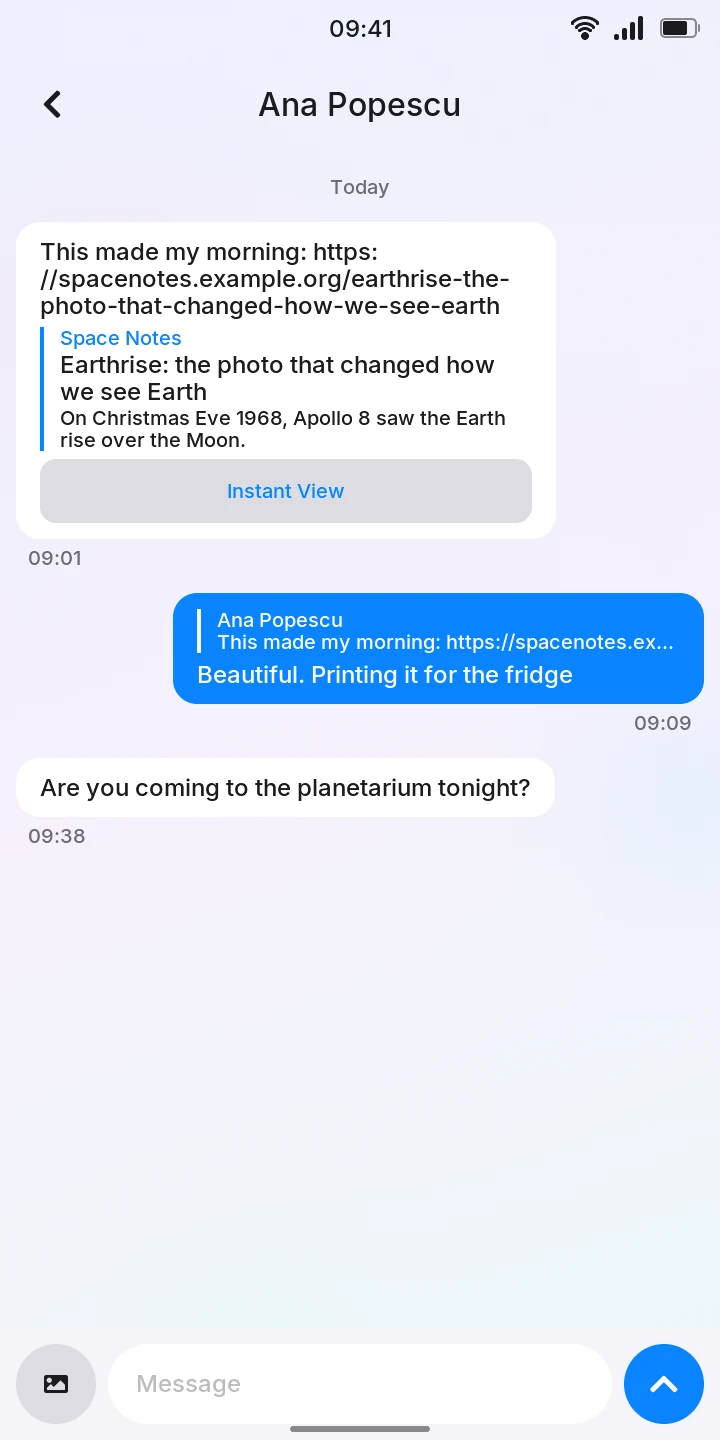
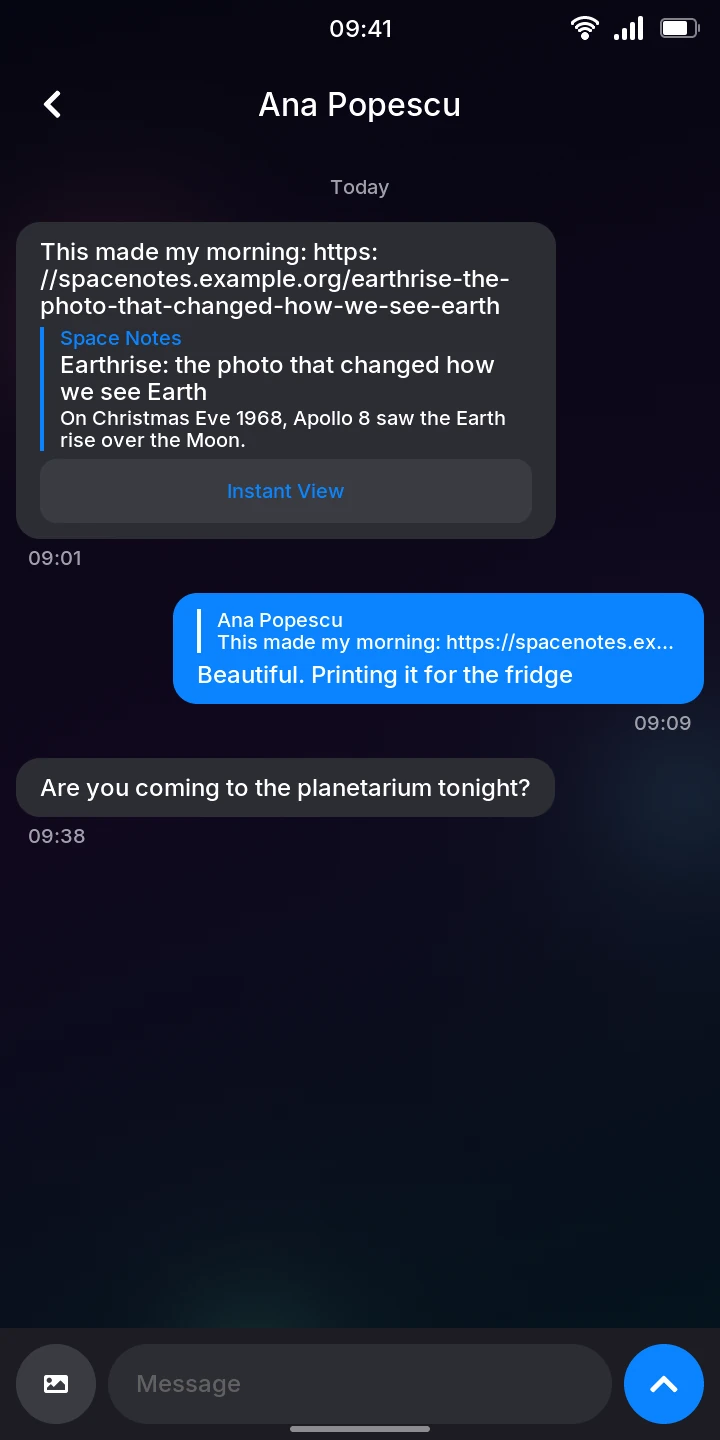
Messages show as bubbles: yours on the right in blue, the others' on the left, with the time under each group of messages sent in the same minute and the day between days. In a group, the sender's name is above their messages. Scroll up for older messages: they load as you go. Photos and stickers show in the chat; tap a photo to see it on the whole screen.
Writing
- Tap the Message field at the bottom. The keyboard opens.
- Type your message.
- Tap the send button, or press Enter.
To send a photo, tap the photo button left of the field and choose one from the Gallery. Screenshots work too.
Replying to a message
To answer a particular message:
- Swipe the message to the left until it follows your finger, then let go. A bar above the message field shows who wrote it and how it starts, and the keyboard opens.
- Type your answer and send it, or send a photo with the photo button.
To reply to nothing after all, tap on the bar.
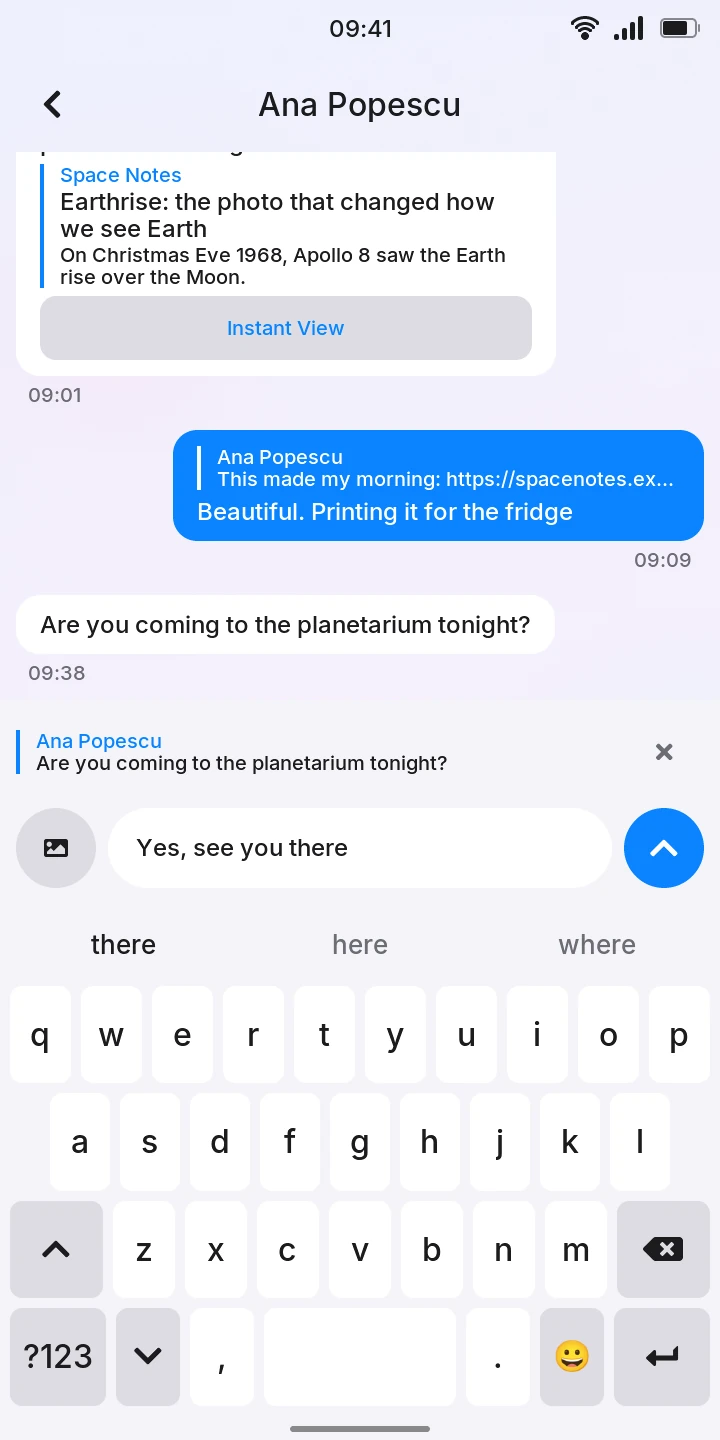
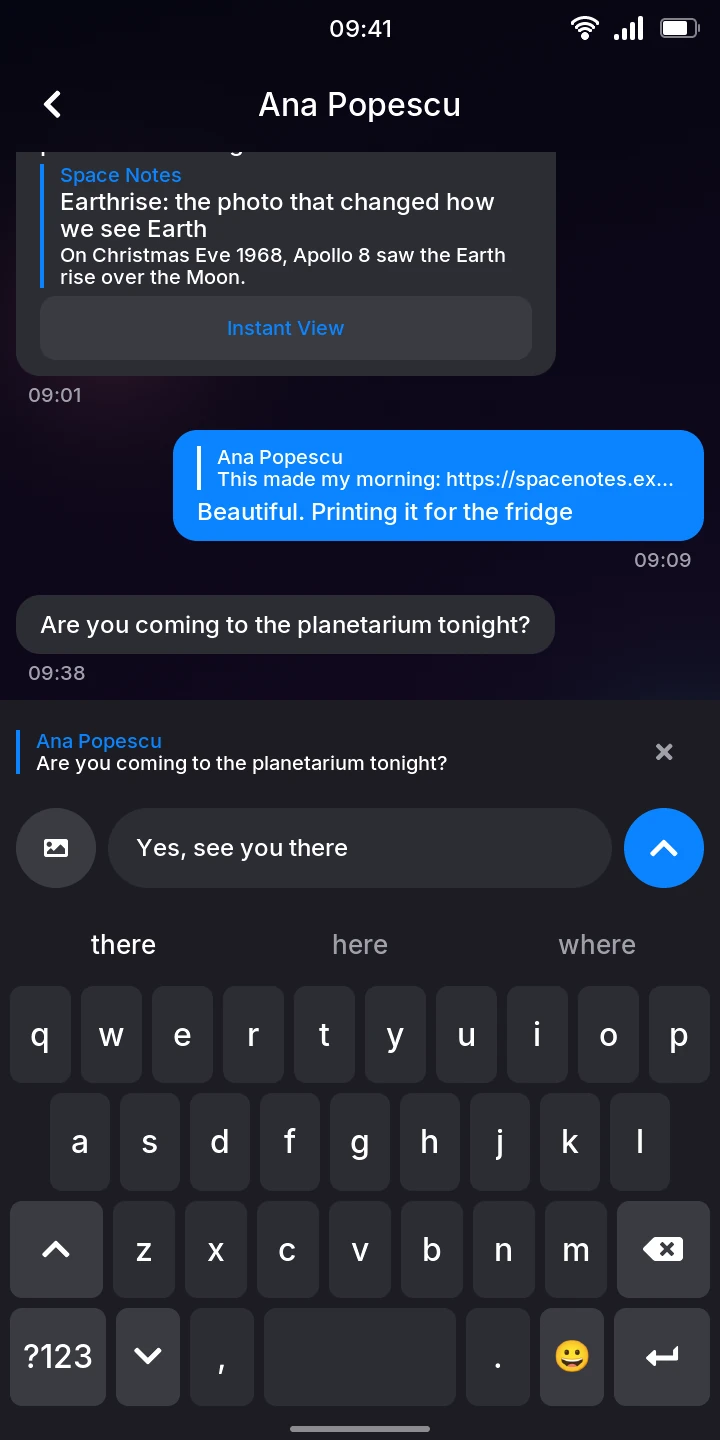
A reply shows the message it answers at the top of its bubble: who wrote it (You for your own) and its first line, or only the part quoted when the sender quoted part of it in another Telegram app. Deleted message means it has been deleted since.
Copying a message
To copy a message's text, hold your finger on it until the phone vibrates and says Copied. Then paste it anywhere with Paste above the keyboard. Only the message is copied, not the message it replies to. Photos cannot be copied yet, only their captions.
Links and Instant View
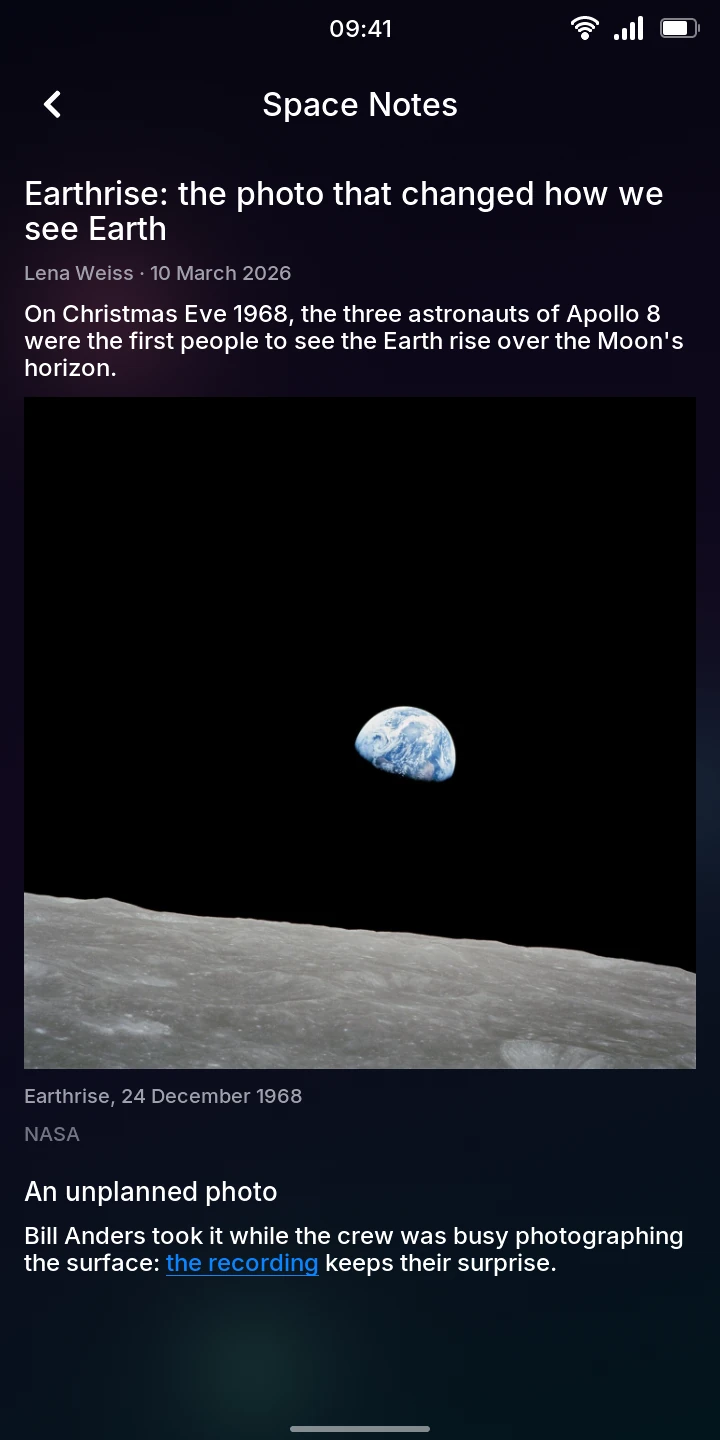
A message with a link shows a preview of the page under its text: the site, the page's title and the start of its description. For many news sites and blogs, Telegram also has an Instant View of the page: the article alone, without the site's menus and ads.
Tap Instant View under the preview to read it on the phone: its title, author and date, text, headings, lists, quotes, and photos with their captions. Videos, sound and maps in an article are named, with their caption, but not played. Links in the article are shown in blue but do not open yet. Go back to return to the chat.

When a message is not sent
Without internet (Wi-Fi off or out of reach, no mobile data), Telegram says Waiting for network... under the title, and Connecting... or Updating... while it gets back in touch. Messages you send meanwhile show Sending... and go out by themselves once the phone is online again: there is nothing to do.
When Telegram refuses a message, for example because the person blocked you, it stays in the chat with Not sent in red and the reason under it. Tap Delete to remove it, or Retry to send it again; Retry only shows when sending it again may work.
Notifications
Once you have signed in, Telegram keeps running in the background while the phone is in use, even after a restart. A message that arrives while you are in another app, or on the lock screen, then shows like a text message does:
- It slides down from the top of the screen for a few seconds, with the chat's name and the message (in a group, who wrote it first), and the phone vibrates. Tap it to open the chat.
- It is listed on the lock screen and in the quick settings with the Telegram icon, and the Telegram icon in the menu shows how many messages are unread in a red badge. Tap the notification to open the chat. On the lock screen, this also unlocks the phone.
There is no banner while you are in that chat already, or for messages sent without sound. Muted chats post nothing, as in other Telegram apps. A notification goes once you have read the chat, here or in another Telegram app. Clear all in the quick settings removes them from the phone; the messages stay unread in Telegram.
Only while the phone is awake
When the screen is off and the phone sleeps, Telegram sleeps too: messages that arrived meanwhile show up a few seconds after you wake the phone. Unlike a text message or a call, a Telegram message does not wake the phone.
Contacts
Contacts lists your Telegram contacts by name, each with their photo and when they were last seen: online in blue, last seen and a time or day, or only roughly (last seen recently, within a week, within a month) when they hide it. It follows them while it is shown, and loads again each time you open Telegram.
Tap a contact to open your chat with them, even if you never wrote to each other.
These are your contacts on Telegram, not the phone's Contacts. Adding or removing contacts is done in another Telegram app for now.
Your profile
Profile shows your photo (or your initials), your name and phone number, then your Name, Username, Bio and Birthday. None means you have no username, bio or birthday.
To change your name, username, bio or birthday:
- Tap its row. A screen opens with the current value.
- Change it with the keyboard.
- Tap the check mark at the top right, or press Enter.
The profile shows the new value once Telegram accepts it. If Telegram refuses it, the screen stays open and says why, for example This username is taken. Going back without tapping the check mark keeps the old value.
- Name: your first name is needed, the last name is optional.
- Username: 5 to 32 letters, digits or underscores, starting with a letter. People can find you by it and write to you without knowing your number. Clear the field to have none.
- Bio: a few words about yourself, on one line (70 characters, 140 with Telegram Premium).
- Birthday: the Day, Month and Year as numbers, typed on the dial pad; the year is optional. A date that does not exist, such as 31 April, says This is not a date. Empty the three fields to have no birthday. Who sees it is set in Telegram's privacy settings, in another Telegram app for now.
To change your photo, tap it, choose a photo from the Gallery and tap the check mark. Screenshots work too.
Logging out
- On Profile, tap Log out at the bottom.
- Tap the red Log out to confirm, or Cancel.
The app then asks for a phone number again. Logging out also removes your chats from the phone, but not from Telegram.