Notes
Notes keeps short texts on the phone: shopping lists, ideas, things to remember. Each note's first line is its title.
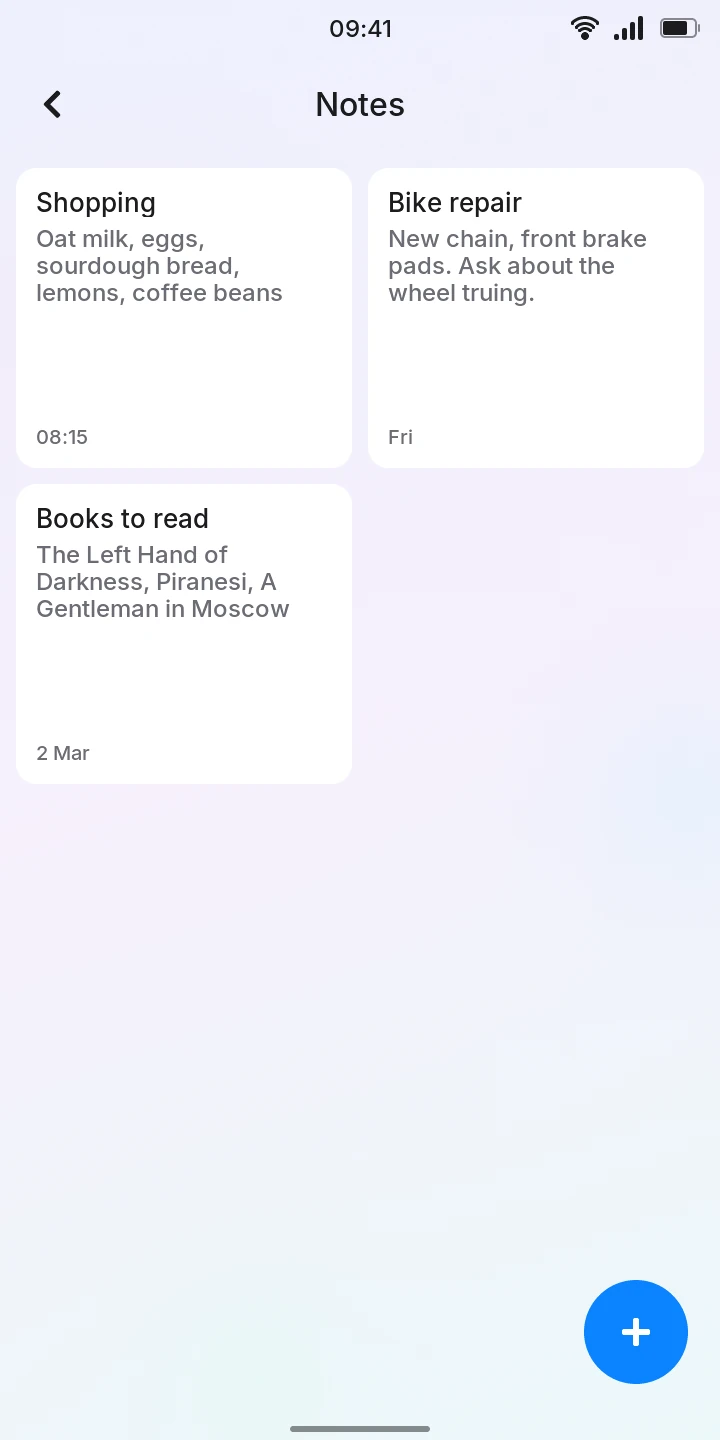
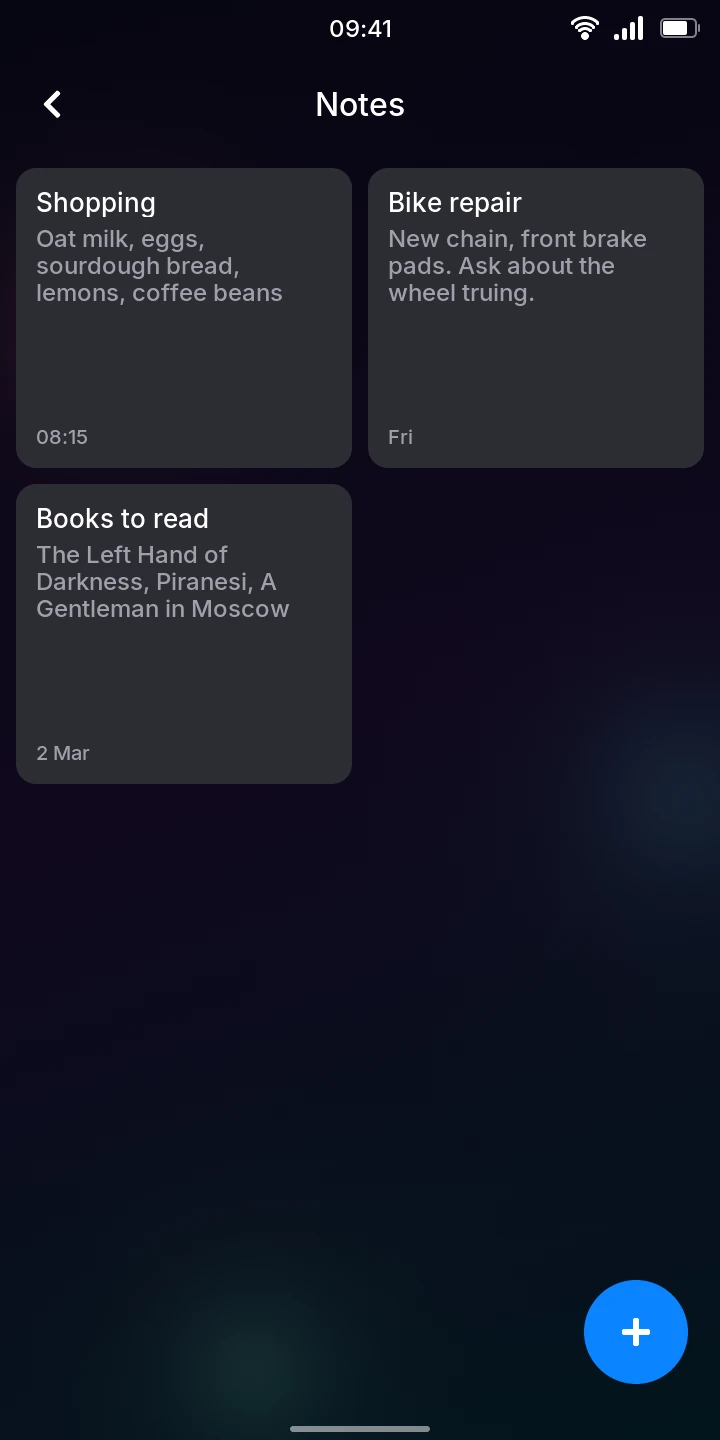
Notes are shown as cards, two side by side, the newest first (the last changed). Each card has the title, as much of the rest of the text as fits, and when the note was last changed at the bottom (the time for today, the weekday for the last few days, the date before that).
Write a note
- Tap the round button at the bottom right. A New note opens with the keyboard.
- Type the title on the first line, then the rest of the note.
- Tap the back arrow at the top left.
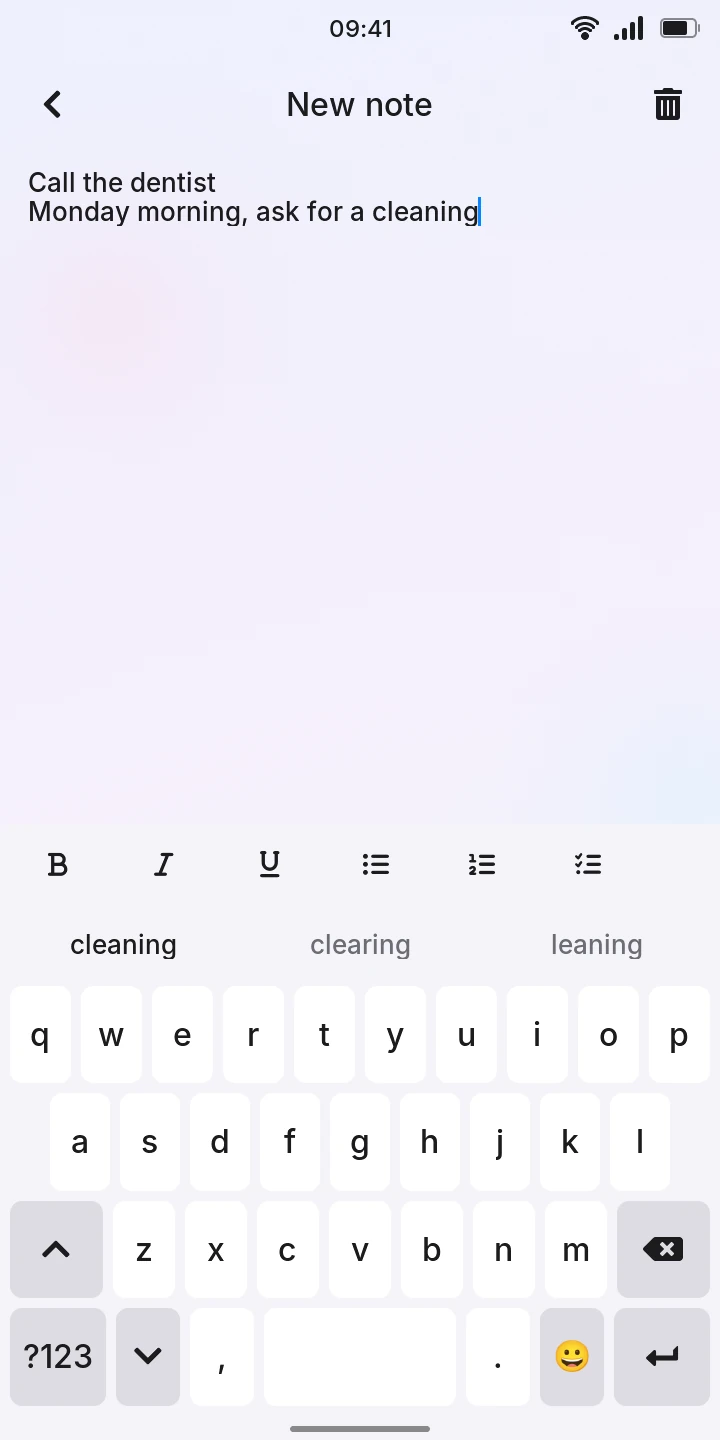
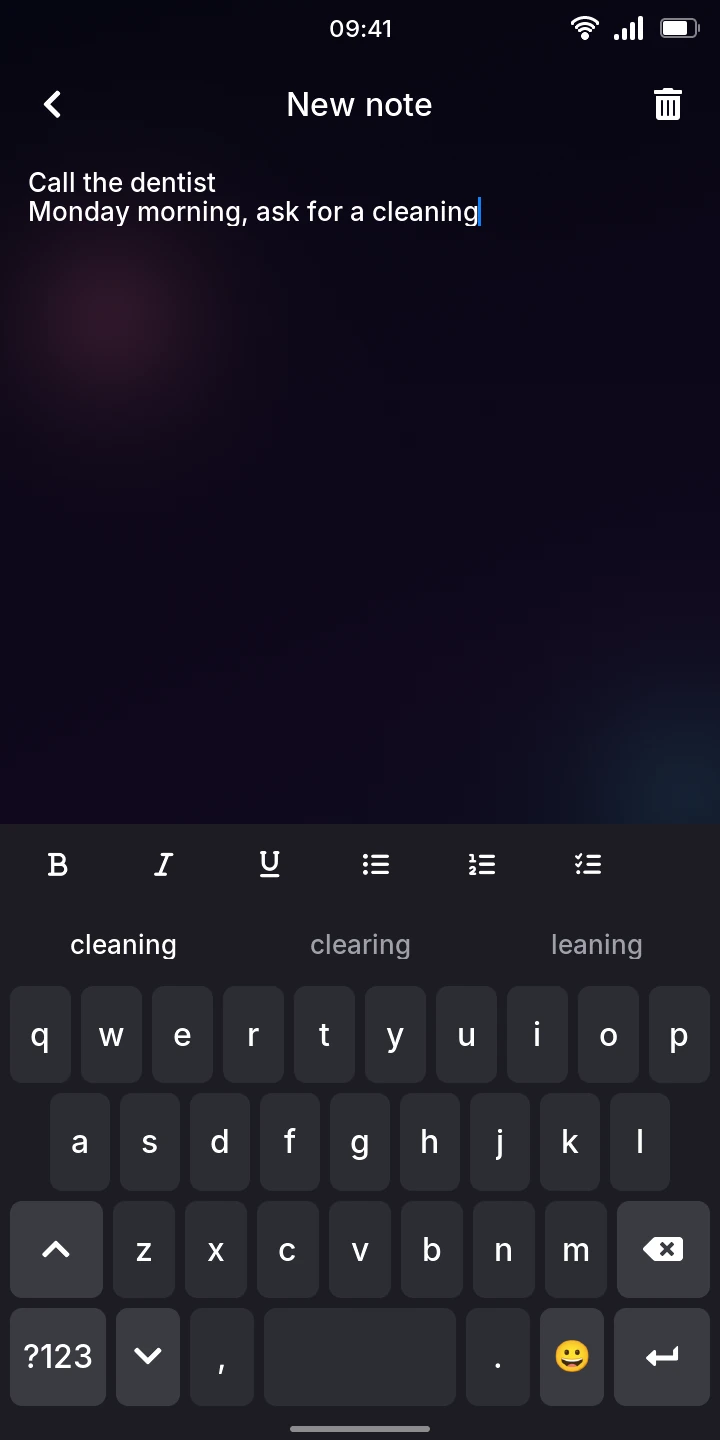
There is no save button: the note is saved when you go back, and also when you hide the keyboard with its key. A note with nothing typed is not kept.
Format text and make lists
While you type, a row of buttons sits over the keyboard.
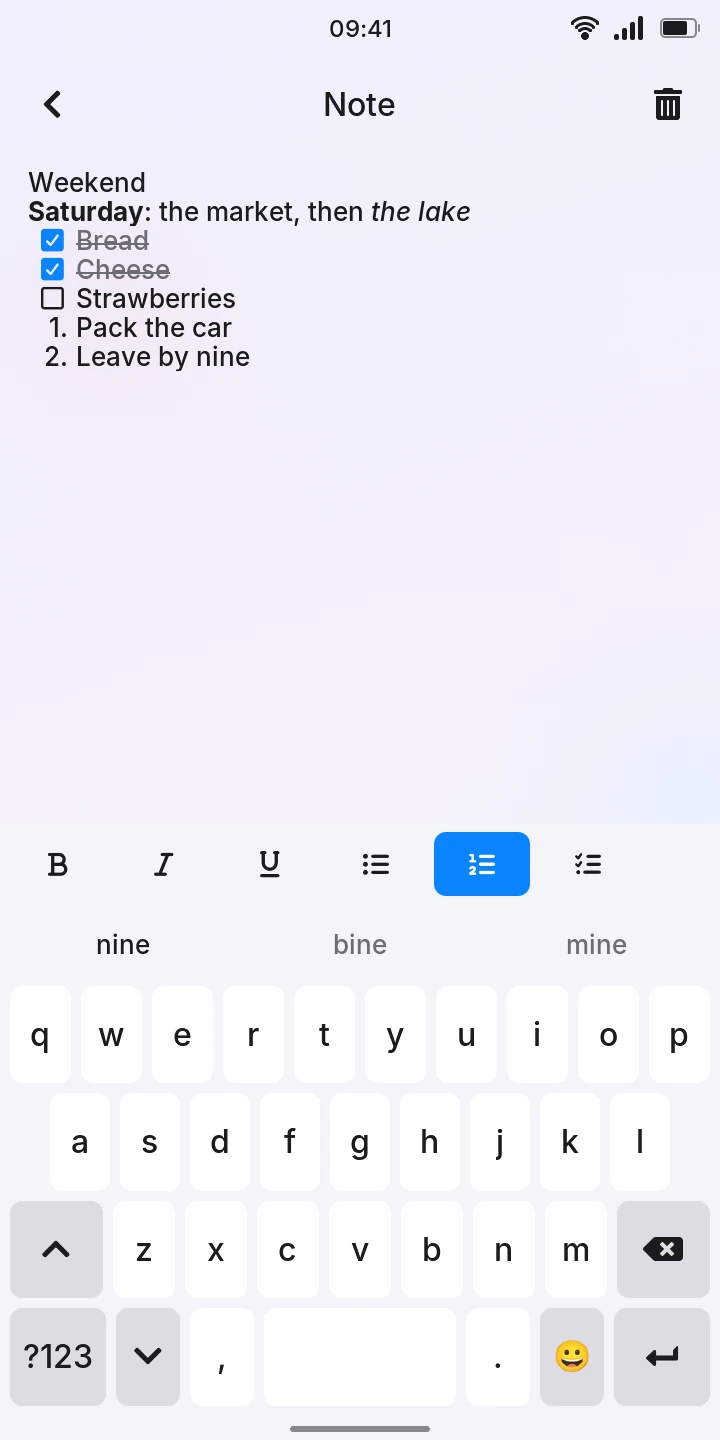
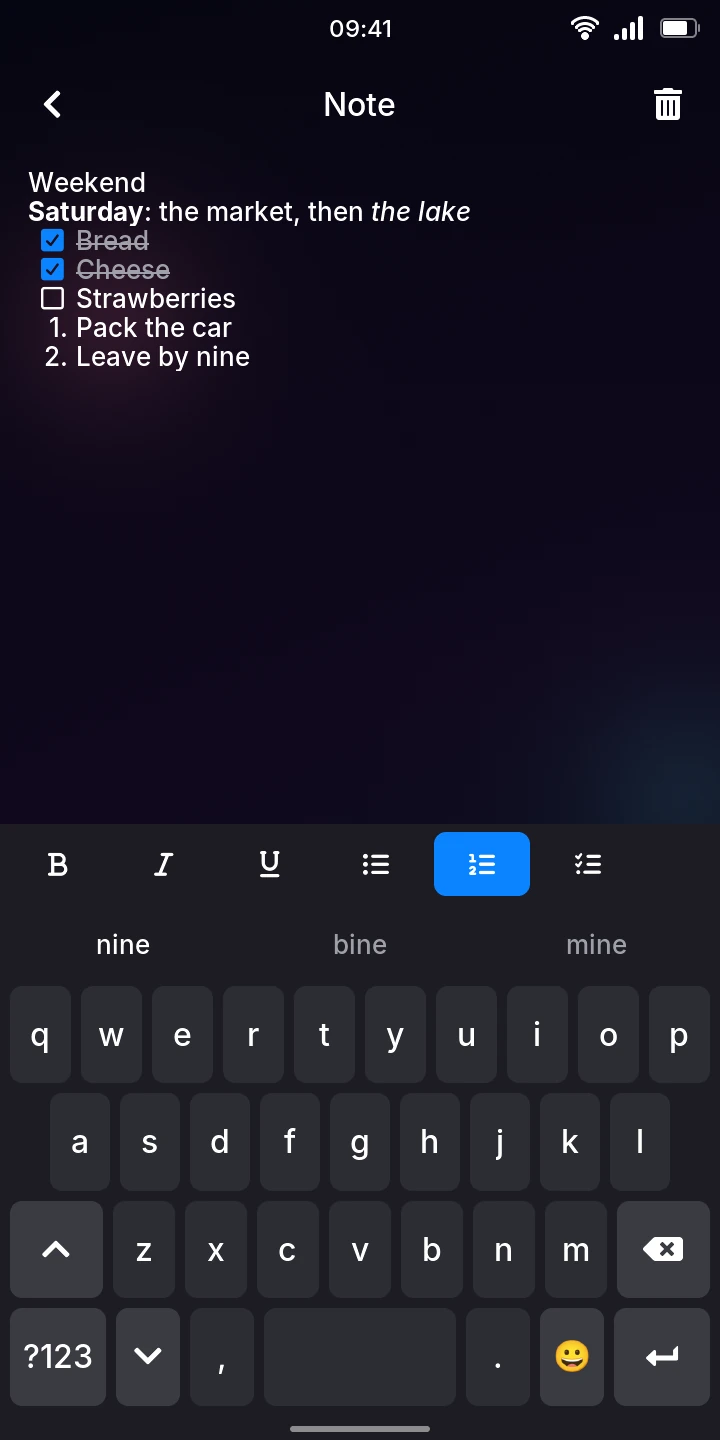
- Bold, italic and underline: tap one, then type. What you type takes it until you tap the button again. A lit button shows the formatting at the cursor.
- Bullet list, numbered list and checklist: the line with the cursor becomes a list item. Tap the same button again to make it a plain line, or another list button to change the kind of list.
In a list:
- Enter starts the next item. On an empty item, it ends the list instead.
- Backspace at the start of an item takes away its bullet, number or box first.
- Numbers follow the items: any other line between two numbered lists starts the second at 1.
To tick a checklist item, tap its box. A ticked item is dimmed and struck through. Ticking does not bring up the keyboard, so you can tick items while reading.
You can only format as you type: there is no way yet to select text you already wrote and make it bold, italic or underlined. Lists work on any line.
Read and change a note
- Tap the note's card. It opens to read, without the keyboard.
- To change it, tap the text where you want to type: the keyboard comes up.
- Go back to your notes when you are done; the changes are saved.
Delete a note
- Open the note.
- Tap the bin at the top right.
- Tap Delete note to confirm, or Cancel to keep it.
Deleting all the text of a note also deletes the note.
Notes stay on the phone when it restarts and when its software is updated. Each one is a Markdown file, so a note copied to a computer (with USB file transfer) opens in any text editor, its formatting written as Markdown. Notes cannot hold pictures, and there is no search yet.