Terminal
Terminal gives you a command line on the phone: a shell running as the phone's administrator (root), as over a computer's SSH connection, but on the phone itself.
Open Terminal from the menu, under Tools. It is where to read the phone's logs when something does not work: Logs and debugging lists what to look at.
Warning
Commands run with full rights over the phone: one can delete your data or stop the phone from starting. Type only what you understand.
Typing commands
Terminal opens with the keyboard shown, the shell waiting at its prompt. Type a command and press Enter. The text is 59 characters wide, in a fixed-width font, and as many lines as fit above the keyboard.
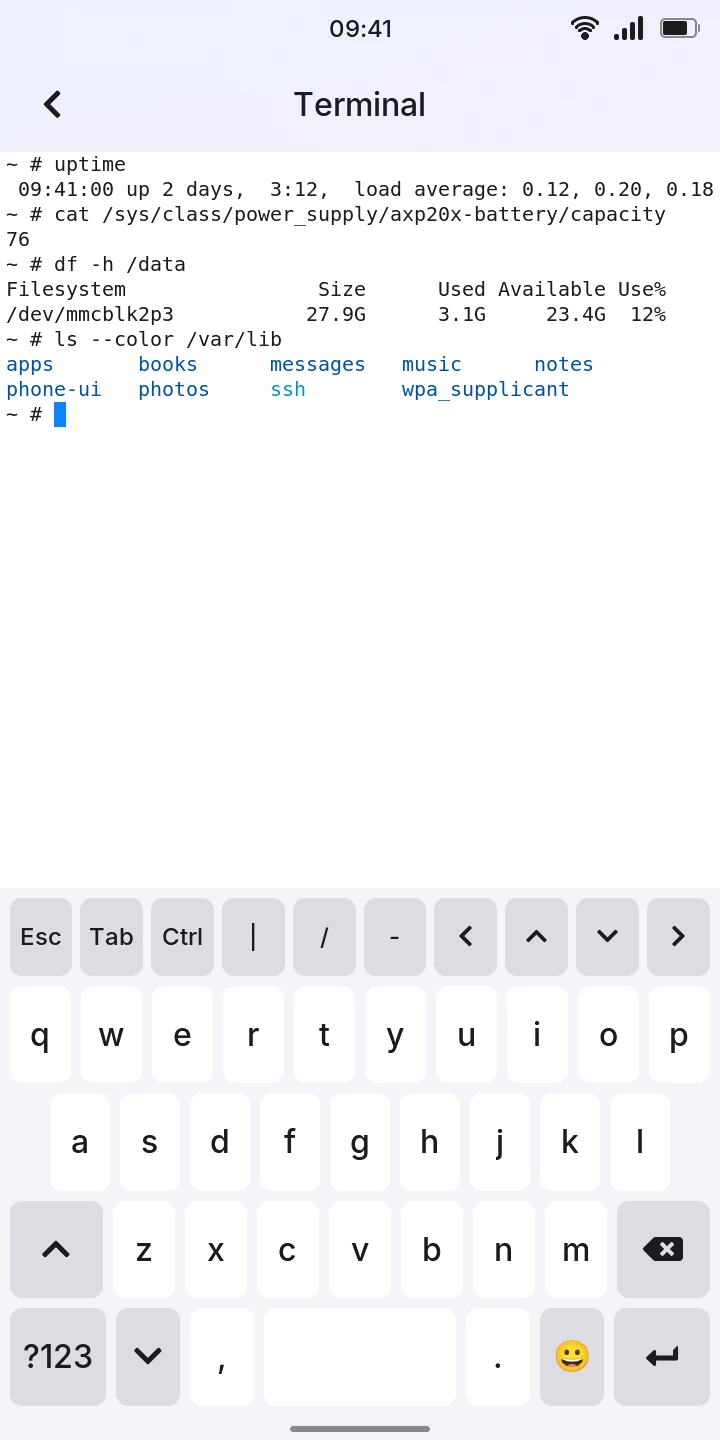
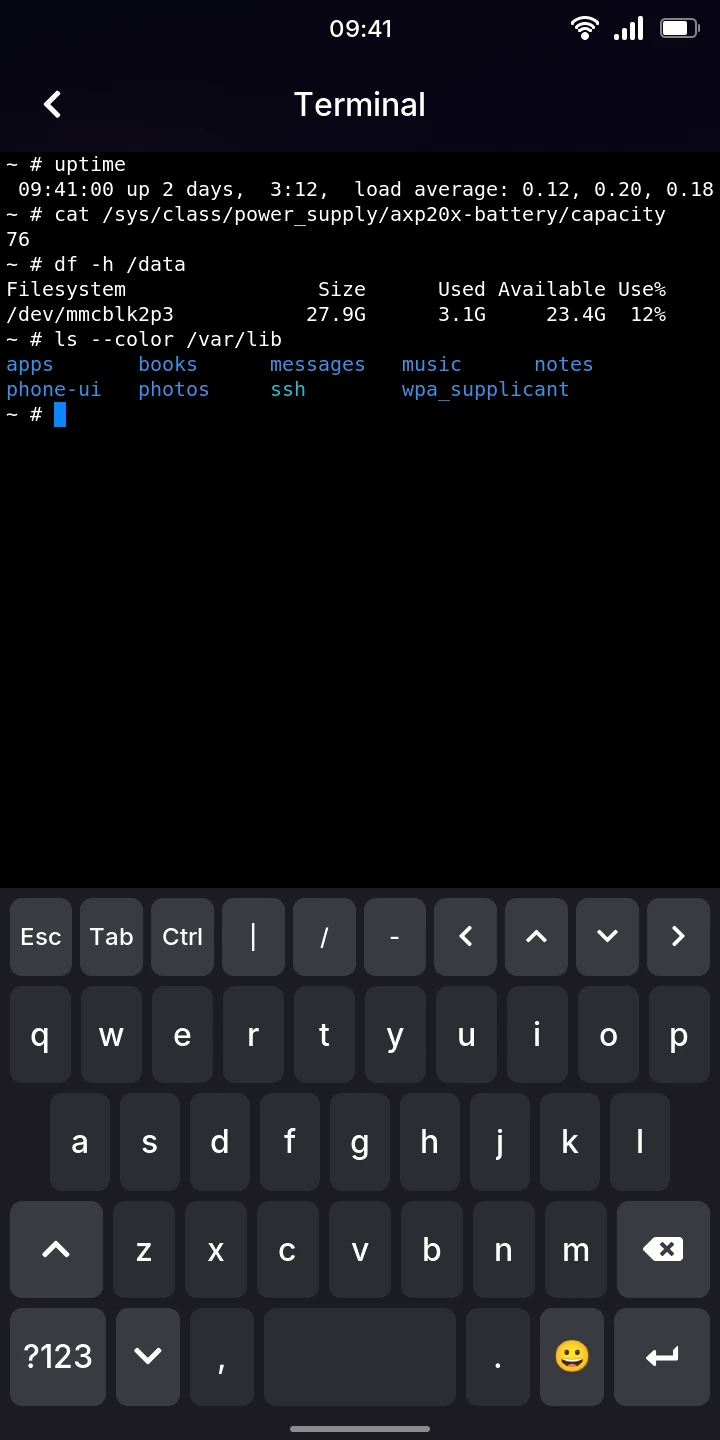
A row of keys above the keyboard has what a phone keyboard lacks:
- Esc and Tab (Tab completes a command or a file name, as on a computer),
- Ctrl: tap it, then a letter, for Ctrl and that letter. It shows in blue until the letter is typed. Ctrl then c stops the command running, Ctrl then d ends the shell.
- |, / and -, often needed in commands,
- the arrows: up and down go through the commands typed before. Hold one to repeat it.
To see more of the screen, hide the keyboard with its key; the row of keys goes with it. Tap the text to bring them back.
Reading the output
Swipe the text up and down to see what scrolled away: the last 1000 lines are kept. New output,
or typing, goes back to the bottom. The clear command empties it.
Programs that use the whole screen, such as vi or top, work. A program that rings the bell
makes the phone vibrate.
Colors show as programs print them: ls --color colors folders and links, for example. Lines
keep their colors after scrolling away. The colors are a little different in the light theme,
so that light ones stay readable on white.
Leaving
Typing exit, or Ctrl then d, ends the shell and closes Terminal. Leaving Terminal with the
back arrow at the top also ends the shell and everything it started: nothing keeps running in
the background. No shell means the shell could not start.
Limitations
- Bold text is drawn in a brighter color, not thicker; italic and blinking text show as plain.
- No copying or pasting, and a fixed text size.
- One session at a time.
- No Alt, Home, End, Page Up, Page Down or function keys.