Settings
Settings shows what the phone is doing (battery, connections, storage, temperatures) and holds the few things you can change: brightness and theme, touch vibration, the time zone, the language, Wi-Fi networks, Bluetooth devices and mobile data.
Open Settings from the menu. Each section shows its current value beside its name, for example the brightness, the battery's charge or the Wi-Fi network you are on. Tap a section to open it, and the back arrow at the top left to return.
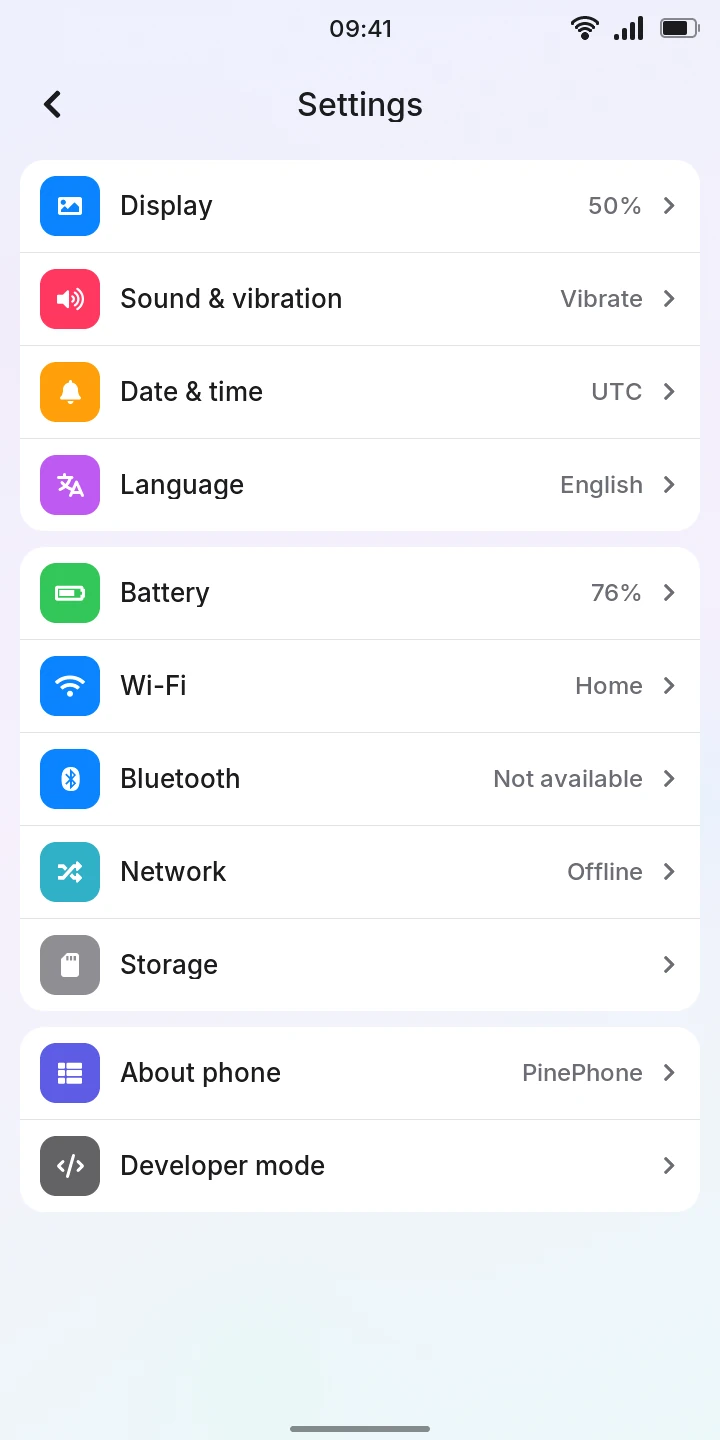
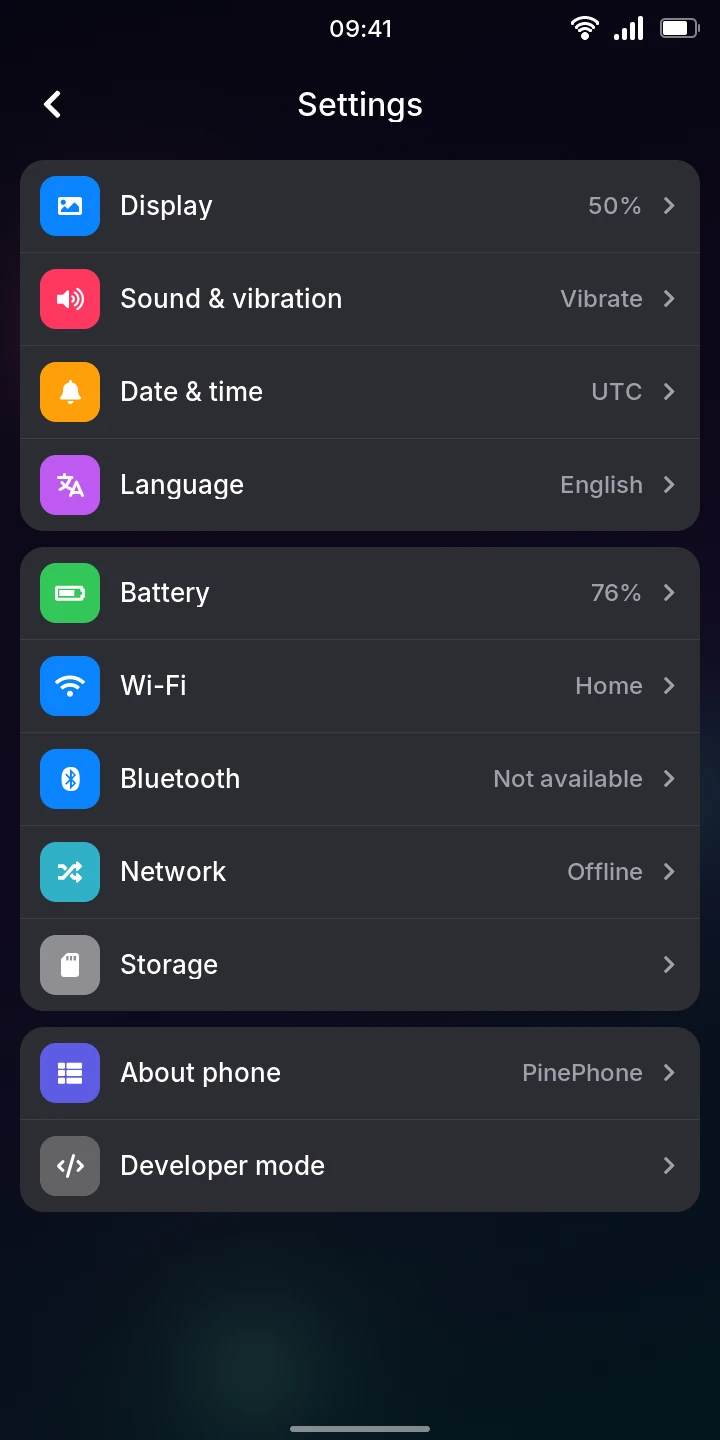
Changes take effect at once and are kept when the phone restarts; there is no Save button.
Display
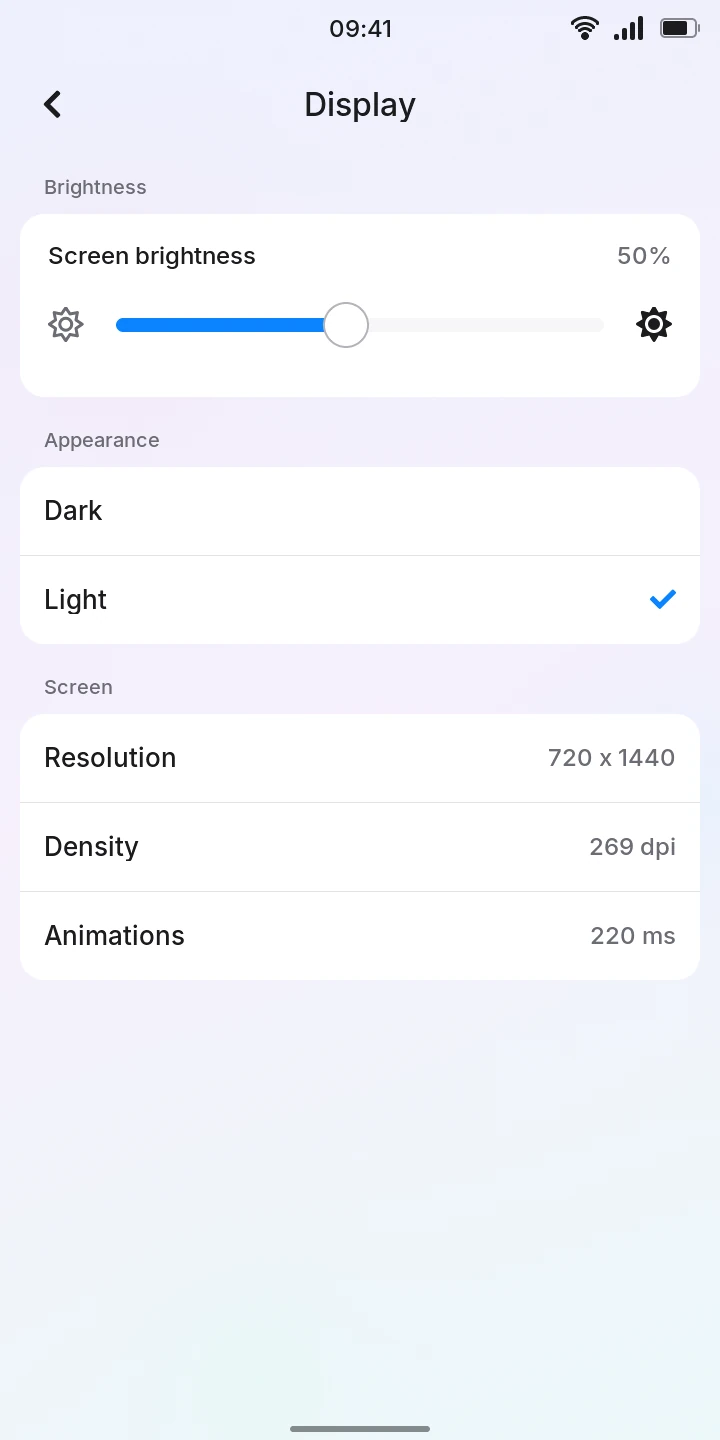
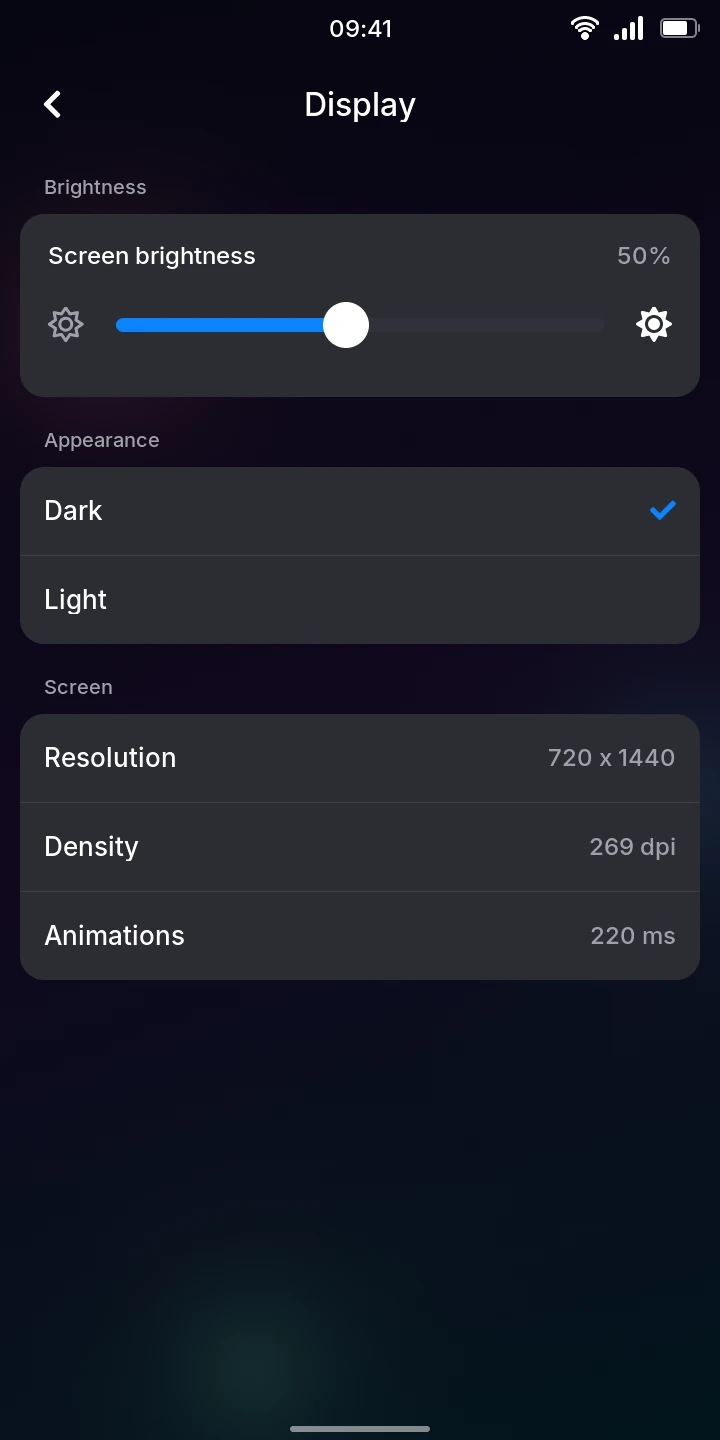
To change the brightness, drag the Screen brightness slider. The screen follows your finger, and the level is kept once you lift it. The slider stops at 5%, so the screen can never be turned completely dark.
To switch between the dark and the light theme:
- Open Settings › Display.
- Under Appearance, tap Dark or Light.
The tick shows the theme in use; Dark is the default. Every screen is redrawn in the new colors.
Tap to wake, under Sleep, lets a touch of the screen wake the sleeping phone, as Power does. It is off by default. Woken by a touch, the phone shows the lock screen and goes back to sleep 10 seconds after your last touch if you leave it there.
Uses more battery
With Tap to wake on, the touchscreen stays on while the phone sleeps, so the battery drains faster asleep. Anything that touches the screen wakes the phone, in a pocket too.
The switch only shows on a phone whose touchscreen can wake it.
Screen lists the display's resolution, its density and how long animations take. These are for information only.
Sound & vibration
Vibrate on touch makes the phone give a short buzz when you tap a control or a key of the keyboard. It is on by default; turned off, the Settings list shows Silent beside Sound & vibration.
Test vibration buzzes once so you can check the vibration motor, even with Vibrate on touch off.
Not available yet
Ringtones cannot be chosen yet: Ringtone shows Not set up yet.
Date & time
The top of Settings › Date & time shows the time, the date and the time zone with its offset from UTC.
To set your time zone:
- Open Settings › Date & time.
- Under Time zone, tap your city or region. A tick marks it.
The clock in the status bar changes right away. Summer time is followed automatically in the zones that have it. The time zone is UTC until you choose one.
The list has 15 zones: Los Angeles, Denver, Chicago, New York, Sao Paulo, UTC, London, Paris and Berlin, Bucharest and Helsinki, Moscow, Dubai, India, Shanghai, Tokyo and Sydney. If you live elsewhere, pick the zone that has the same time as yours.
The time itself cannot be set here: the phone takes it from the internet.
Language
The phone speaks English or Romanian. To change it:
- Open Settings › Language.
- Tap English or Română. A tick marks the one in use.
Every screen is redrawn in the new language at once; English is the default. The Settings list shows the language beside Language.
What stays as it is
What comes from elsewhere is in its own language: your network's name, the network's answers to codes, the web pages you open, and what people write on GitHub (and GitHub's own messages, such as why it refused a comment). Assistant answers in the language you ask in.
Autocorrection
Below the languages, under Keyboard, the Autocorrection switch turns the keyboard's corrections on or off (on by default). With it on, where you type prose (a note, a message) the keyboard shows a strip of words above the keys and puts the likeliest in when you type a space; see Using the phone. It works in English and Romanian.
Battery
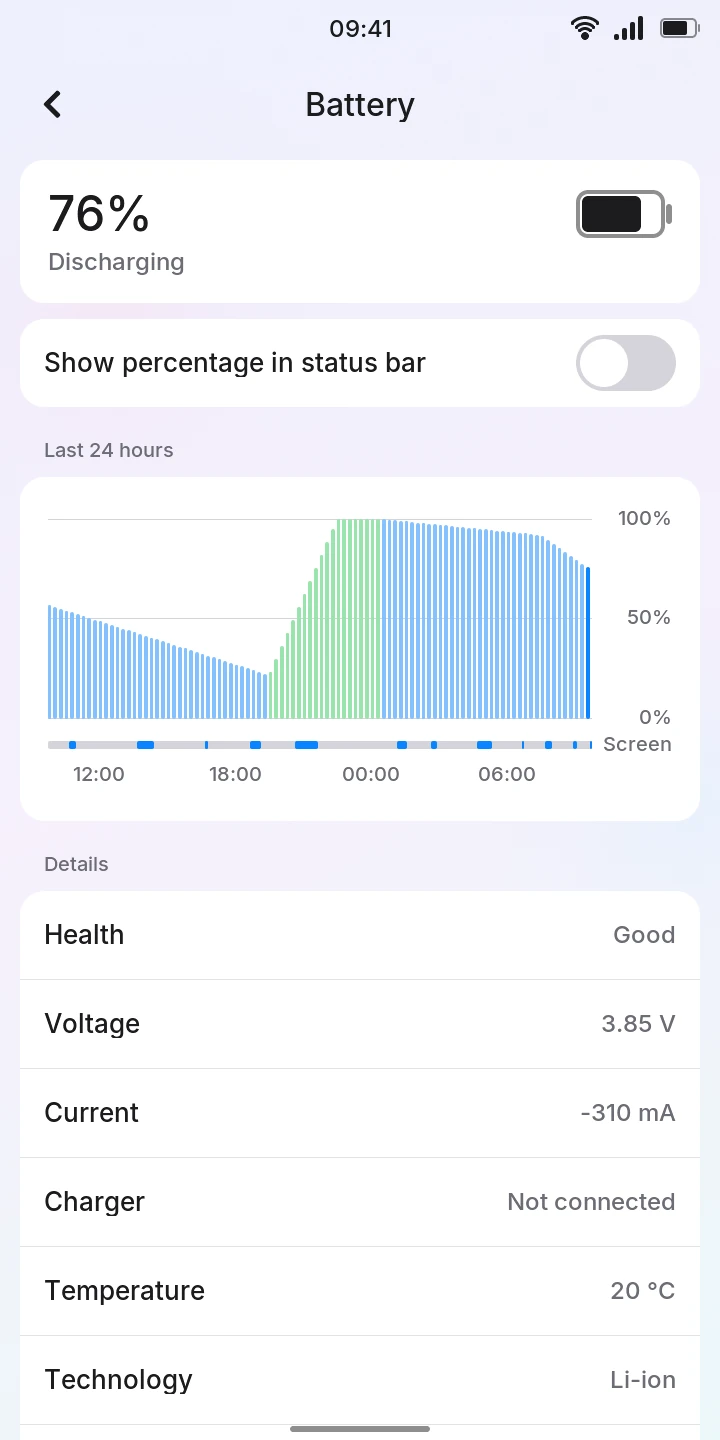
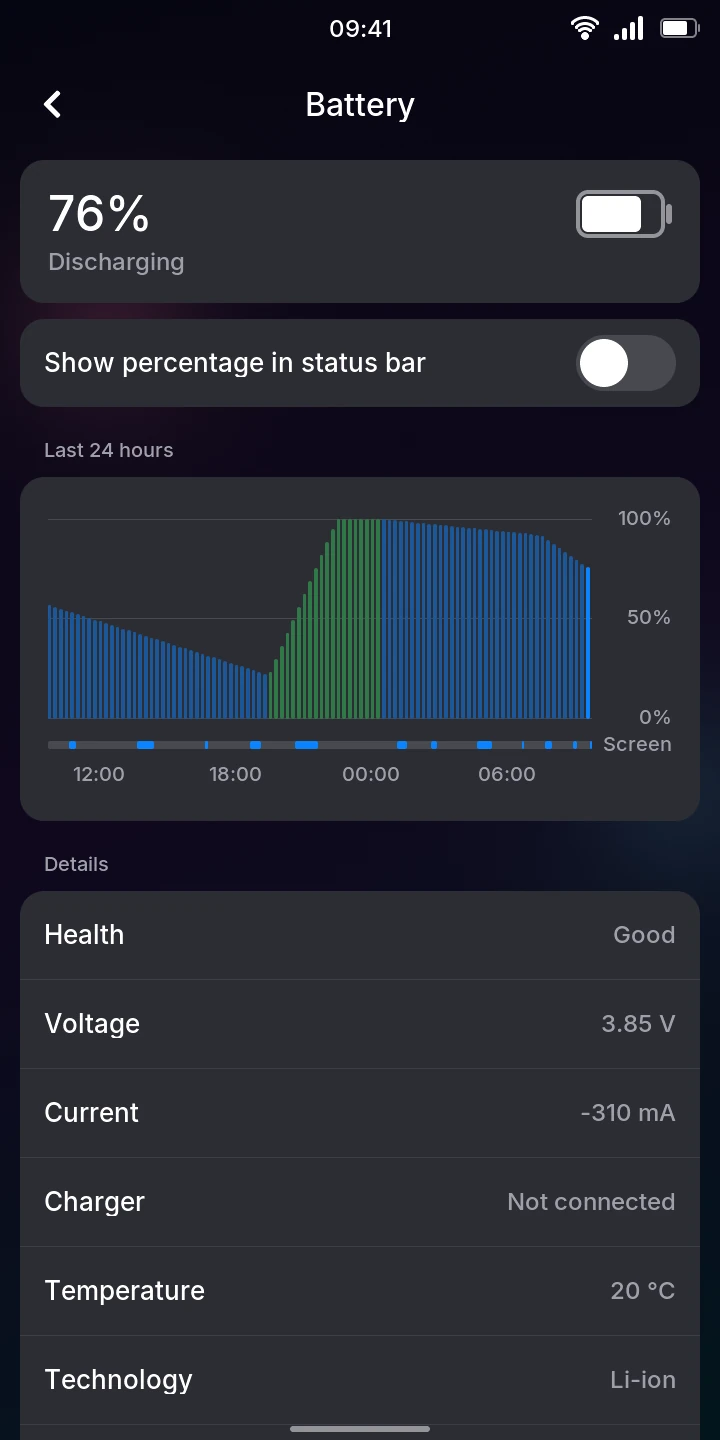
The top of Settings › Battery shows the charge and the battery's state, such as Discharging or Charging. While charging, it adds how long until the battery is full when the phone can estimate it, starting about 20 seconds after you plug in the charger. Plugged in once full, it says Full. The phone then waits for the battery to drop a little before charging again, so it can say Not charging at 99% for a while. The battery icon shows the bolt whenever the phone is plugged in.
To show the charge as a number in the status bar, turn on Show percentage in status bar. The number then shows inside the battery icon, which grows a little wider, and the bolt moves just after it while the phone is plugged in. It is off by default.
Last 24 hours charts the charge over the past day, one bar per quarter of an hour: green while charging, blue otherwise, red below 15%. The phone does not measure the charge while it sleeps, so lighter bars bridge those times with a straight line from the charge before to the charge after: they show how much it used while asleep, not when. The chart only covers the time the phone was on; a gap means it was switched off. The Screen strip below the bars marks when the screen was on.
Battery use shows where the charge went since you last unplugged the phone, as Android does: each app and each part of the phone, the most first, with its share of the charge used. Above the list, the phone says how much of the battery it used and over how long, such as "26% used in 3 h 34 min". While the phone is plugged in, the same list shows under Last time on battery, until you unplug it again.
- Apps count for the work they did, including while you were not looking at them (Telegram keeps receiving once opened), and for the data they moved over the mobile network or Wi-Fi. Below an app's name, how long it was on screen.
- Screen: the display and its light, more at a higher brightness. Below it, how long the screen was on.
- Idle: the phone awake with the screen off and nothing running, such as while it waits a few seconds before sleeping.
- Asleep: the phone sleeping, and for how long.
- System: the home screen, the lock screen and the phone's own services.
- Mobile network and Wi-Fi: data the phone moved while no app was busy, for its own connections.
The phone measures the current it draws while awake, and learns over time how much the screen, the processor and the radios each take, so the shares get closer to the truth the more you use it on battery. They remain an estimate: it cannot tell for certain which app the data was for, and while asleep it only sees the charge drop.
Details lists:
- Health and Technology, as the battery reports them.
- Voltage and Current: the current is negative while the battery is discharging.
- Charger: Not connected, or what is plugged in (Computer or Charger), the kind of USB connection and how much current the phone draws from it.
- Temperature of the battery and, when the phone can read them, the temperatures between which it charges. The battery does not charge outside them.
- Design capacity: what the battery holds when new.
Wi-Fi
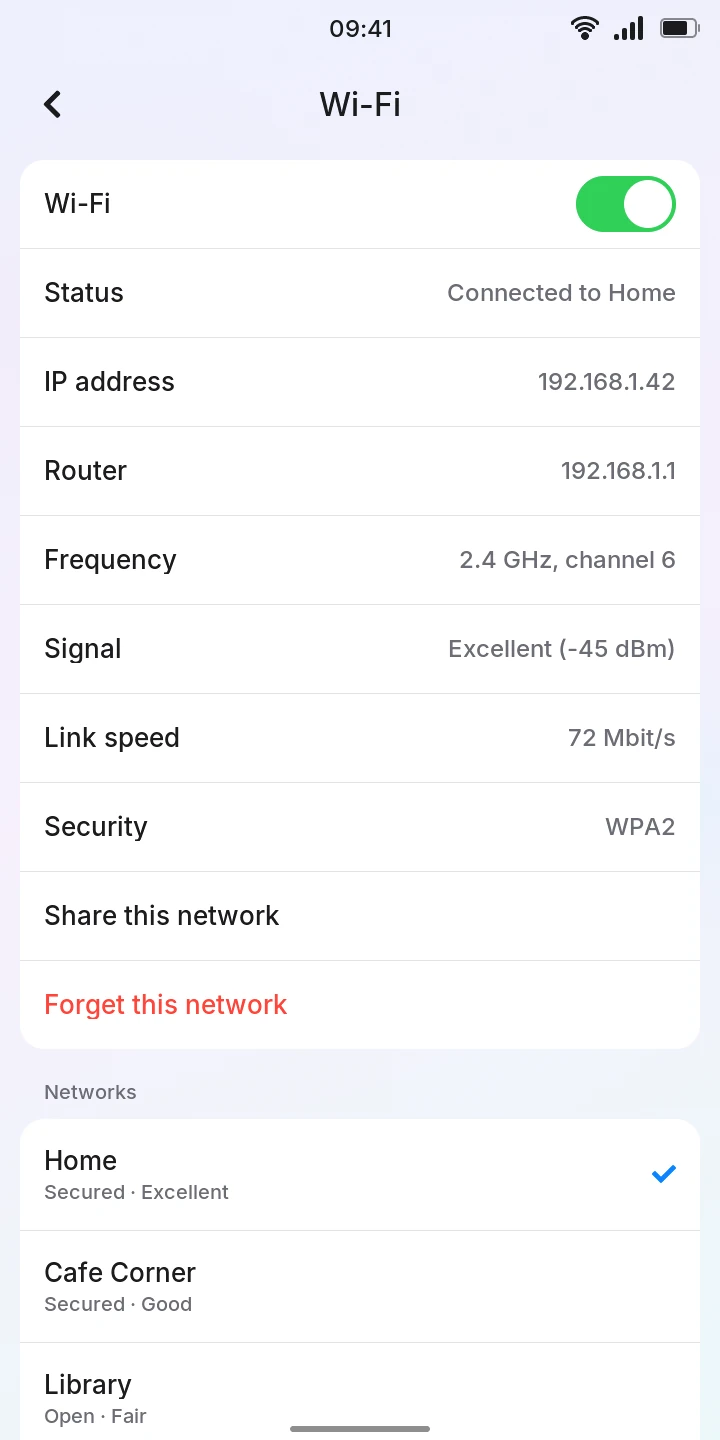
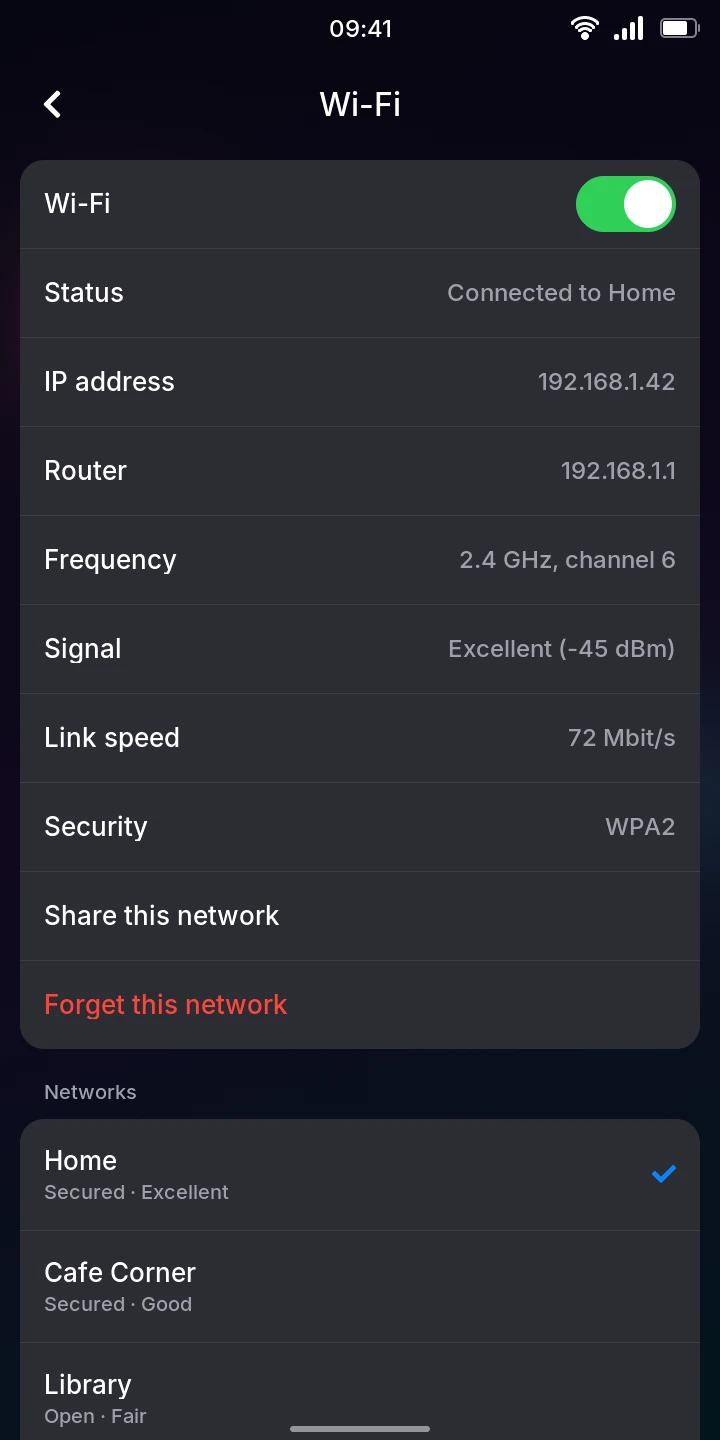
Settings › Wi-Fi shows the switch, the connection and, below Networks, the networks in range, the strongest first. Each shows whether it needs a password (Secured) or not (Open) and how good its signal is (Excellent, Good, Fair or Weak). The network you are on has a tick; networks the phone knows show Saved. The list refreshes every few seconds.
To connect to a new network:
- Open Settings › Wi-Fi.
- Under Networks, tap the network's name.
- If it is secured, type its password (at least 8 characters) and tap the tick at the top right, or the Enter key.
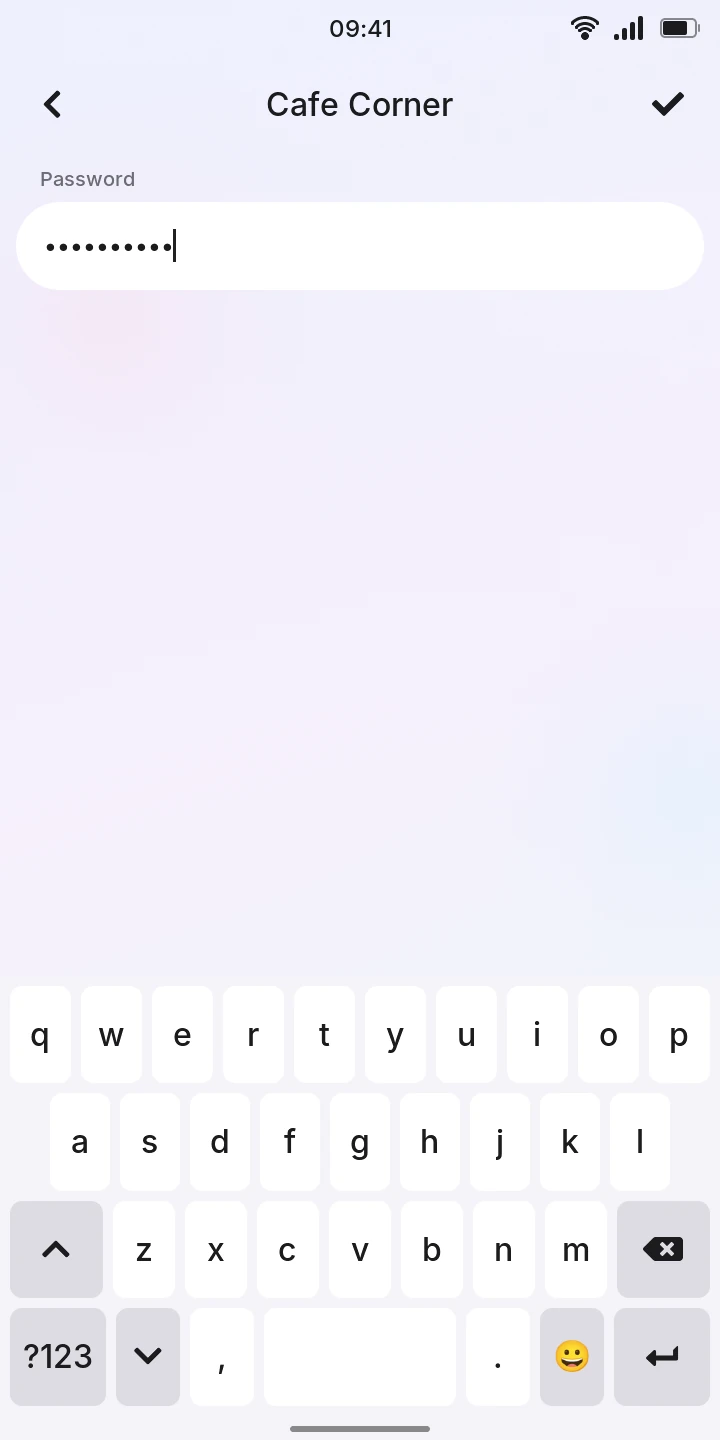
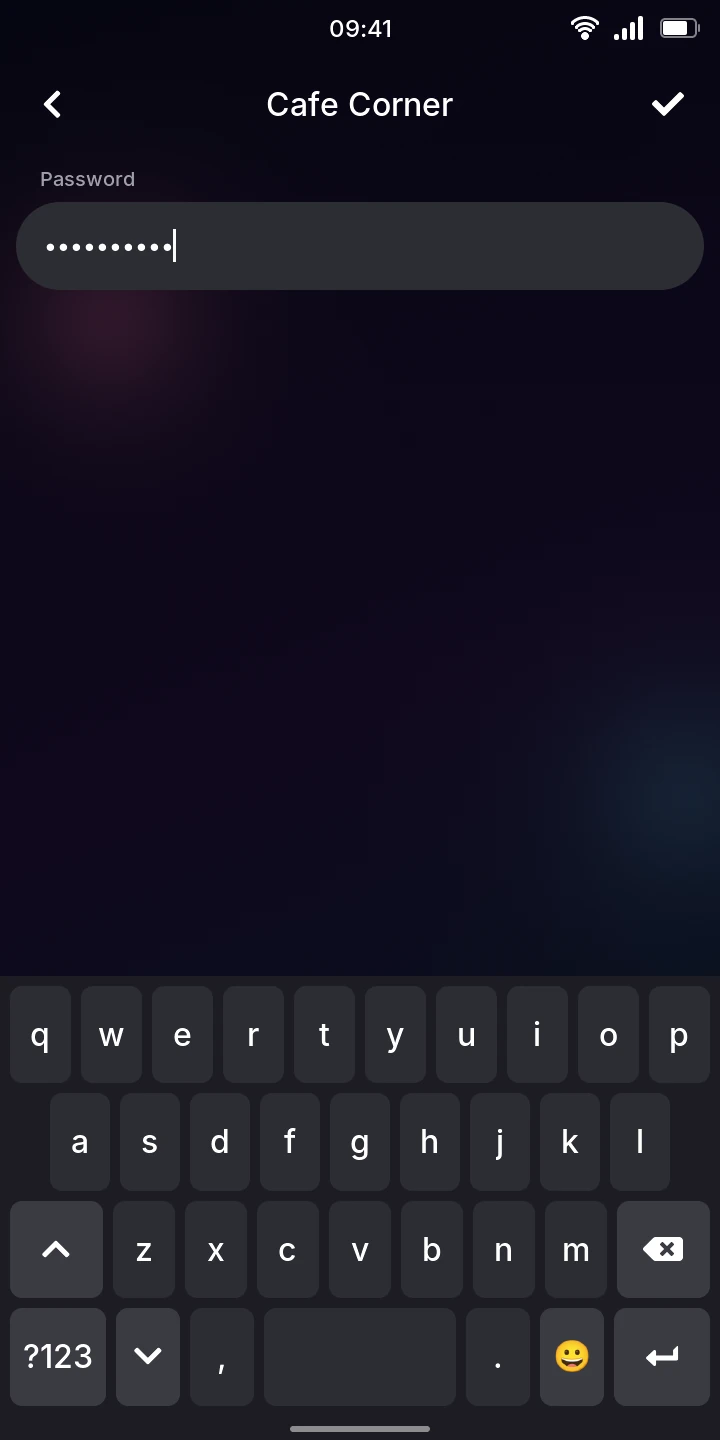
Status shows Connecting to …, then Connected to …. The phone saves the network and connects to it by itself from then on. An open network connects as soon as you tap it.
If the password is wrong, Status shows Wrong password for … and the network is not saved: tap it again to retry.
To switch to another saved network, tap it in the list.
While connected, the card shows the connection's details: IP address, Router, Frequency (2.4, 5 or 6 GHz and the channel), Signal, Link speed and Security.
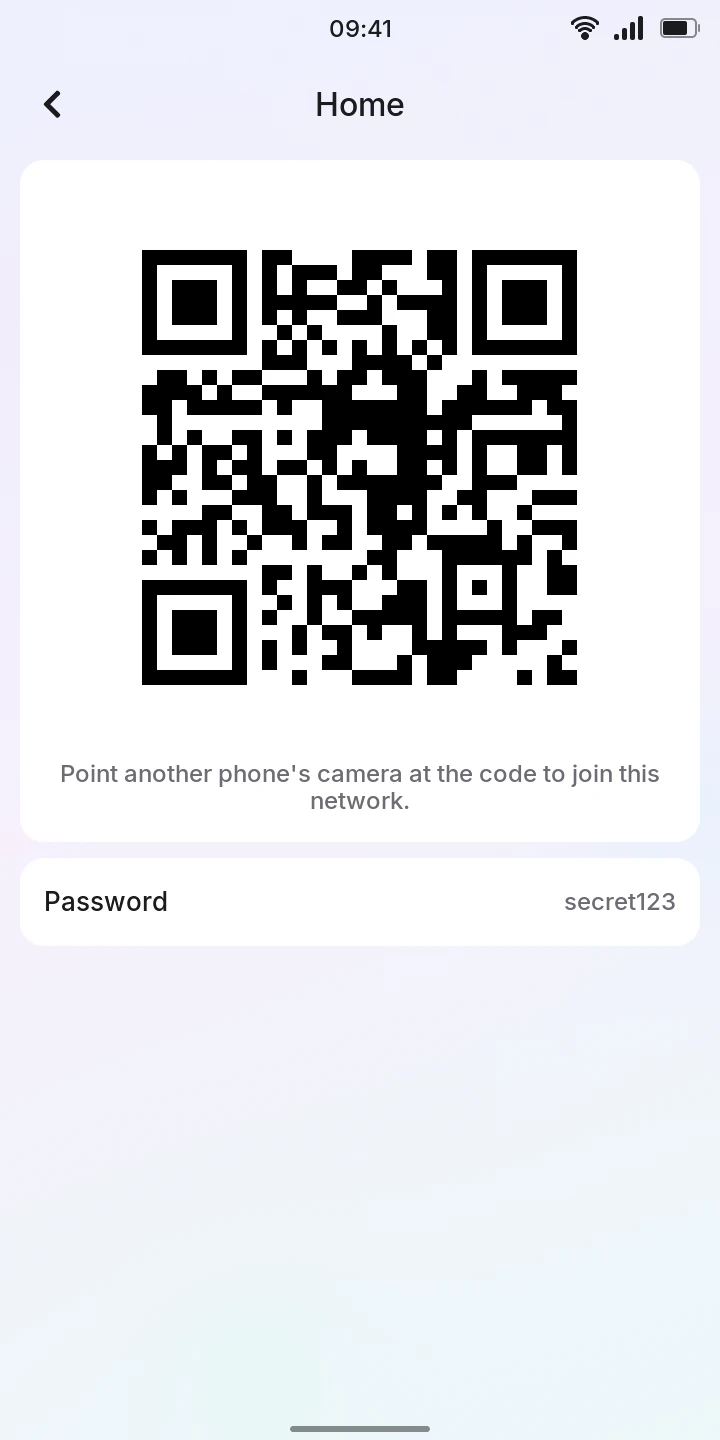
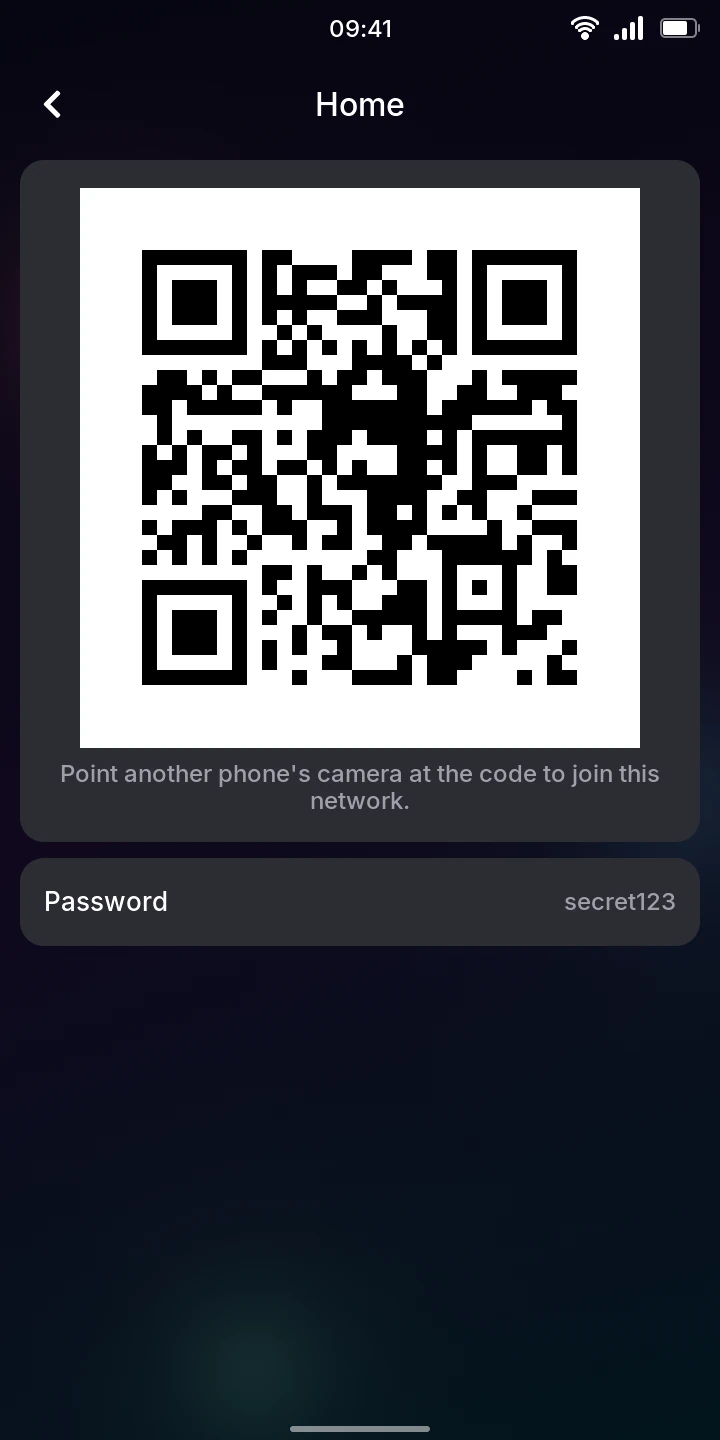
To let another phone join the network you are on, tap Share this network. A QR code appears: point the other phone's camera at it, and it offers to join without anyone typing the password. The password is shown under the code too, for a device without a camera.
To make the phone forget the network you are on (it will not connect to it again until you enter its password again), tap Forget this network.
To turn Wi-Fi off, turn off the Wi-Fi switch at the top: Status shows Off and the list is hidden. Turn it on again and the phone reconnects to a saved network. The Wi-Fi tile of the quick settings does the same, and the phone remembers the choice when it restarts.
Limitations
- Networks that hide their name are not listed and cannot be added.
- Enterprise networks (a user name and password, as at many offices and universities) and old WEP networks show Not supported and cannot be joined.
Bluetooth
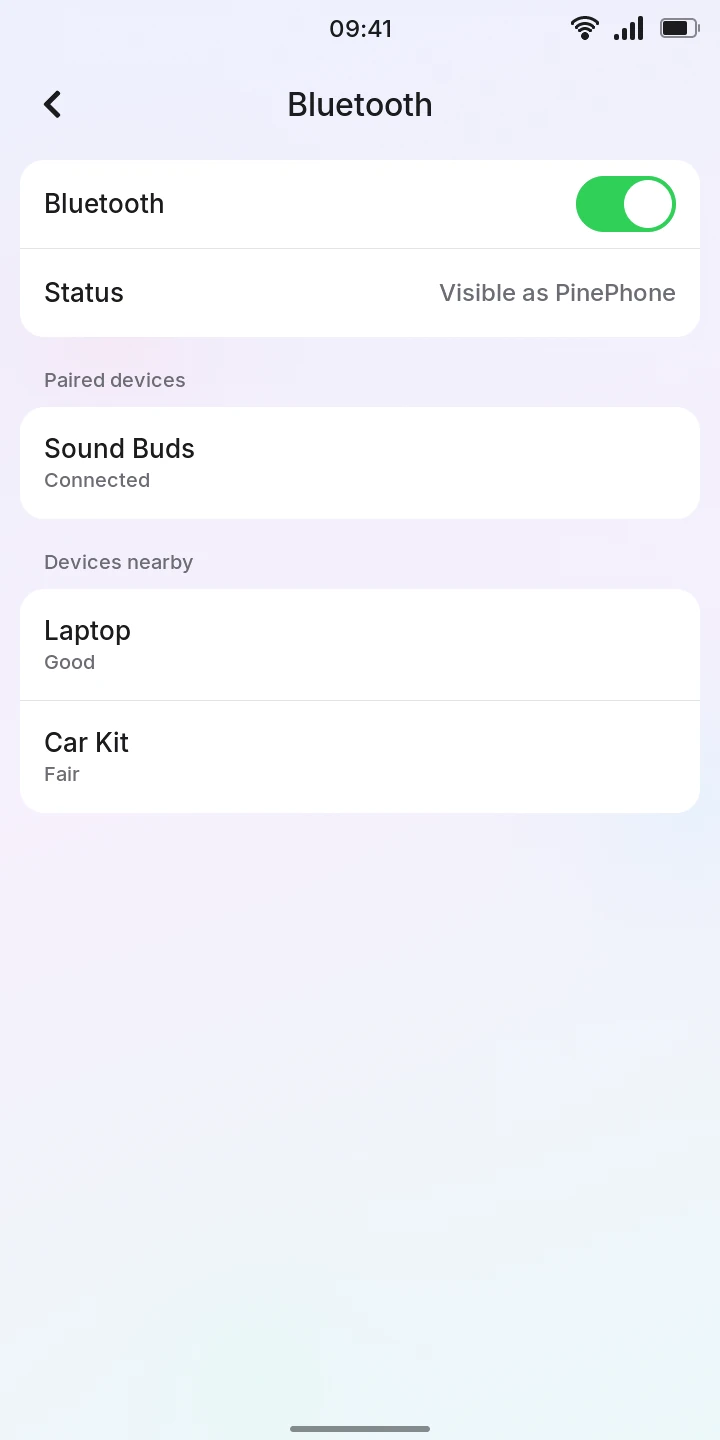
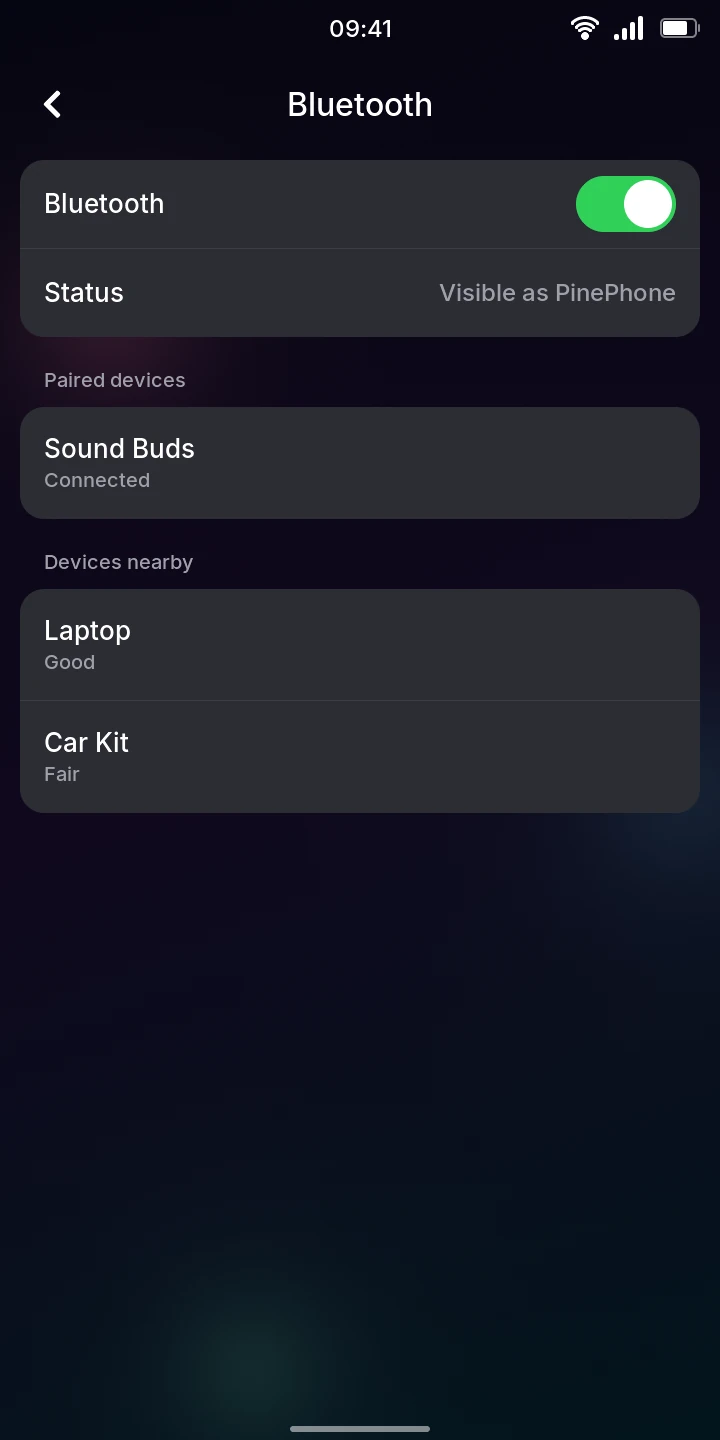
Bluetooth is off by default: the Bluetooth switch turns it on or off, and the phone remembers it when it restarts. Pairing, speakers and headphones, calls on a headset and game controllers are on the Bluetooth page.
While this page is open, the phone looks for devices around it and other devices can find it: Status says Visible as PinePhone. Once you leave the page, it stops looking and is hidden again, but stays on and connected to its devices. Looking for devices slows Wi-Fi down and can drop it: leave the page once your device is paired.
- Paired devices: the devices the phone knows, each with Connected or Not connected. Tap one to connect to it or to disconnect it.
- Devices nearby: the devices found around the phone, strongest signal first, with how strong it is (Excellent, Good, Fair, Weak). Devices that do not give a name are left out. Until one is found, it says Searching.... Tap one to pair with it (see Pairing a device).
In the Settings list, Bluetooth shows Off, On, or the name of the device it is connected to.
Network
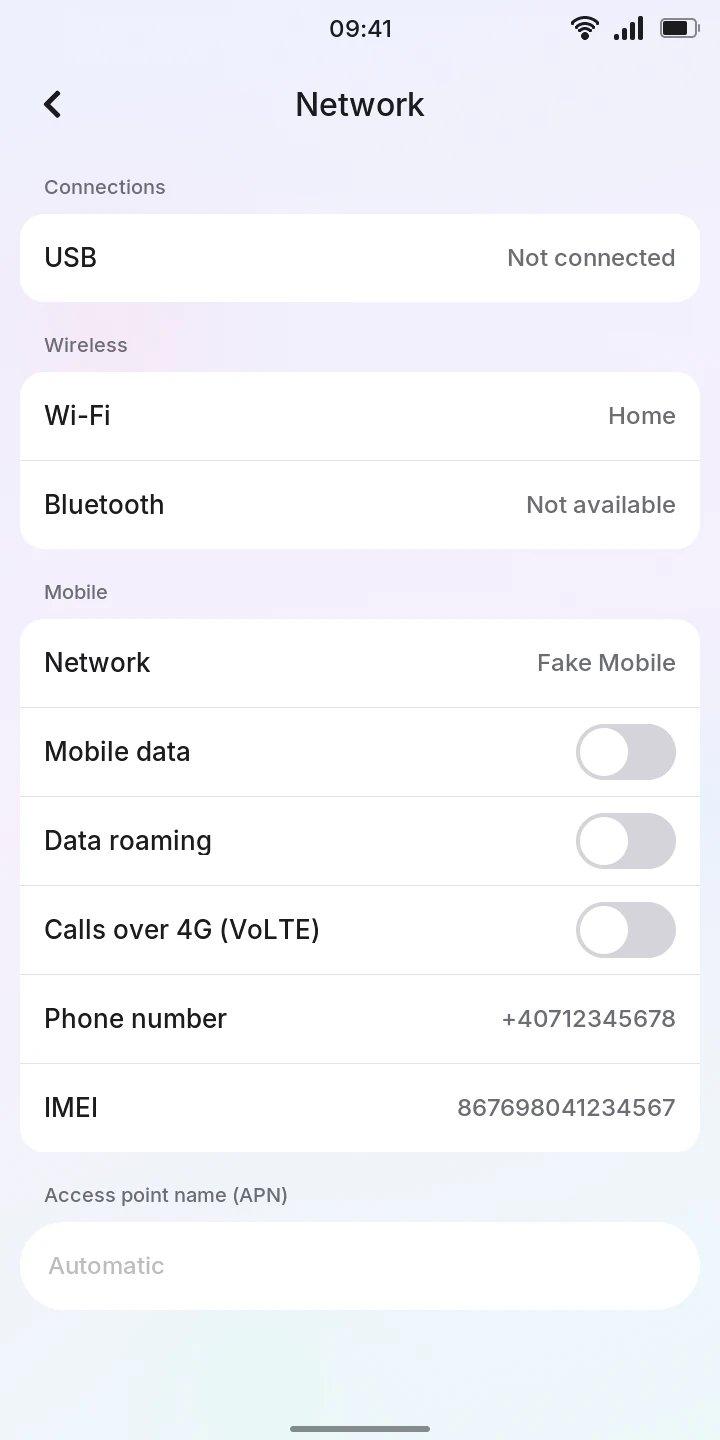
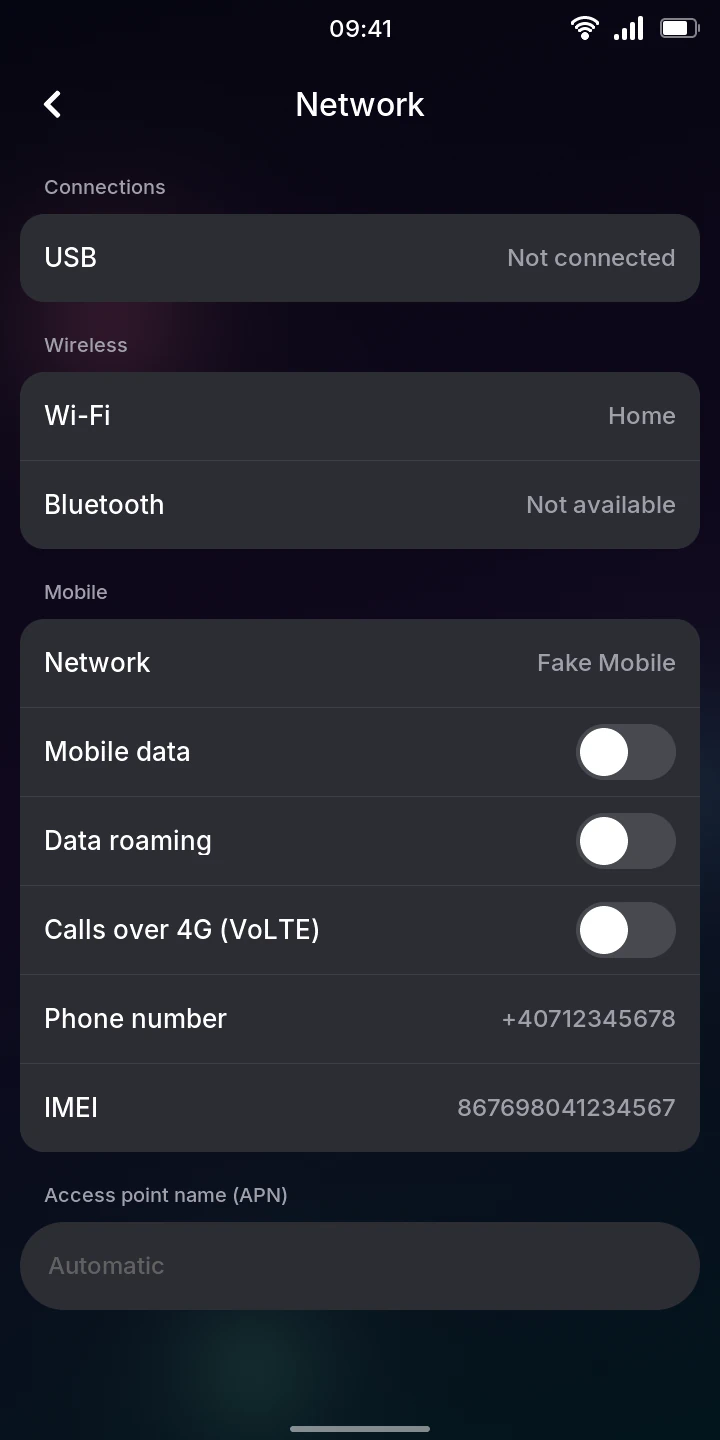
Settings › Network gathers the phone's connections:
- Connections: each connection that has an address (Wi-Fi, mobile data, USB to a computer) with that address. Without any, USB says Not connected, or Charger only when a charger is plugged in.
- Wireless: the Wi-Fi network you are on and Bluetooth (Off, On or the device it is connected to); tap either to open its settings.
- Mobile: the mobile Network you are registered on (with "(roaming)" abroad, or
No SIM card, No service and the like), the SIM's Phone number (Unknown when
the SIM does not hold it) and the modem's IMEI, then the mobile network's settings:
- Mobile data (off by default), the same switch as the quick settings' tile: see Mobile data.
- Data roaming (off by default): mobile data on another operator's network, usually abroad. See Roaming.
- Calls over 4G (VoLTE) (on by default, but off with a Digi SIM): see Calls over 4G.
- Access point name (APN), empty to use the network's own (Automatic): see Access point name.
In the Settings list, Network shows how the phone is online: Wi-Fi, USB or Offline.
Storage
Settings › Storage has a section per disk: Phone storage (eMMC) and the microSD card, the one the system runs from first. That one shows its two storage areas:
- System: the phone's software, how big it is, and Read-only: each update replaces it, and nothing you keep goes there, so it has no free space to show.
- Data: your contacts, messages, notes, photos, music, recordings, settings and installed apps, with the space used out of the total, a bar and how much is free. It is kept across updates. The Settings list shows its free space.
The microSD card section shows the card's Capacity, or No card is plugged in. It follows a card put in or taken out while the page is open.
While the phone runs from a microSD card, Install on the phone under Phone storage (eMMC) installs the system and your data on the phone's own storage: see Installing it on the phone.
Once installed, while the card is still in the phone, Erase the card under microSD card erases it: after you confirm with Erase, the card no longer holds the system and can be used for something else.
About phone
Settings › About phone identifies the phone and shows how it is running:
- The model, and under Mobile the Phone number and IMEI (when the modem is on).
- Software: the Linux kernel's version, the LVGL graphics library's version, where the system Started from (Phone storage (eMMC) or microSD card), the Boot slot (the phone keeps two copies of its software, A and B, and updates the one not in use) and the Uptime since it was switched on.
- Hardware: the chip, the processor and its current speed, the graphics processor and the free memory.
- Temperature of the processor, the graphics processor, the power chip and the battery. The processor's turns orange when it nears the point where the phone slows down to cool, red past it.
Developer mode
Settings › Developer mode () helps find out why the phone or its connection feels slow, or why the screen turns the wrong way, and controls which computers can reach the phone over USB.
Frame rate
To see how smoothly the screen draws, turn on Show frame rate under Performance. A counter appears in the bottom right corner, over every screen and app: the frames drawn per second (up to 60 when scrolling or animating; it drops when nothing changes, which is normal), how busy the processor is, and its current speed, for example 60 FPS, 35% CPU, 1152 MHz. With a monitor connected it also shows the frames the monitor got per second, which can be fewer: 60 FPS, monitor 30, 35% CPU, 1152 MHz. It is off by default, and stays as you set it after a restart.
Allowed computers
Under Computers on USB, Allowed computers shows how many computers you allowed to control the phone over USB (see Allowing a computer). Tap it for the list: each computer's name and the fingerprint of its key.
To take a computer's access away:
- Tap the computer.
- Tap Revoke access, or Cancel to keep it.
It can no longer connect: the next time it asks, the phone shows Allow this computer? again. A connection it already has open goes on until it ends.
Speed test
To see how fast the internet connection is (Wi-Fi, mobile data, or the computer's over USB, whichever the phone uses), tap Speed test under Network, then Start speed test. The phone downloads from Cloudflare's speed test for up to 10 seconds, showing Download as it goes, then uploads for about 4 seconds and shows Upload, in Mbit/s (kbit/s when slower than 1 Mbit/s). Without a connection, Download says No connection. Going back stops the test.
On mobile data
A test downloads up to 25 MB and uploads up to 5 MB, which counts toward your data allowance.
Modem commands
When calls, messages or the mobile network misbehave, turn on Log modem commands under Modem. The phone then writes everything it and the modem say to each other into its log, which you can attach to a problem report (see Debugging). It is off by default and stays as you set it after a restart.
Private
The log then holds the phone numbers you call and that call you, and the text of your messages. Turn it off once you have what you need, and look through the log before sharing it.
Screen rotation
To troubleshoot the automatic screen rotation, tap Accelerometer under Sensors. It shows the motion sensor's readings as they come, which edge of the phone points up, and which way the screen turns. Tilt the phone and watch Up and Turns to change. Without a working sensor it shows No accelerometer.
Game controller
To check a game controller, tap Game controller under Input. Controller shows its name, or None connected. Each button you hold shows Held on its row, and Last pressed names the last one. Face buttons are named by where they are (Bottom button, Right button...), whatever is printed on them: on an 8BitDo M30, A is the bottom one, B the right one, X the left one and Y the top one, while C and Z show as R1 and L1.