Phone
Phone is where you dial numbers, see your recent calls and reach your contacts. Open it from the dock at the bottom of the home screen, or from the menu under Essentials.
Calls while the phone sleeps
A call that comes in while the phone sleeps (after a short press of Power) wakes it up, but it takes a few seconds to ring: the caller hears two or three rings first. Once the call is over, the phone goes back to sleep 10 seconds later if you leave it on the lock screen.
The bar at the bottom switches between Recents, Contacts and Keypad. Phone opens on Recents, or on Keypad while there are no calls yet.
Dial a number
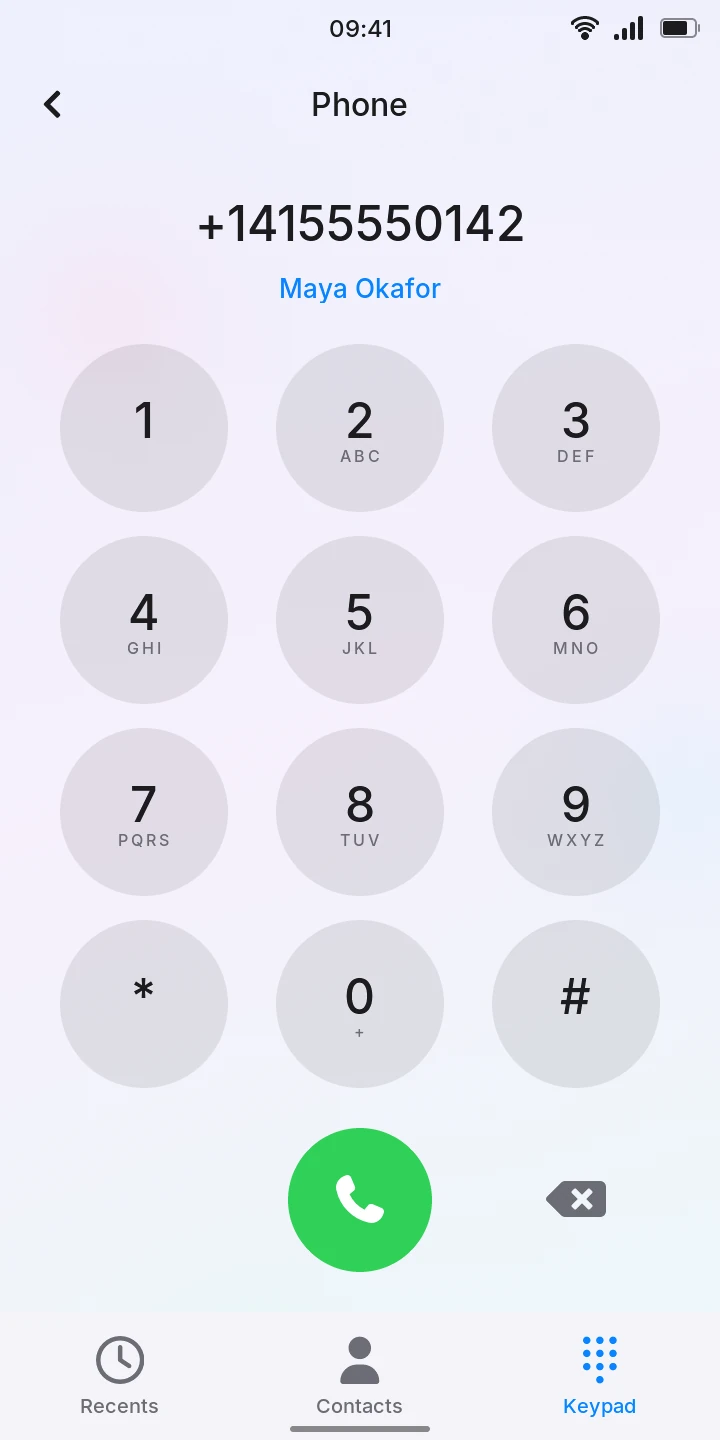
- Tap Keypad at the bottom.
- Tap the digits. For + (international numbers), hold 0.
- Tap the green call button.
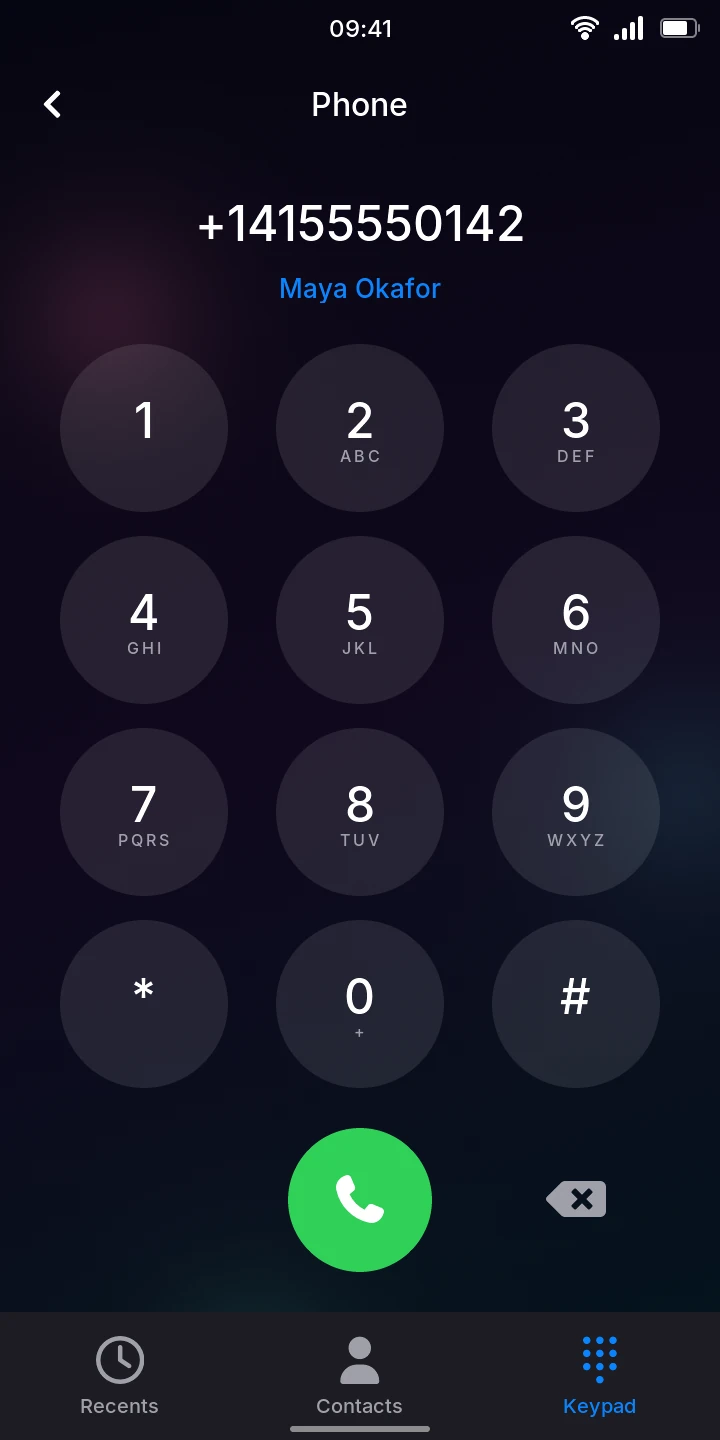
When the number belongs to someone in your contacts, their name shows under it in blue. The key on the right of the call button deletes the last digit; hold it to clear the whole number. The call button does nothing while no number is typed.
The call screen opens with Calling..., then Ringing... while the other phone rings. Once they answer, it shows how long the call has lasted. When the call cannot be made, the screen says why: No SIM card, No service, or No modem; tap the red button to go back.
During a call the phone leaves 4G for 2G or 3G and goes back to 4G once the call ends. Mobile data may pause meanwhile. To call over 4G instead, where your operator offers it to this phone, turn on Settings › Network › Calls over 4G (VoLTE).
Codes to your operator
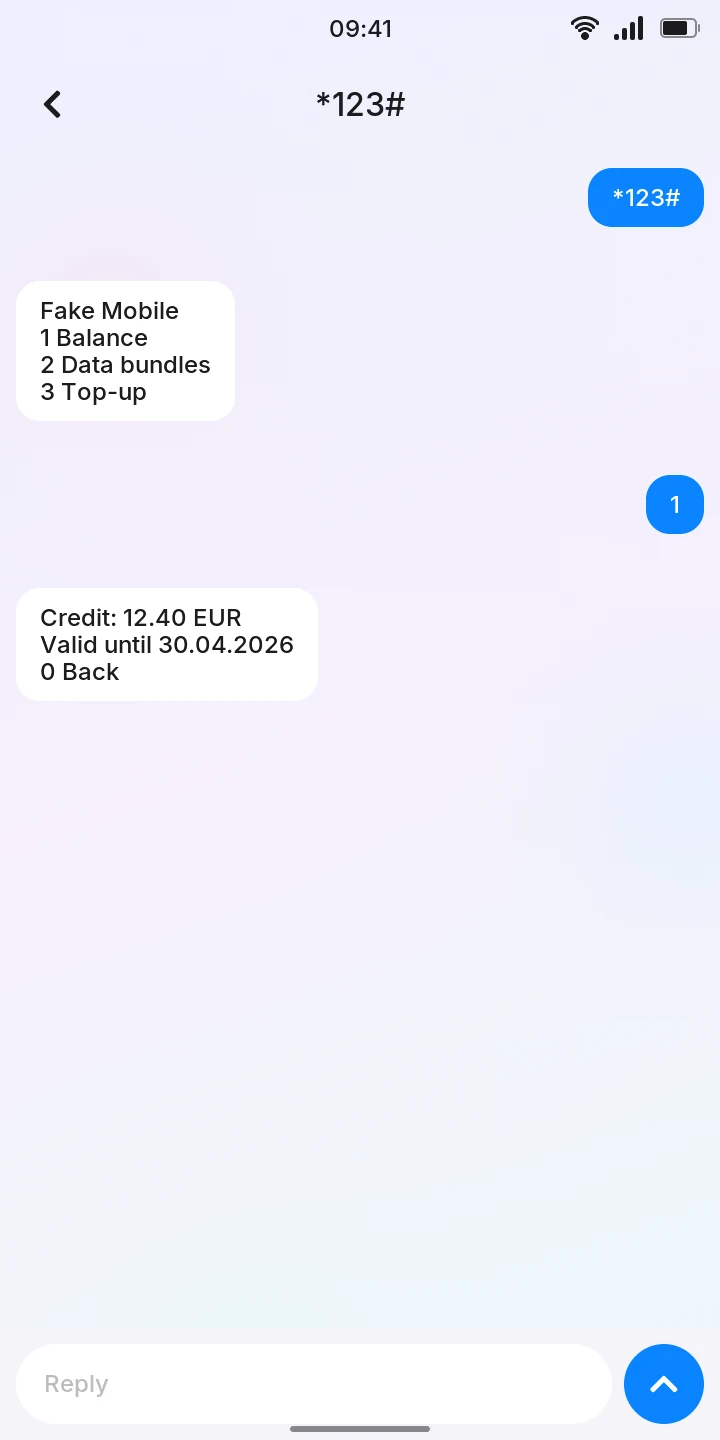
Operators answer short codes that start with * or # and end with #, such as *100#, to show your balance, your remaining data, or a menu of offers. The codes depend on your operator: look on its website or on the SIM card's packaging.
- Tap Keypad at the bottom.
- Type the code, for example *100#.
- Tap the green call button.
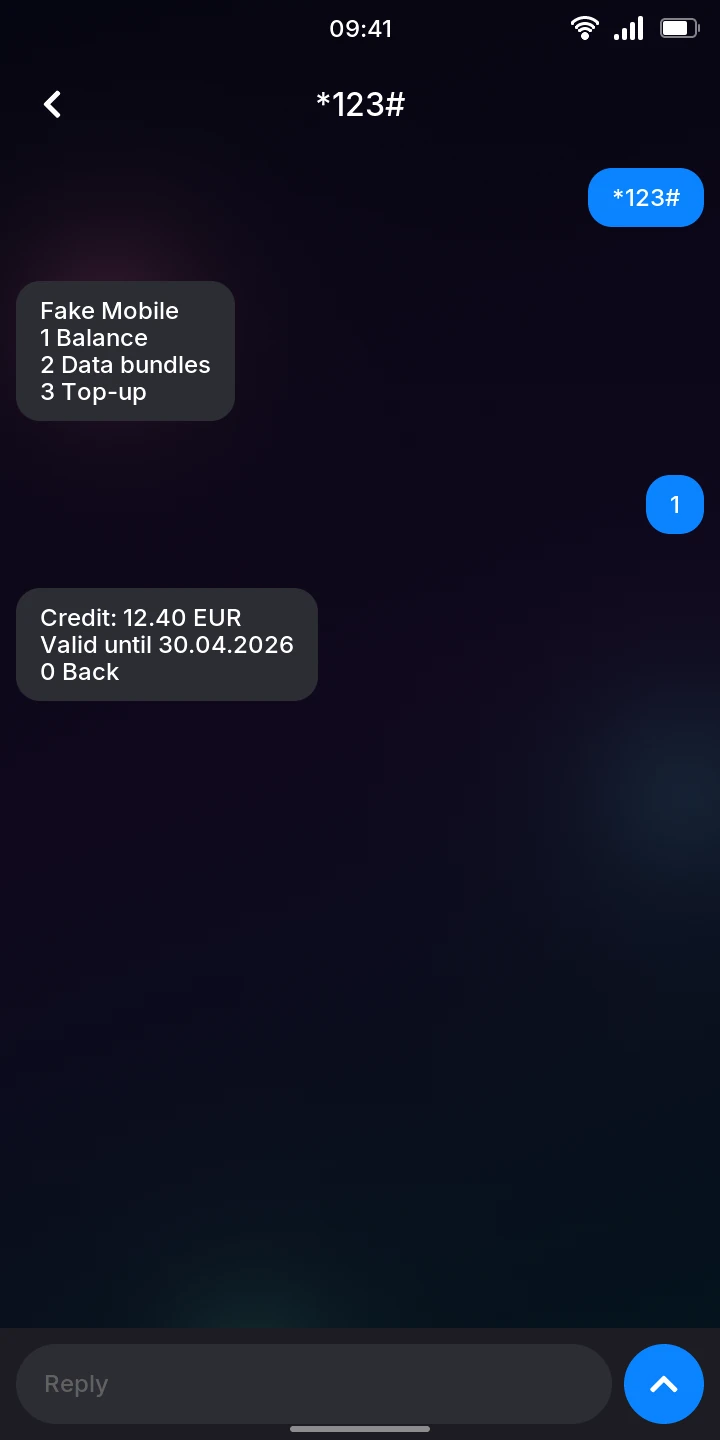
Instead of a call, a screen opens with the code on the right, Sending... under it, and the operator's reply on the left a few seconds later. When the reply is a menu that waits for your choice, a Reply field shows at the bottom: tap it, type the number of your choice on the keypad, and tap the send button. Each answer and the next reply are added below.
Go back with the back button at the top left when you are done: it ends the menu with your operator. Codes are not added to Recents.
When there is no reply, the screen says why: Refused by the network (a code your operator does not know), Not supported by the network, No answer from the network (after 30 seconds), or No SIM card and No service, as for text messages.
Your operator may also send you such a message without being asked, after a top-up for example: it opens on the same screen.
*#06# shows the phone's IMEI, the modem's serial number, without asking the operator.
Call someone back
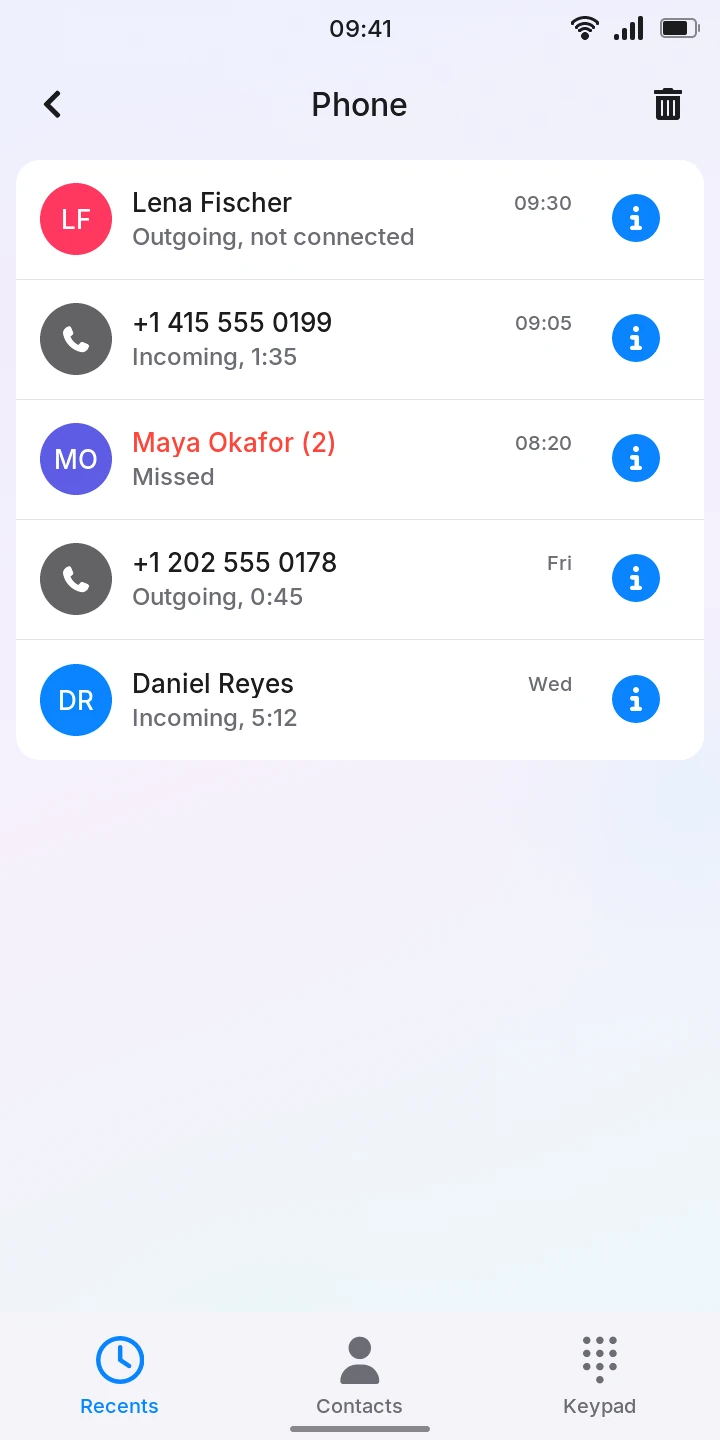
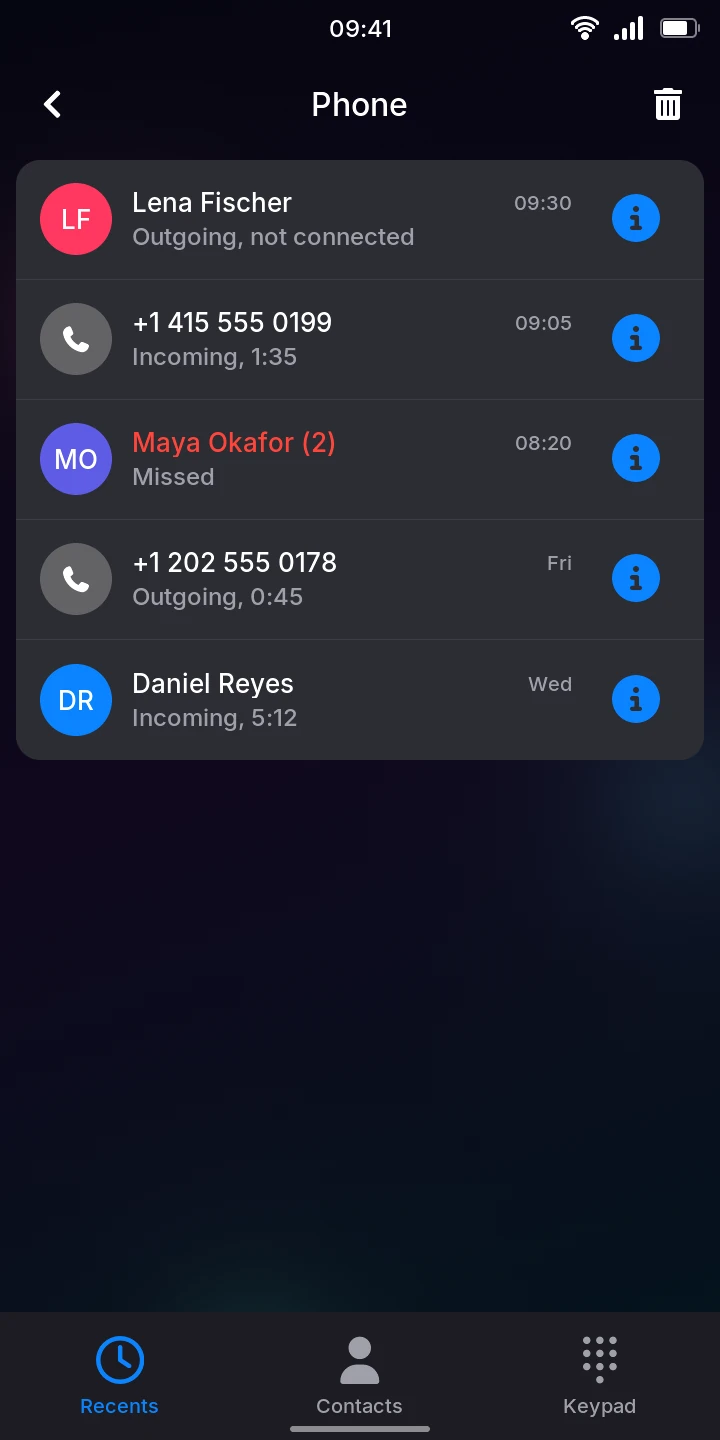
Recents lists your calls, the newest first:
- The name of the contact, or the number when it is not in your contacts.
- Under it, what kind of call it was: Incoming or Outgoing with how long it lasted (Incoming, 1:35), Outgoing, not connected, or Missed, in red.
- When: the time for today's calls, the day of the week for the last few days, the date before that.
- Several calls of the same kind in a row with the same number are one row, with their count: Maya Okafor (2).
To call back, tap the row: the call starts at once.
To see who it was, tap the button at the end of the row. It opens the contact, or a New contact with the number filled in, to save it (see Contacts).
The phone keeps your latest 500 calls.
Clear the recent calls
- On Recents, tap the trash button at the top right.
- Tap Clear recent calls to delete them all, or Cancel to keep them.
The trash button only shows on Recents, and only while there are calls to clear.
Call a contact
- Tap Contacts at the bottom. It is the same list as the Contacts app; the plus button at the top right adds someone.
- Tap the person.
- Tap Call.
To change the number before calling (to add a prefix, for example), tap the number on the contact instead: it opens in Keypad, where you can edit it, then tap the call button.
During a call
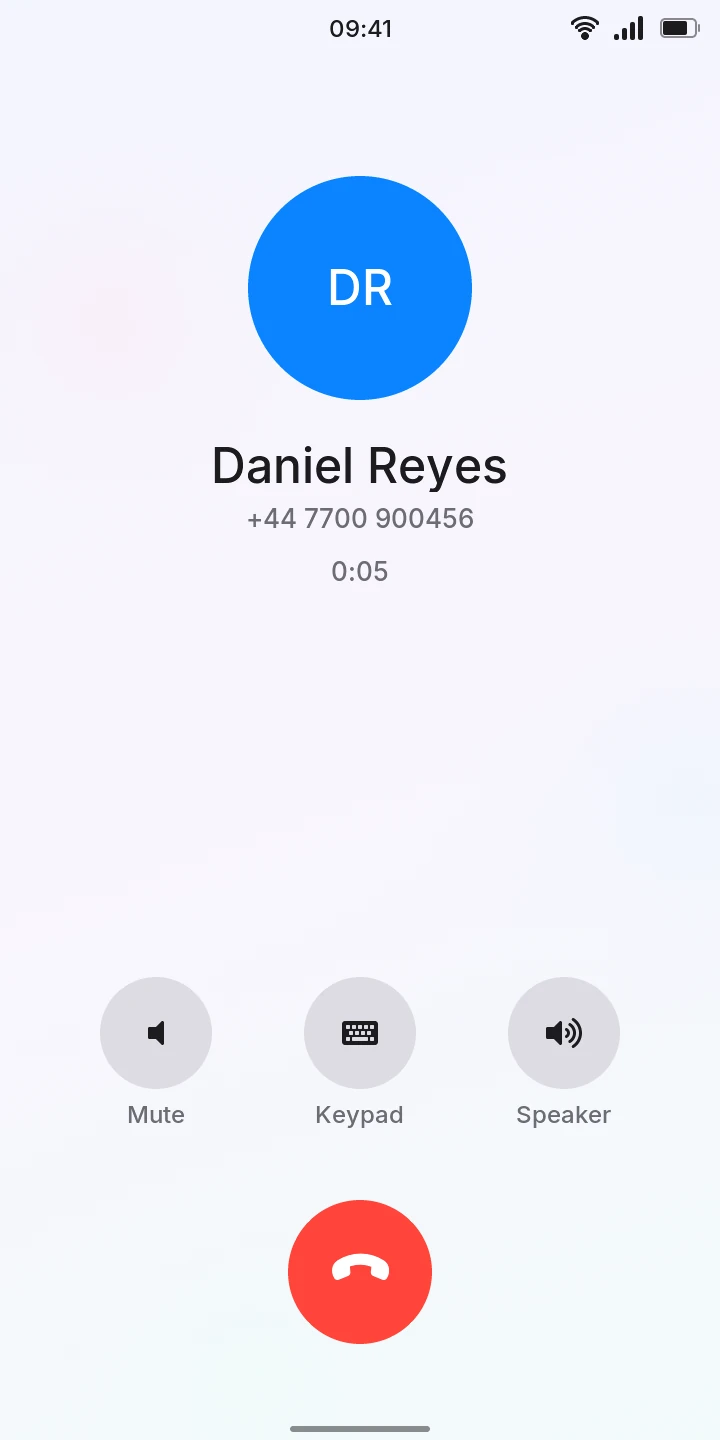
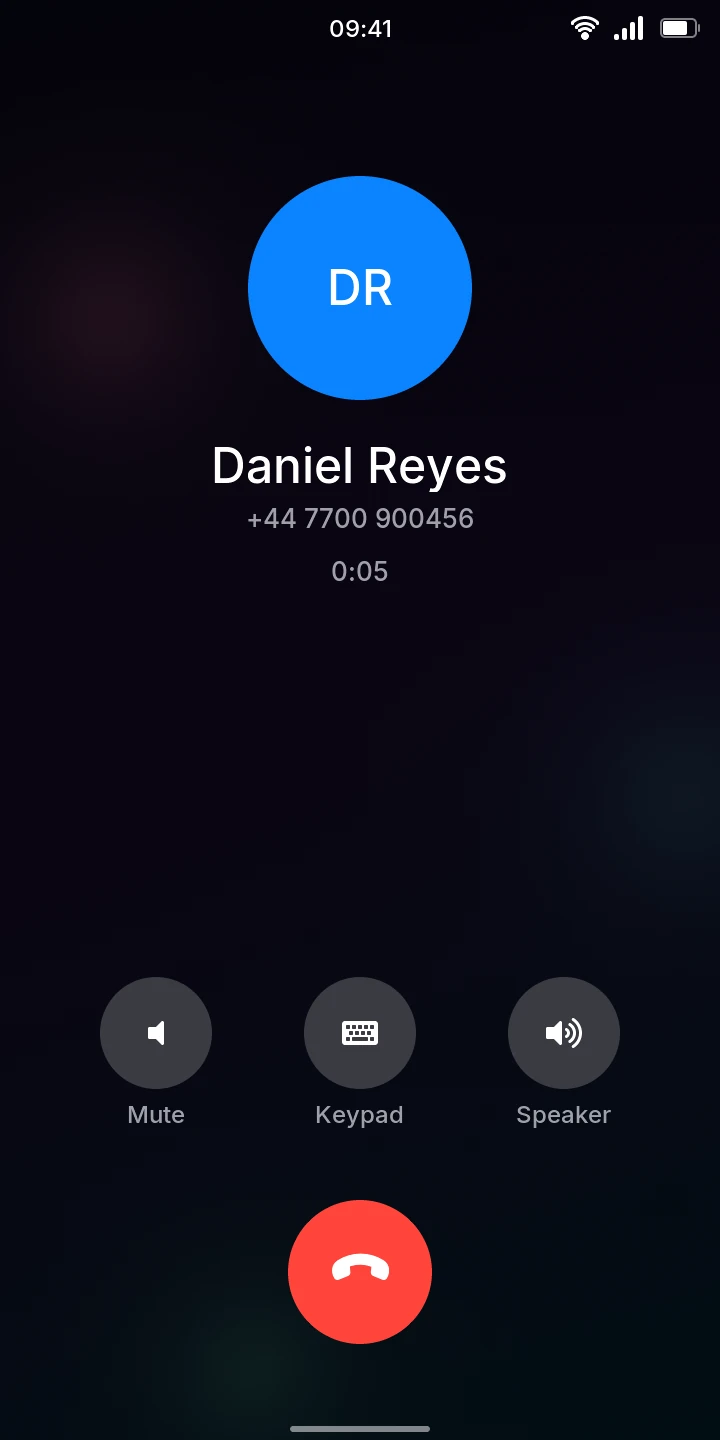
The call screen shows who you are talking to and how long the call has lasted. You hear the other person through the earpiece at the top of the phone.
- Mute turns your microphone off, so the other person no longer hears you; tap it again to turn it back on.
- Speaker plays the call through the loudspeaker, to talk with the phone away from your ear; tap it again for the earpiece.
- Keypad shows keys, for menus that ask you to press one (see below).
- Bluetooth shows while a Bluetooth headset is connected: the call plays in the headset and you talk through its microphone. Calls go to it by themselves, including when it connects during a call; tap Bluetooth for the earpiece, or Speaker for the loudspeaker. When the headset disconnects, the call moves to the earpiece.
Tap the red button to hang up. The screen says Call ended, or Busy or No answer for a call that did not connect, then goes back to where you were.
The volume keys change how loud you hear the call, in the earpiece, the loudspeaker or the headset, with a slider at the right edge as for music. The call's volume is kept apart from the music's, for the next calls too, and does not go down to silent. Its top two steps are louder than the earpiece can be on its own, and may sound distorted when the other person speaks loudly.
Press keys during a call
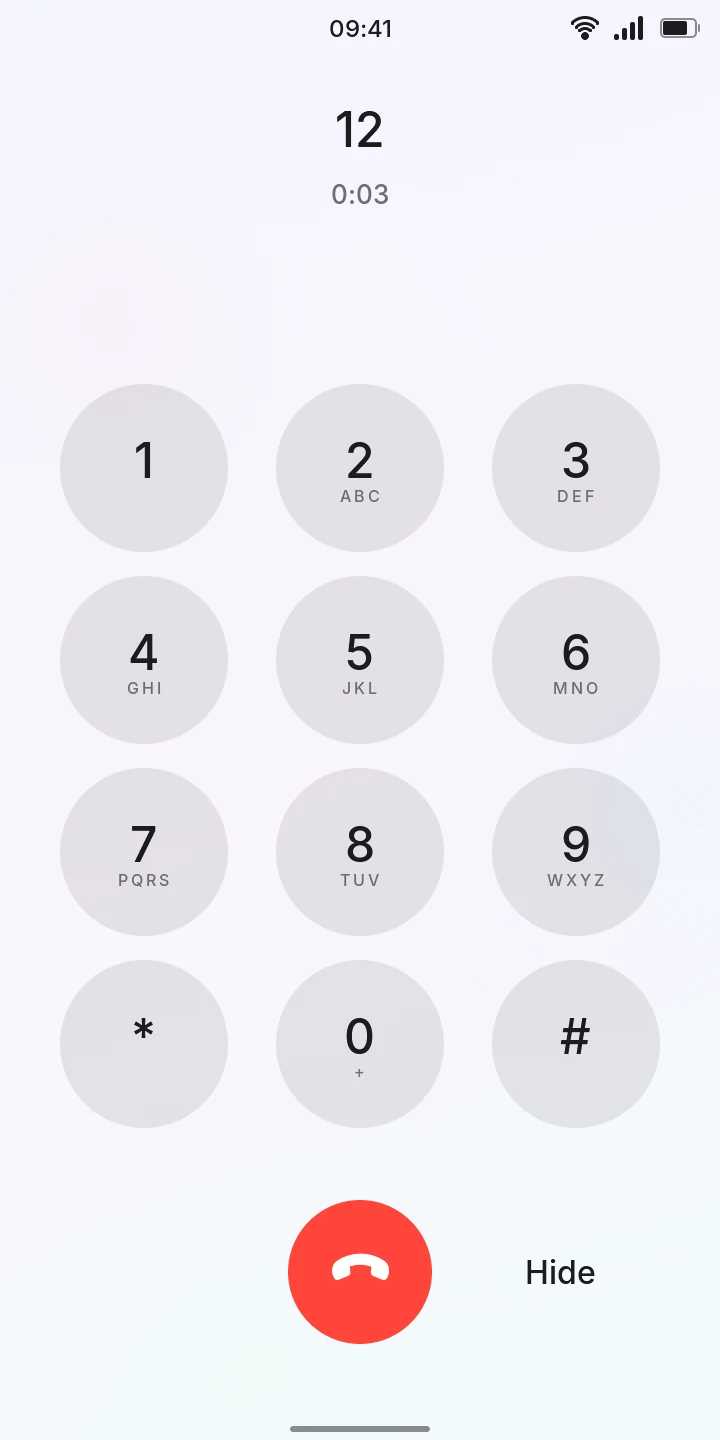
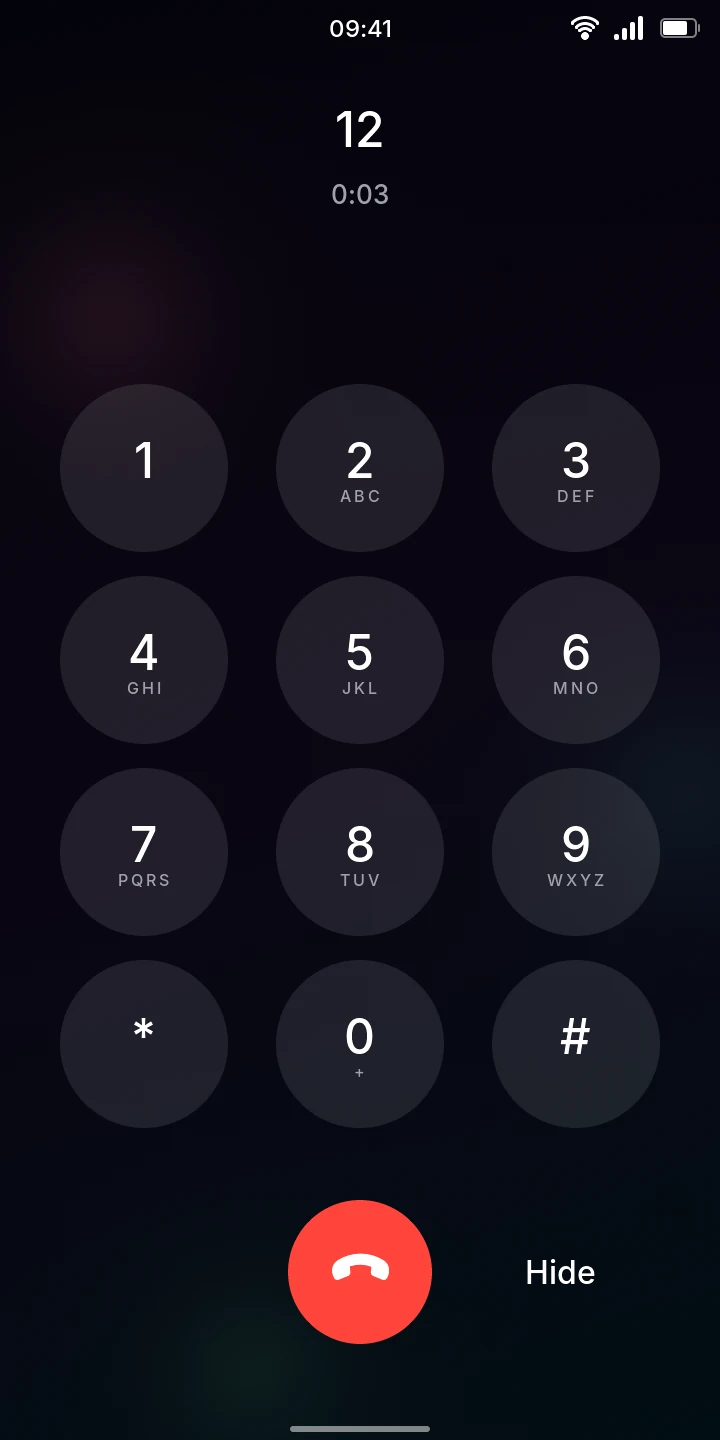
Voicemail, banks and support lines ask you to press keys: "press 1 for…", or a PIN followed by #.
- During the call, tap Keypad.
- Tap the keys. Each one is sent to the other end as you press it, and the keys you pressed show at the top, above how long the call has lasted.
- Tap Hide for Mute and Speaker again.
Keys only reach the other end once they have answered: those pressed while it still rings are not sent. The keys you pressed stay shown until the call ends.
Answer a call
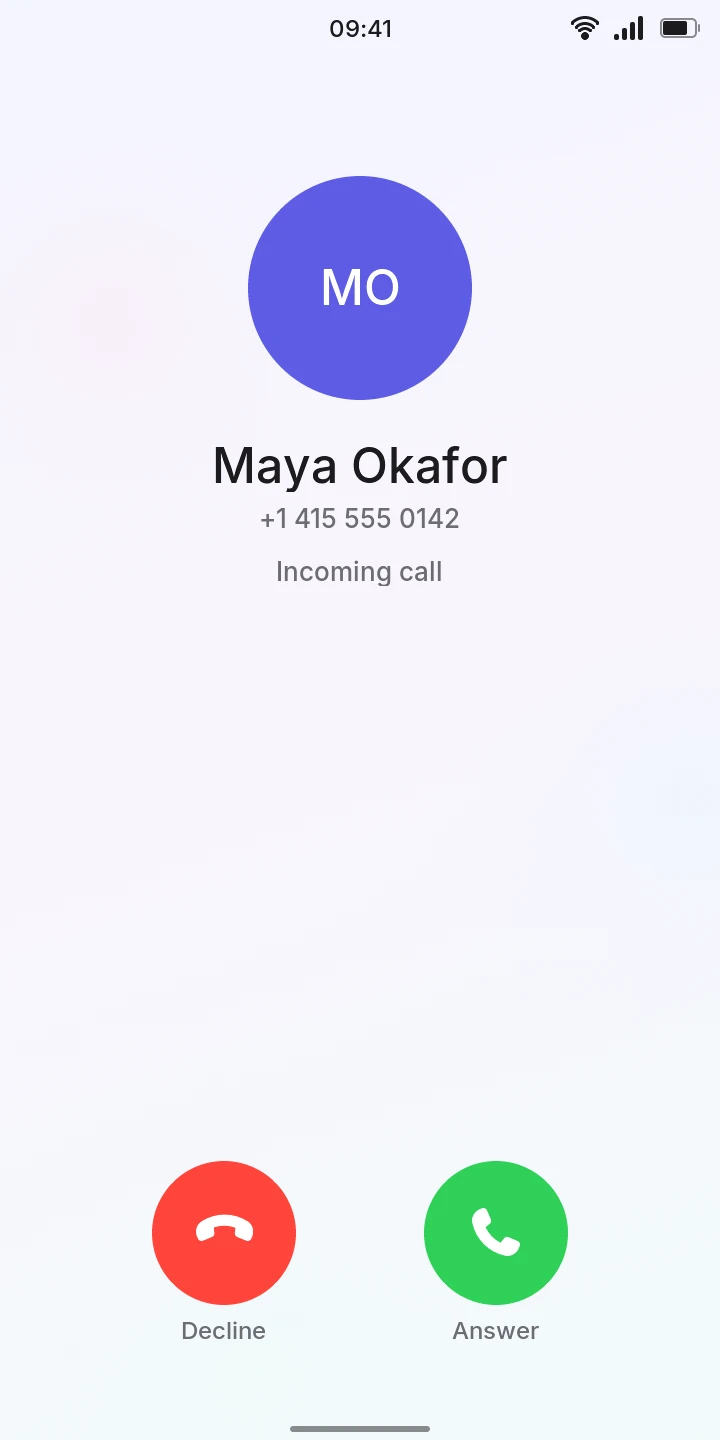
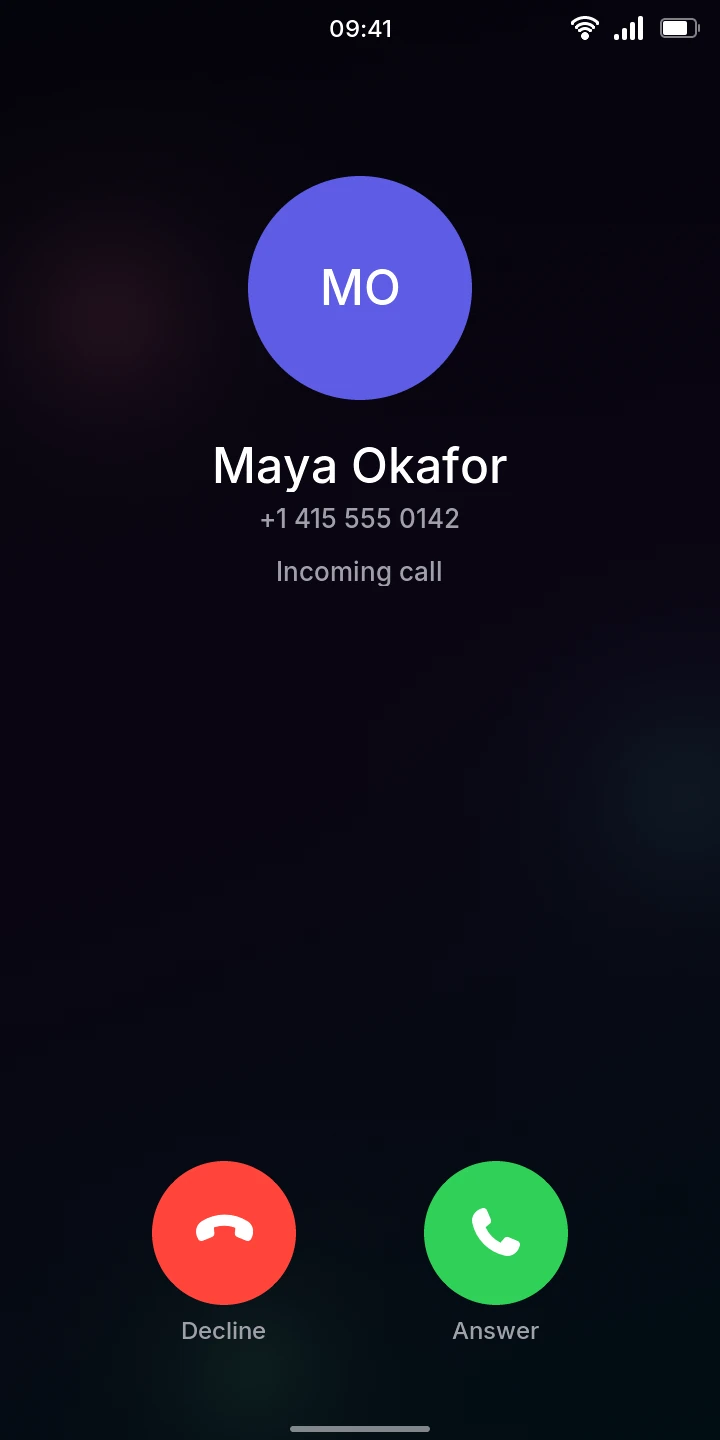
When someone calls, their name (or their number, or Unknown number when it is hidden) shows with Incoming call, over whatever you were doing (the lock screen too), and the phone vibrates. There is no ringtone yet.
- Tap the green Answer button to talk.
- Tap the red Decline button to refuse it.
A call you do not answer shows in Recents as Missed, and on the lock screen and in the quick settings until you open Phone on Recents (see Notifications). After the call you are back where you were: on the lock screen if the call came in over it.
Every call is added to Recents: the ones you made as Outgoing, the ones you answered or declined as Incoming, with how long they lasted (not connected for those that did not connect).