Trilium
Trilium keeps a copy of your Trilium Notes on the phone, synced with your Trilium server: browse the note tree, read your notes, search them by title, write new ones and edit text notes. Once synced, the notes are on the phone and open without internet; syncing needs it (Wi-Fi or mobile data).
Trilium is not part of the firmware: it is installed separately, and then shows up in the menu under Essentials.
Connecting to your server
The phone syncs with a Trilium server as Trilium on a computer does, so the server must already hold your notes (synced from a computer first).
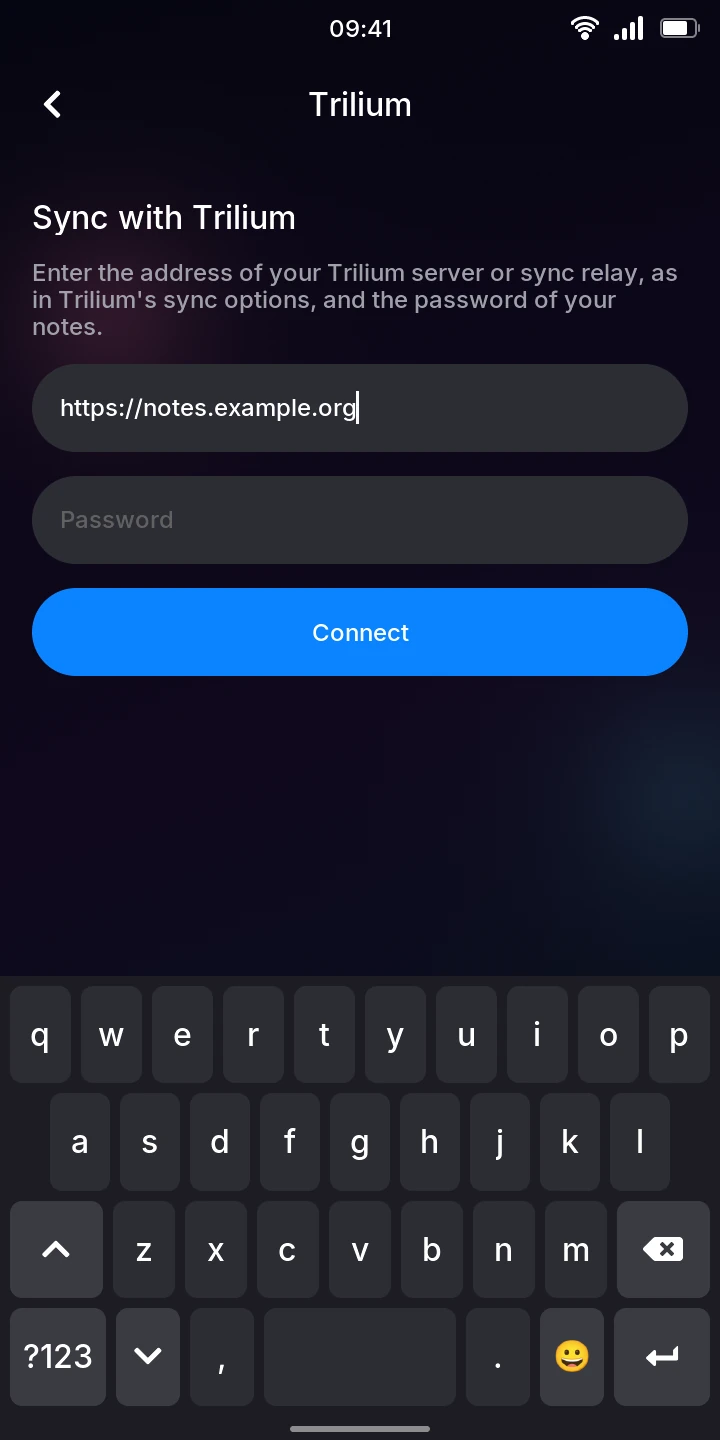
- Open Trilium from the menu. It shows Sync with Trilium.
- Tap Server address and type the address of your Trilium server or sync relay, the one
in Trilium's sync options (
https://is added when you leave it out). - Tap Password and type the password of your notes, then tap Connect (or press Enter).
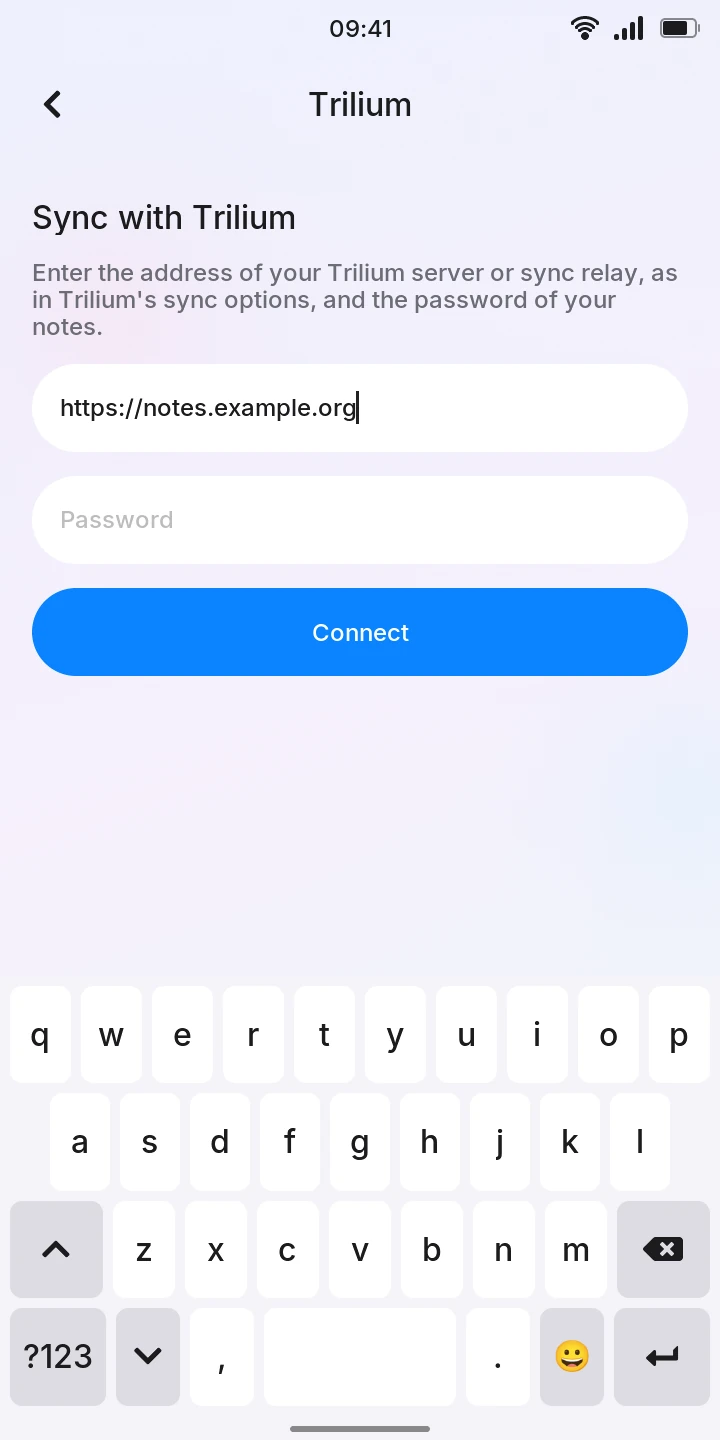
When the server asks for a second factor, a Two-factor code field appears with Enter the code from your authenticator app.: type the code and tap Connect again.
If it cannot connect, a line in red says why: Wrong password., Cannot reach the server., No Trilium server at this address., or There are no notes on this server yet: sync to it from Trilium on a computer first. A server running another version of Trilium says so, with the version it syncs with and the one the app needs.
The phone stays connected to that server: there is no signing out or switching to another.
The first sync
Once connected, Sync in progress copies all your notes to the phone, in three steps: Connecting to the server, Syncing data (with a bar and how much is done) and Checking the notes. A large document takes a while. You can leave the app meanwhile: the sync goes on, and Trilium opens on your notes once it has finished.
If it fails, Sync failed says why. What was copied is kept: tap Try again and it goes on from there.
Browsing your notes
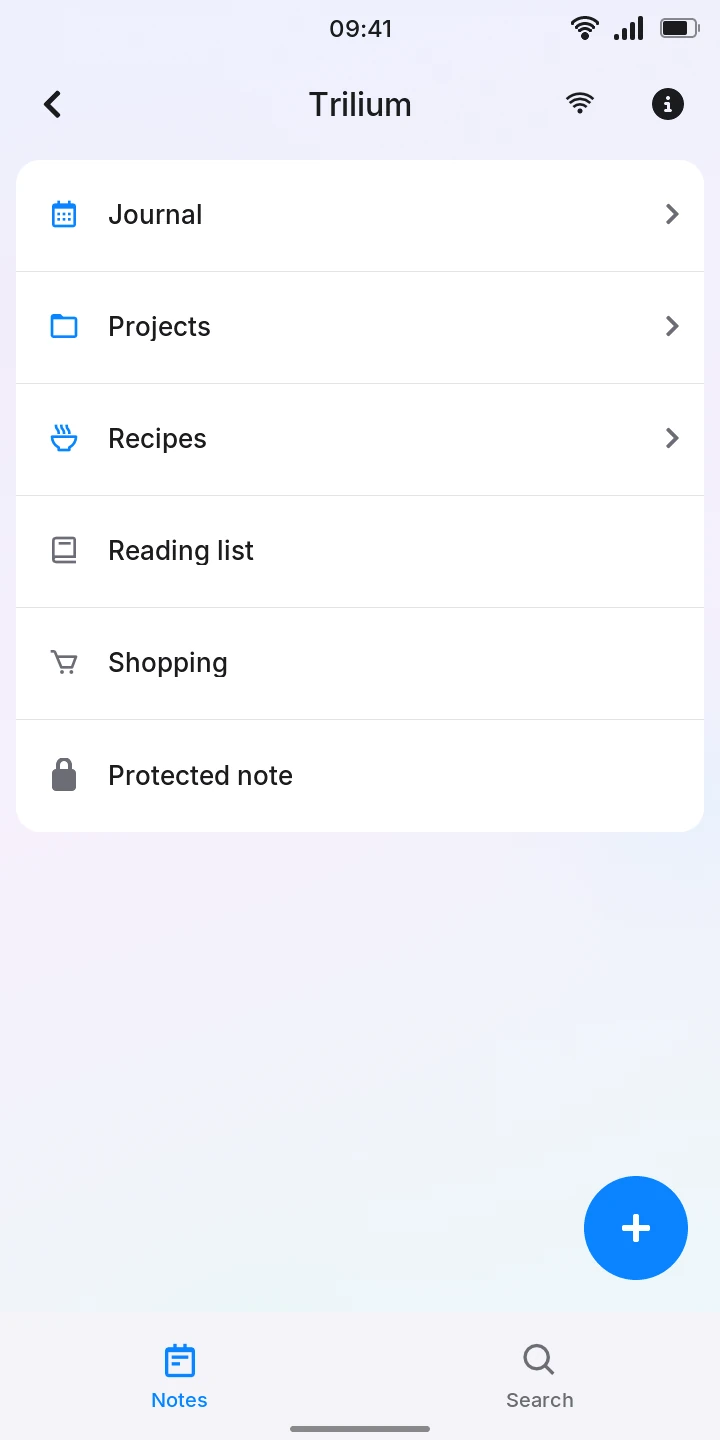
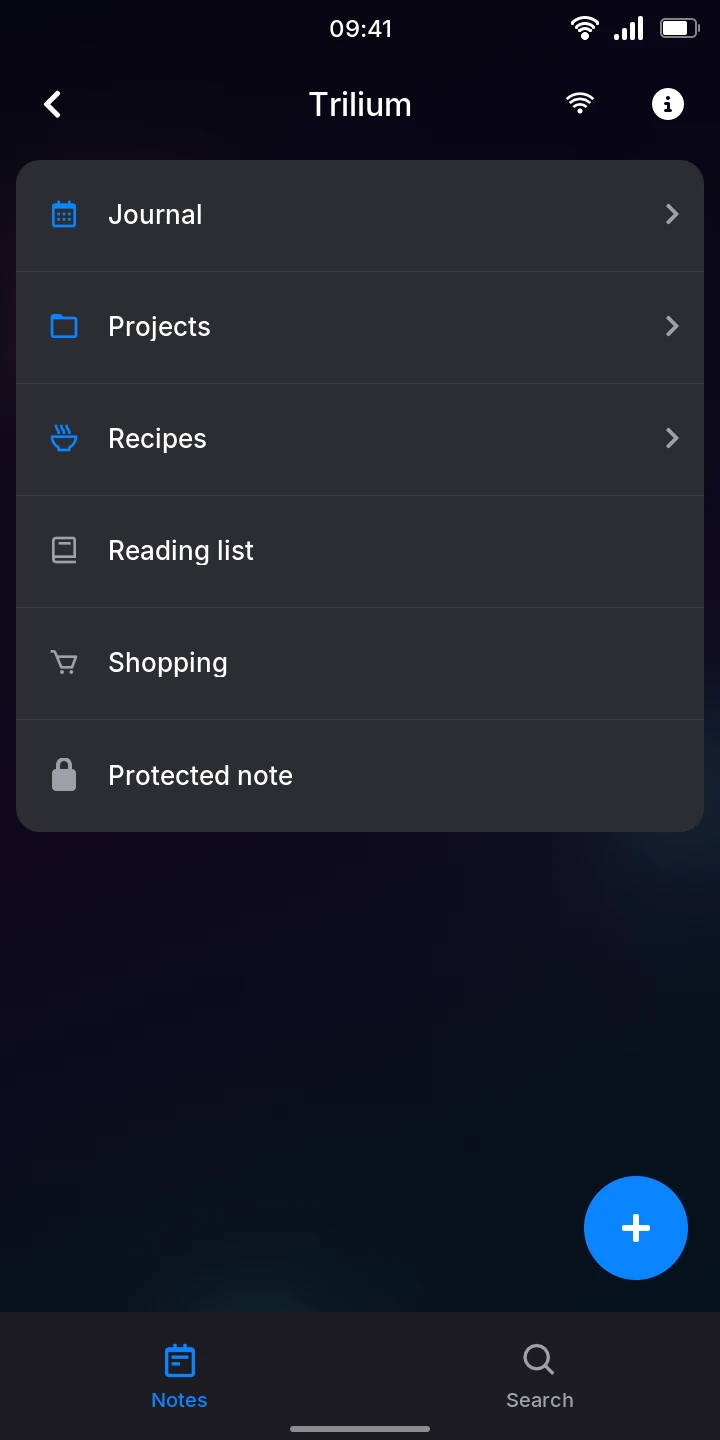
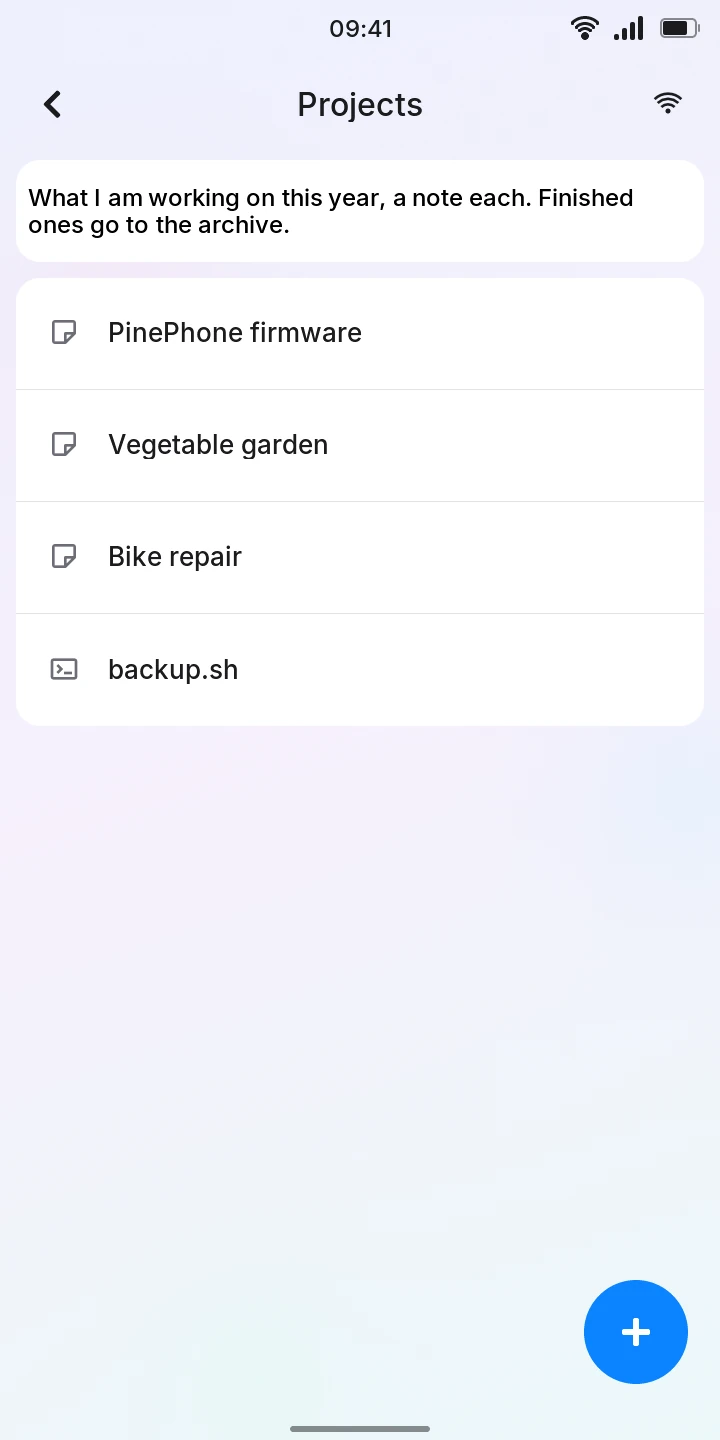
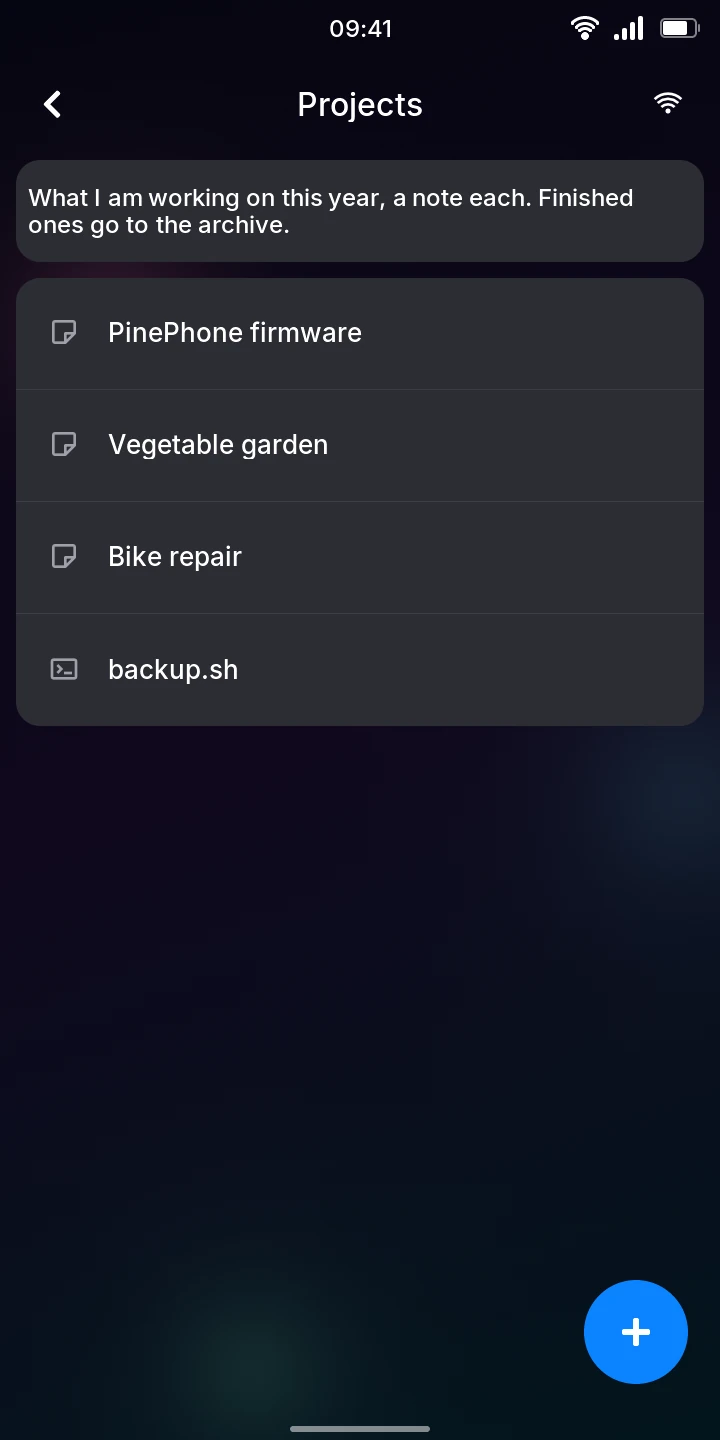
A bar at the bottom switches between Notes and Search. Notes lists the notes at the top of your tree, in Trilium's order, each with its icon as in Trilium. A note with notes under it has an arrow at its end: tap it to see them on a screen of their own, and the back arrow to go up. Its own text comes first, cut short: tap it to read all of it.
A note placed in several places with a prefix shows it before its title, as Trilium does.
Reading a note
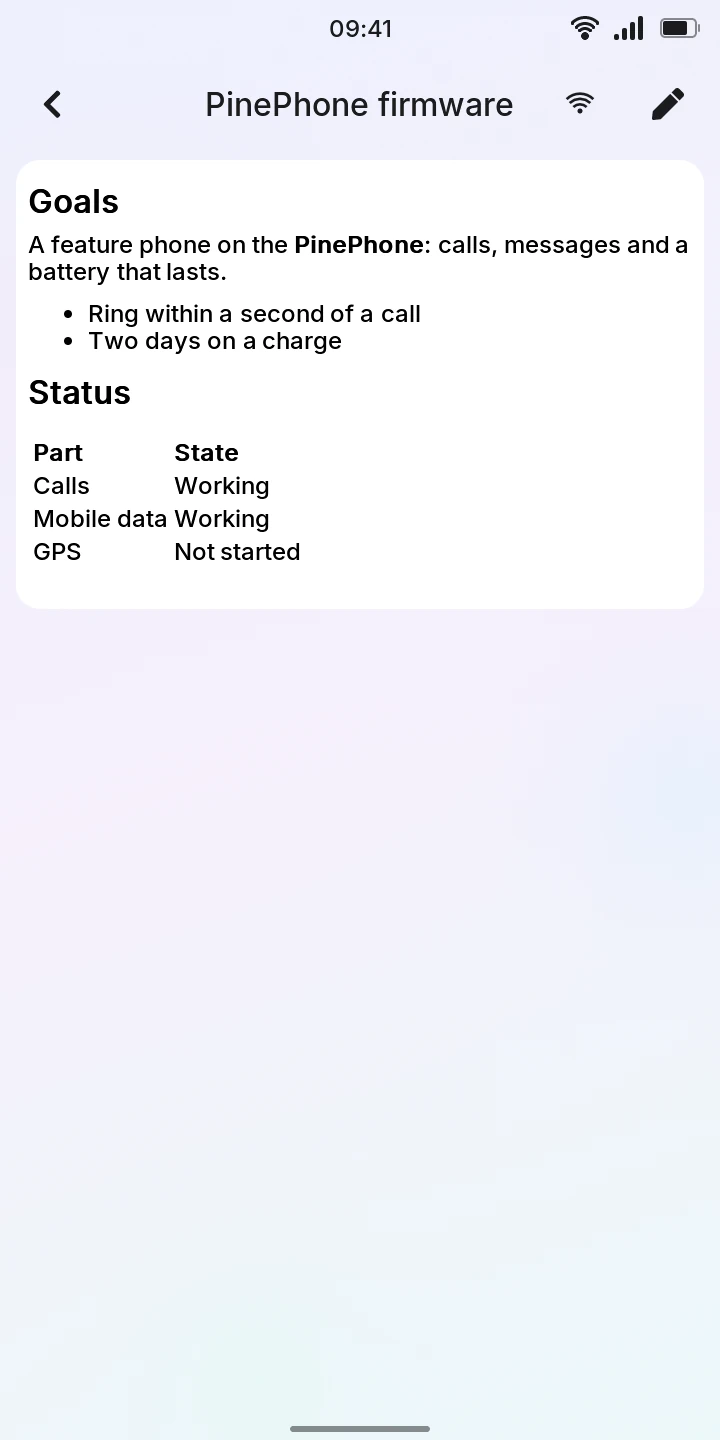
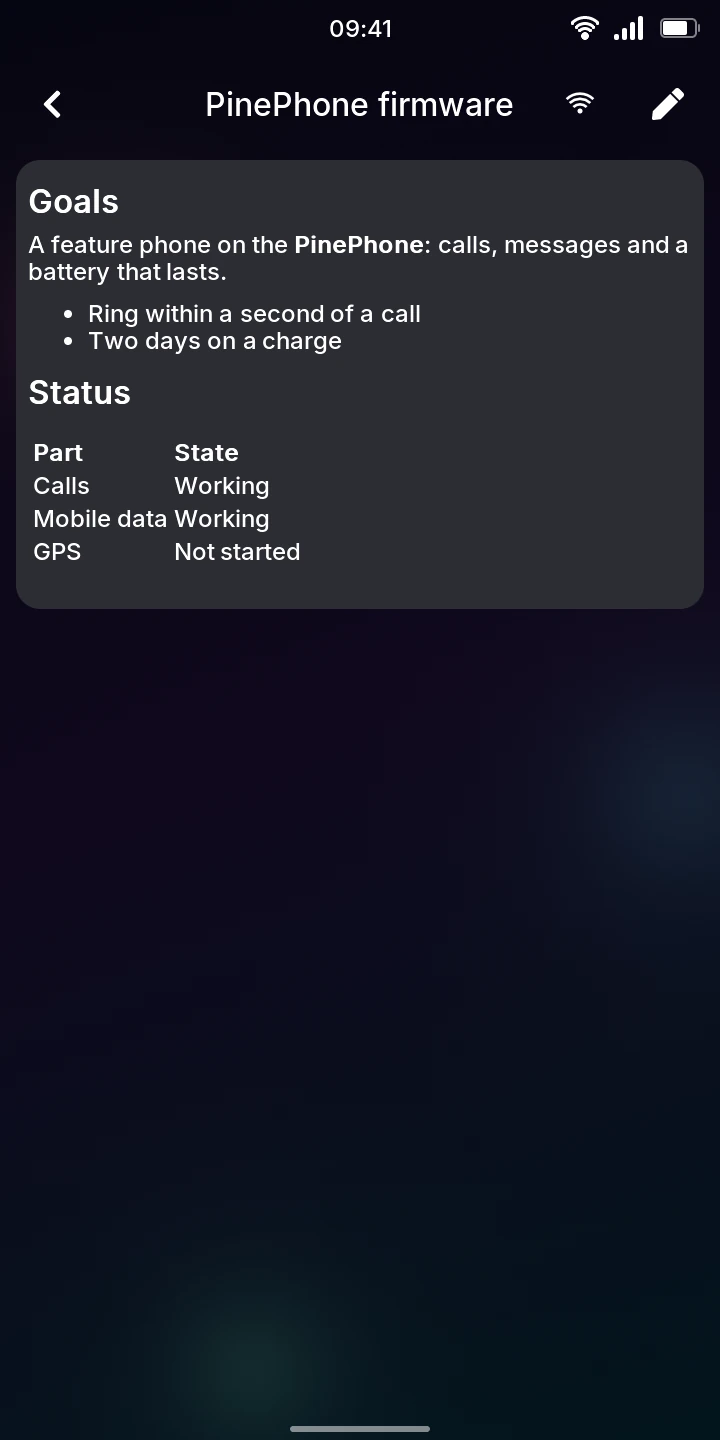
Tap a note to open it. A text note shows as a page, with its formatting, lists, tables and quotes. A code note, and a file that is text, shows its text in a fixed-width font.
What cannot be shown says so instead: Protected notes cannot be opened yet, This kind of note cannot be shown yet (canvas, mind maps, relation maps, images and other files), or This note is empty.
Searching
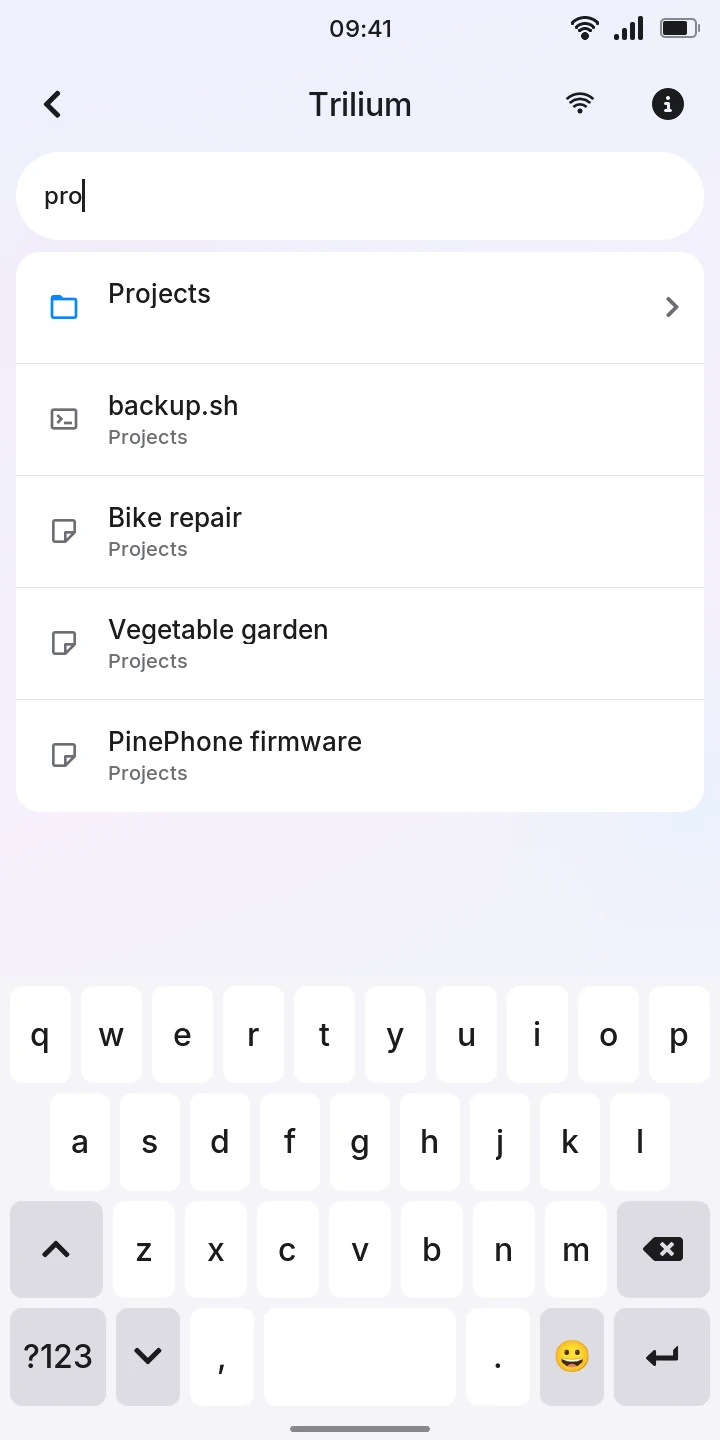
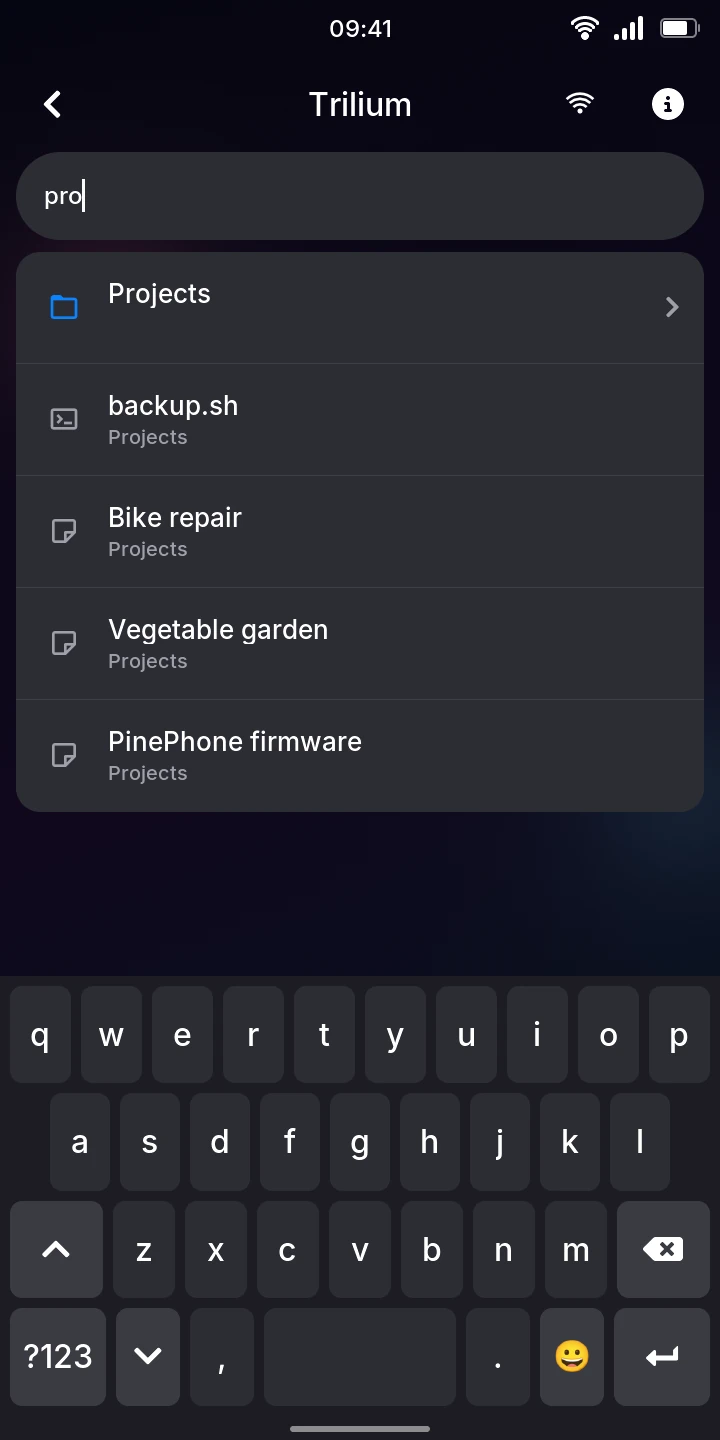
Tap Search at the bottom and type in the Note title field. The list shows the notes whose title, or the titles of the notes above them, hold every word typed (capitals and accents aside), the best 25 first, each with where it is in the tree under its title. Tap one to open it, or press Enter for the first.
Search goes by titles only, not by what the notes say.
Writing and editing
To write a new note, tap the round button at the bottom right of Notes, or of any note's list: the note goes there, last.
- Type its title; Enter moves on to its text.
- Type the text. While you type, the row of buttons over the keyboard formats it, as in Notes: bold, italic, underline, bullet and numbered lists, and checklists.
- Go back with the back arrow.
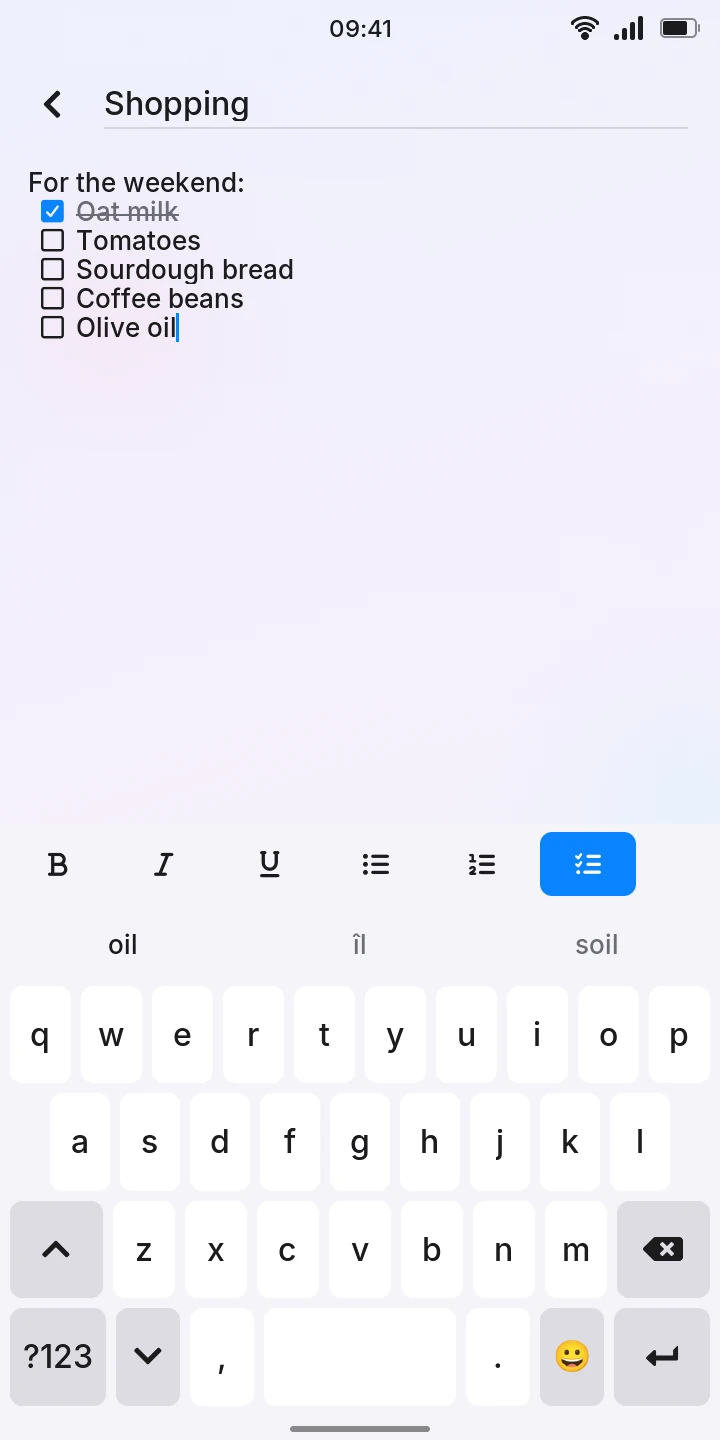
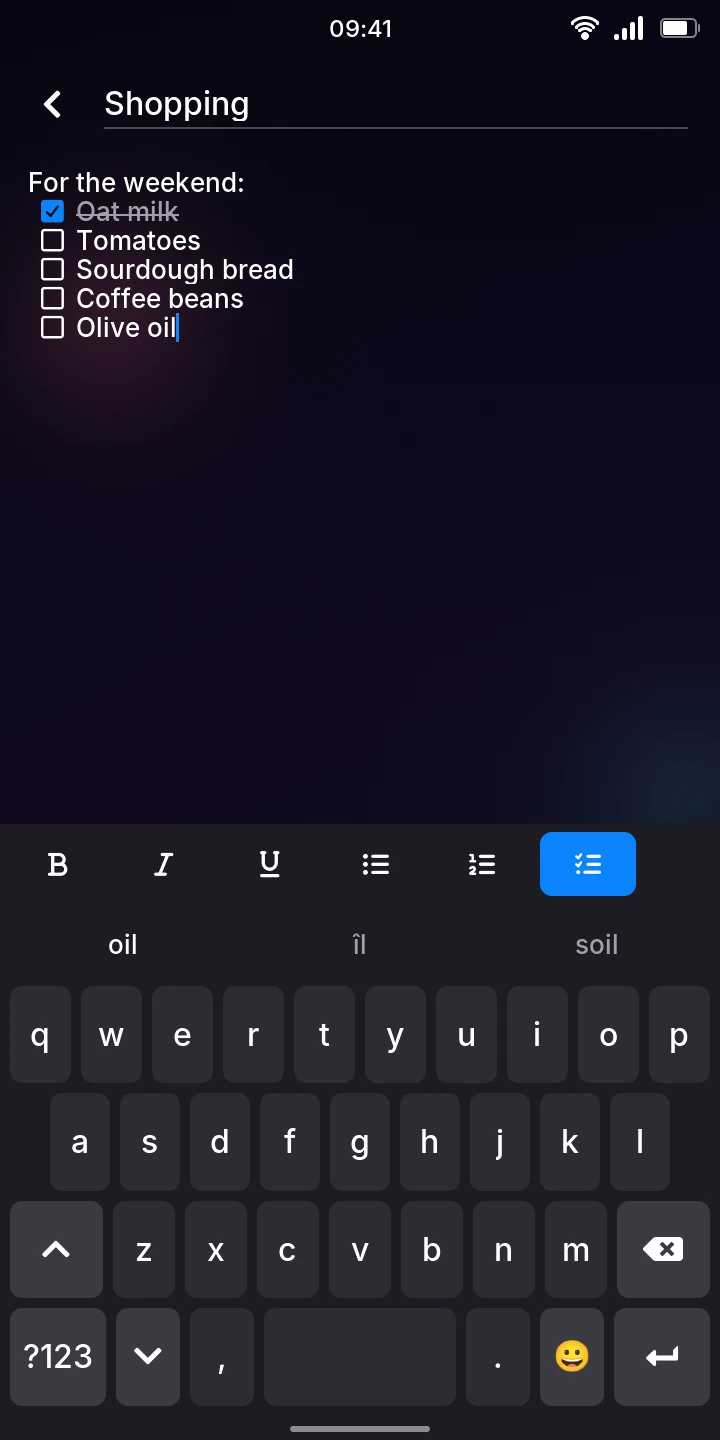
A note left without a title is called New note; one with nothing typed is not kept.
To edit a text note, open it and tap the edit button at the top right. Its title, at the top, can be changed too. The editor holds only what its buttons make: a note with anything else (links, headings, pictures, colors, line breaks within a paragraph, lists in lists) says This note has formatting the editor cannot keep yet, so it can only be read here. and stays as it is.
There is no save button: the note is saved when you hide the keyboard or go back, and sent to the server right away.
Syncing
After the first sync, Trilium syncs each time you open it, both ways: what changed on the server comes to the phone, and the phone's changes go to the server. A button at the top right of each screen shows the sync, with Trilium's icons: a Wi-Fi symbol once synced, crossed out when the server could not be reached, a blue symbol while syncing, and an orange star while the phone has changes the server does not have yet. Tap it to sync now.
Changes made without internet stay on the phone, with the orange star, and go to the server at the next sync.
If a sync fails because the phone's clock and the server's differ by more than 5 minutes, set the phone's time (see Date & time).
What the document holds
Tap at the top right of the first screen for Document: how many notes, attributes, attachments and revisions it has, the server it syncs with, and how much room it takes on the phone.
Limitations
- Protected notes are not opened: their titles show as Protected note, with a lock.
- Pictures in text notes are not shown, and links cannot be opened.
- Only text notes are edited, and only those whose formatting the editor can keep. Notes cannot be deleted, moved or cloned, and their attributes cannot be changed.
- Editing on the phone keeps no revision of the note's earlier text.
- Search goes by title only, without Trilium's search syntax (
#label,note.content...). - Icons from custom icon packs show as the note's default icon.
- The phone syncs only while Trilium is opened, after an edit, or when you tap the sync button; it does not tell you about changes made elsewhere.