Mobile network
The phone's modem connects to your operator's network with the SIM card. With it you make and receive calls, send and receive text messages and, when you turn it on, use mobile data (2G to 4G). Its settings are in Settings › Network, under Mobile.
The SIM card
The modem starts a few seconds after the phone. Then it reads the SIM card and registers on your operator's network, which takes a little longer. Until then the signal bars light up one after another, over and over.
A SIM card protected by a PIN cannot be unlocked on this phone yet: the status bar shows the lock. To use the card, turn its PIN off in another phone first.
If the phone says No modem or No SIM card, see No modem, no SIM card.
The status bar
The right of the status bar, before the battery, shows USB, Bluetooth and Wi-Fi, then the mobile network. Bluetooth shows while it is on: dim, and lit while a device (headphones, a speaker) is connected (see Bluetooth). USB shows while a computer is connected: dim for a moment while the two set up their connection, then lit. Whether the phone also uses the computer's internet is said in the quick settings (see Connecting to a computer).
| You see | It means |
|---|---|
| The signal bars | How strong the mobile signal is. While the modem starts or looks for a network, they light up one after another, over and over. |
| R after the bars | You are roaming: registered on another operator's network, usually abroad. |
| 2G, 3G or 4G | Mobile data is connected, over that technology, and Wi-Fi is not. While the quick settings are open, it shows in any case. |
| No SIM card. | |
| The SIM card is locked by its PIN, or blocked by its PUK (in red). | |
| No service: no network in reach, or the network refused the SIM card. | |
| The SIM card has a problem, or the modem is not found (in red). |
When all is well, only the bars show. The operator's name (or what is wrong, such as No SIM) takes the left of the status bar while the quick settings are open (swipe down from the top of the screen), and is in Settings › Network.
Calls
Phone makes and receives calls: see Phone. Calls stay on 4G where your operator takes them there (below); otherwise the phone leaves 4G for 2G or 3G during a call and goes back to 4G once the call ends, and mobile data may pause meanwhile.
Calls over 4G (VoLTE)
Settings › Network › Calls over 4G (VoLTE) is on by default, so calls stay on 4G, which also keeps them working where your operator has switched 2G and 3G off. An operator that does not offer calls over 4G to the phone gets its calls over 2G or 3G all the same.
Changing the switch restarts the modem, so the phone is without service for about half a minute; during a call, it waits for the call to end.
Whether calls over 4G work depends on your operator. If calls you make end at once with the switch on, turn it off.
Depends on the operator
Calls over 4G work on Vodafone (Romania). On Digi (Romania) the modem refused them, so the switch starts off with a Digi SIM. Other operators have not been tested yet.
Text messages
Messages sends and receives text messages (SMS) over the mobile network, whether mobile data is on or not. See Messages.
A message or a call that arrives while the phone is asleep wakes it up on the lock screen. Left there, it goes back to sleep 10 seconds later (after the call, for a call), counted from your last touch. Unlock it, or press Power to wake it yourself, and it stays awake until you press Power again.
Codes to your operator
Codes such as *100#, dialed in Phone, ask your operator for your balance, your remaining data or a menu of its offers. See Codes to your operator.
Mobile data
Mobile data is off by default. To use the internet over the mobile network, turn on the Mobile data tile in the quick settings, or Settings › Network › Mobile data (the same switch).
Once connected, the status bar shows the technology (4G, for example). When Wi-Fi is connected too, the phone uses Wi-Fi, and the technology goes from the status bar.
Roaming
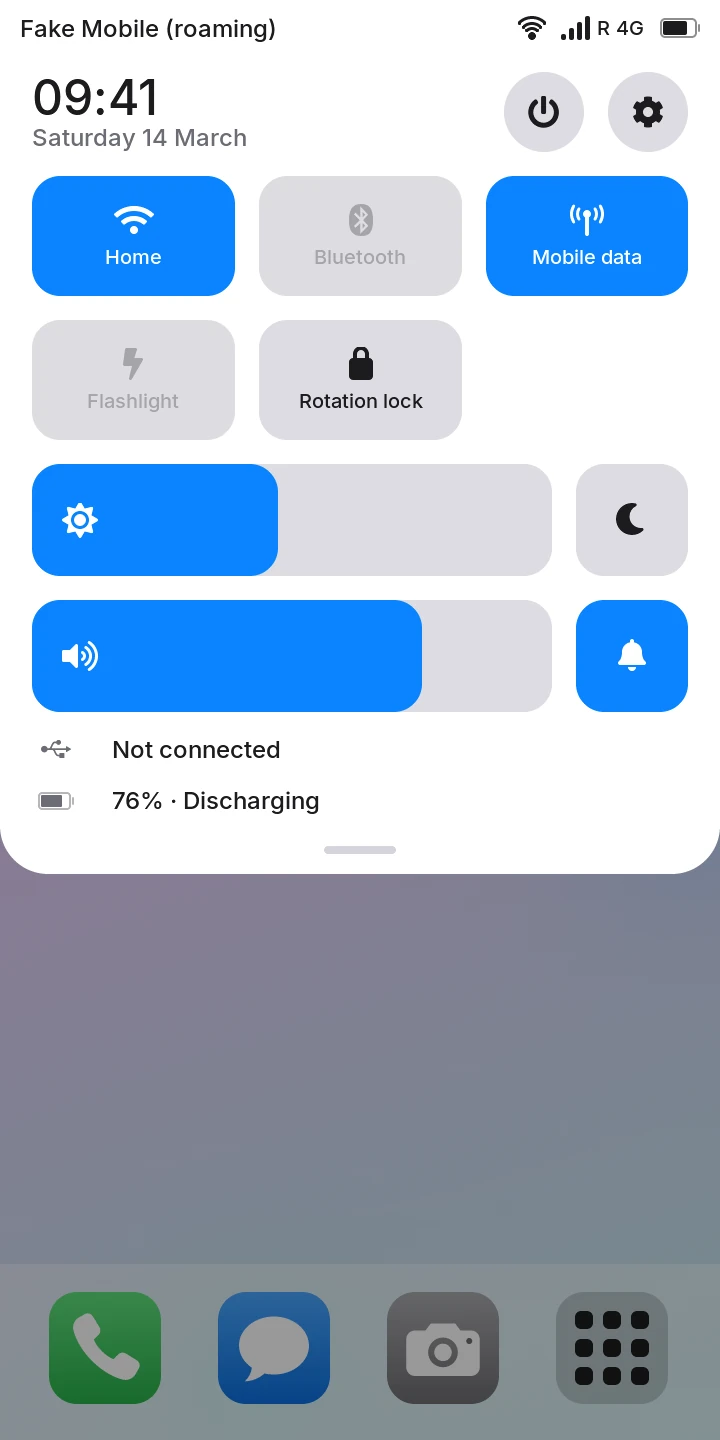
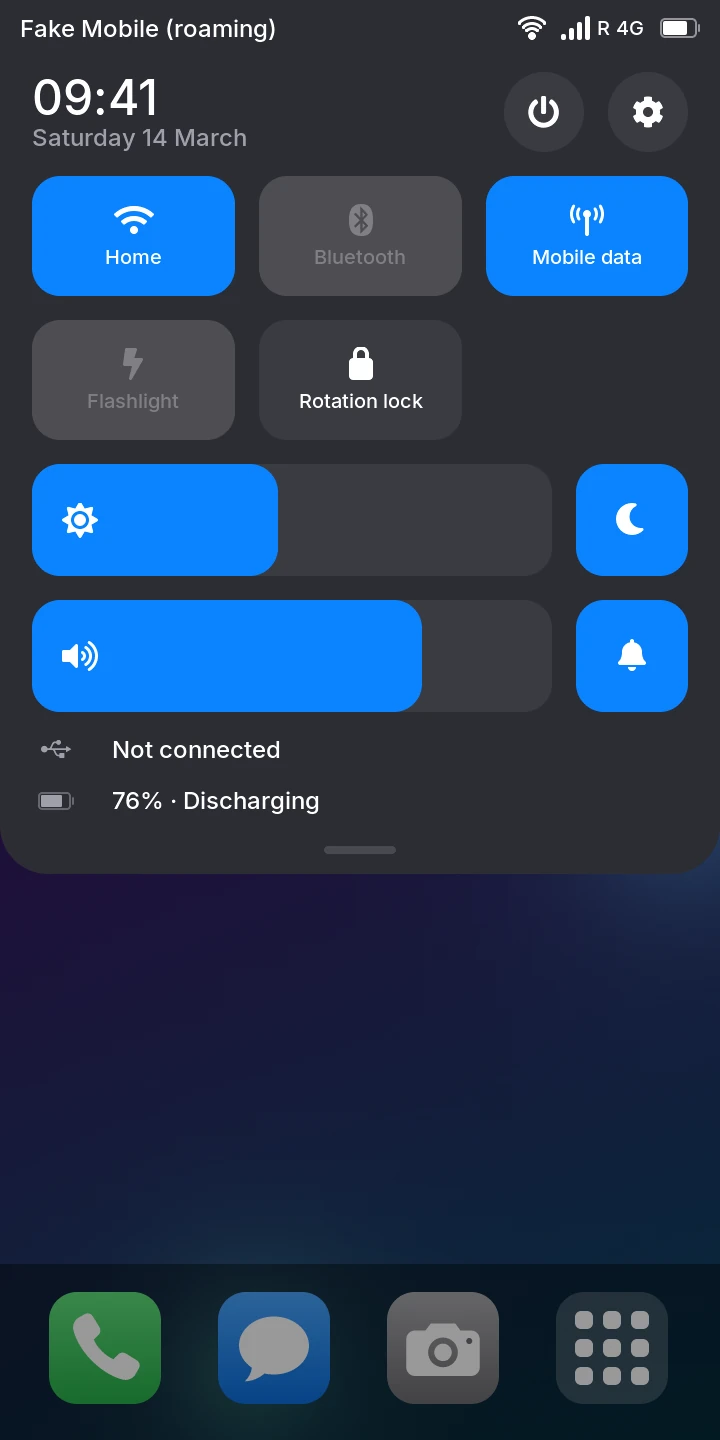
When you are on another operator's network, the status bar shows R, and the operator's name (with the quick settings open, and in Settings › Network) has "(roaming)" after it. Text messages work as at home.
Mobile data stops while you are roaming, even with Mobile data on, unless Settings › Network › Data roaming is on too. It is off by default: data on a foreign network can be expensive. To use mobile data abroad, turn on both.
Not tested yet
Data roaming has not been tested on a foreign network yet.
Access point name (APN)
Most operators give the phone the access point name (APN) it needs for mobile data, so the field in Settings › Network is empty and shows Automatic. If your operator gave you an APN (for example for a prepaid plan):
- Open Settings › Network.
- Tap the field under Access point name (APN).
- Type the APN and press Enter.
The APN is saved when you press Enter, hide the keyboard or leave the page, and the modem reconnects with it. It may contain letters, digits, dots and dashes only. To go back to the network's own, clear the field.
Not tested yet
Setting an APN has not been tested with a network that requires one.