GitHub
GitHub shows your GitHub notifications on the phone, much faster than the website: review requests, mentions, issues and releases of the repositories you follow. You can mark them read or done, open pull requests, issues and discussions to read their conversation and comment, merge pull requests and set their milestones. It also lists your repositories. The phone needs internet (Wi-Fi or mobile data).
GitHub is not part of the firmware: it is installed separately, and then shows up in the menu under Tools.
Signing in
GitHub signs in with a personal access token, a password made for one app that you can revoke at any time. Make one on a computer first:
- On github.com, open Settings › Developer settings › Personal access tokens › Tokens (classic) and choose Generate new token (classic).
- Tick the notifications scope, and repo to also see notifications from private repositories, open their discussions and comment, and read:org to see the organizations you belong to.
- Generate it and keep the page open: GitHub shows the token only once.
Then on the phone:
- Open GitHub from the menu. It shows Sign in to GitHub.
- Tap the Token field and type the token (it starts with
ghp_). - Tap Sign in, or press Enter on the keyboard.
The phone remembers the token; there is no signing out or switching to another account. If GitHub refuses it later (it expired or you revoked it), every GitHub screen closes and the app asks for a new one, saying GitHub refused this token.
Note
Fine-grained tokens do not work: GitHub only gives notifications to classic tokens.
Repositories and notifications
Once you are signed in, a bar at the bottom switches between two lists: tap Repositories or Notifications. The one shown is in blue. GitHub always opens on Repositories.
Each list loads the first time you show it after opening GitHub. To load the one shown again, pull it down from its top and let go once the circle turns blue; it stays at the top while the list loads. Without internet, the app keeps showing what it loaded last, or says Cannot reach GitHub.
Repositories
Repositories lists the repositories you own, the one you pushed to last first (not those of organizations or other people you work on). Each shows:
- its name and when you last pushed to it,
- its description, if it has one,
- what it is: Private, Fork or Archived when it is one, then its main language and its stars, such as C · 12.
When you have more than 10, the list shows the 10 you pushed to last, then All repositories with how many you have: tap it to see them all, 30 at a time, with the same bar at the bottom as issues and pull requests (see below) to go from page to page.
No repositories means your account has none of its own.
Under them, Organizations lists the organizations you belong to, each with its picture (its initial until the picture has loaded) and how many repositories it has. Tap one to see its repositories, the one pushed to last first, 30 at a time with the same bar at the bottom. They load when you open it; a message from GitHub, such as an organization that requires single sign-on, shows in their place. GitHub lists them only when the token has the read:org scope; without it, the section asks you to add it.
Tap a repository to open it: its name, its description, its address on github.com, and how many stars and forks it has. To go back to the list, tap the back arrow.
To read its README, tap README at the bottom of the repository. It shows with the same formatting as comments, across the whole screen. A README with HTML, such as a centered logo or badges, shows as GitHub lays it out, with its pictures (PNG, JPEG and WebP); a very long one is cut short. No README means the repository has none.
Issues and Pull requests show how many are open, once GitHub has said (a moment after the page opens). To see what is going on in it, tap Issues or Pull requests. The list shows the open ones, the newest first, and its title says how many there are (42 issues). Each shows its number, who opened it and when, then its title. Tap one to open it, as from a notification. To load the list again, pull it down from its top. A pull request you merged from the list says Merged in its row when you come back (GitHub can take a minute before it stops listing it as open).
To see the closed ones instead, tap Closed at the top, and Open to go back. A closed pull request says Merged if it was; a closed issue says Not planned or Duplicate when it was closed for that reason. An open pull request not ready yet says Draft. No open issues or No closed issues (or pull requests) means there are none.
Each row starts with an icon for its state, in GitHub's colors: for a pull request in green when open, gray when a draft and red when closed, or in purple when merged; for an issue in green when open, in purple when done, or in gray when not planned or a duplicate. In the light theme, the colors are GitHub's light ones.
A pull request's row also shows how its checks (GitHub Actions and other CI) went, at the right: in green when they all passed, in red when one failed, in orange while some are still running. A pull request without checks shows none.
A list shows 30 at a time. When there are more, a bar at the bottom goes from page to page: tap a page's number, or for the previous or next page, for the first or for the last. The page shown is in blue; the bar shows five numbers around it.
Bookmarks
To keep a repository at hand, yours or anyone's, open it and tap the bookmark at the top right; it fills in (). The repository then shows at the top of Repositories under Bookmarks, the newest first, with your own repositories below under Your repositories. Tap a bookmark to open the repository; to remove it, tap the filled bookmark there. Bookmarks stay on the phone, and show even without internet.
Reading notifications
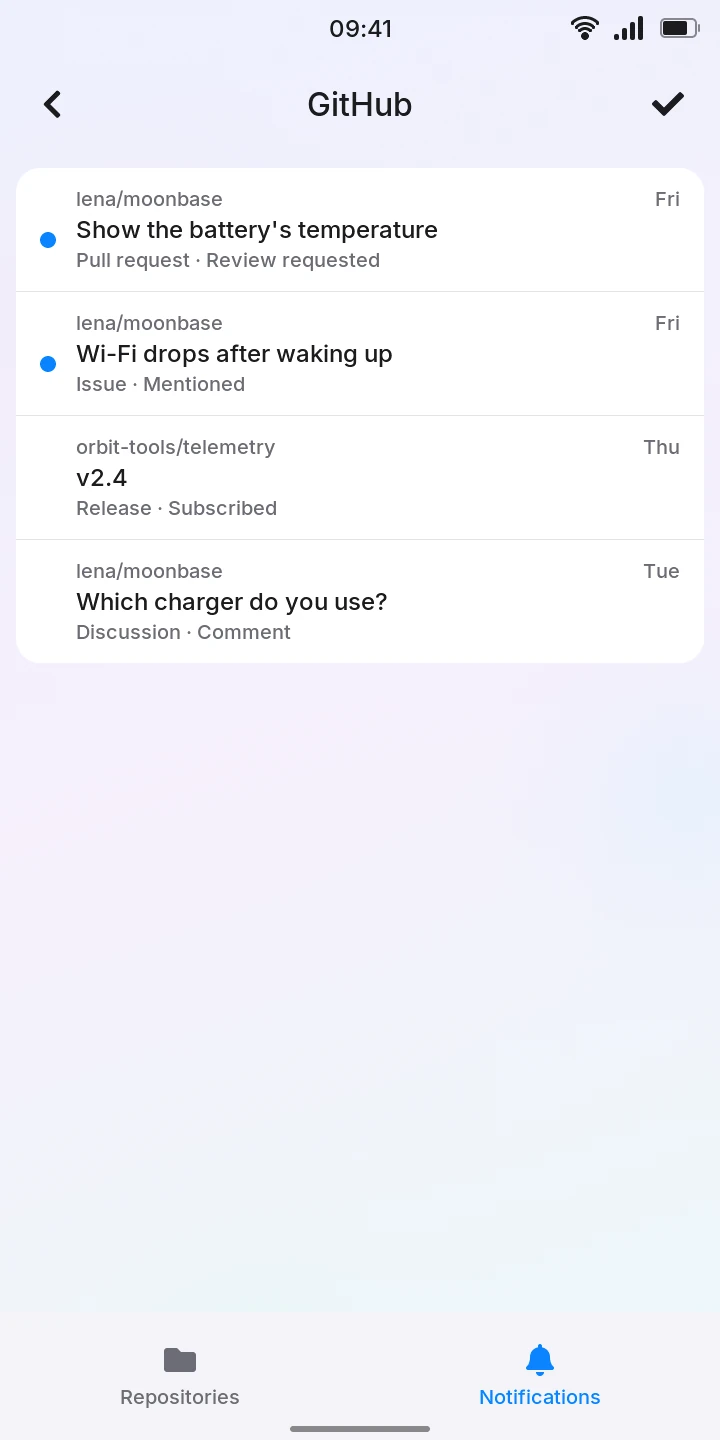
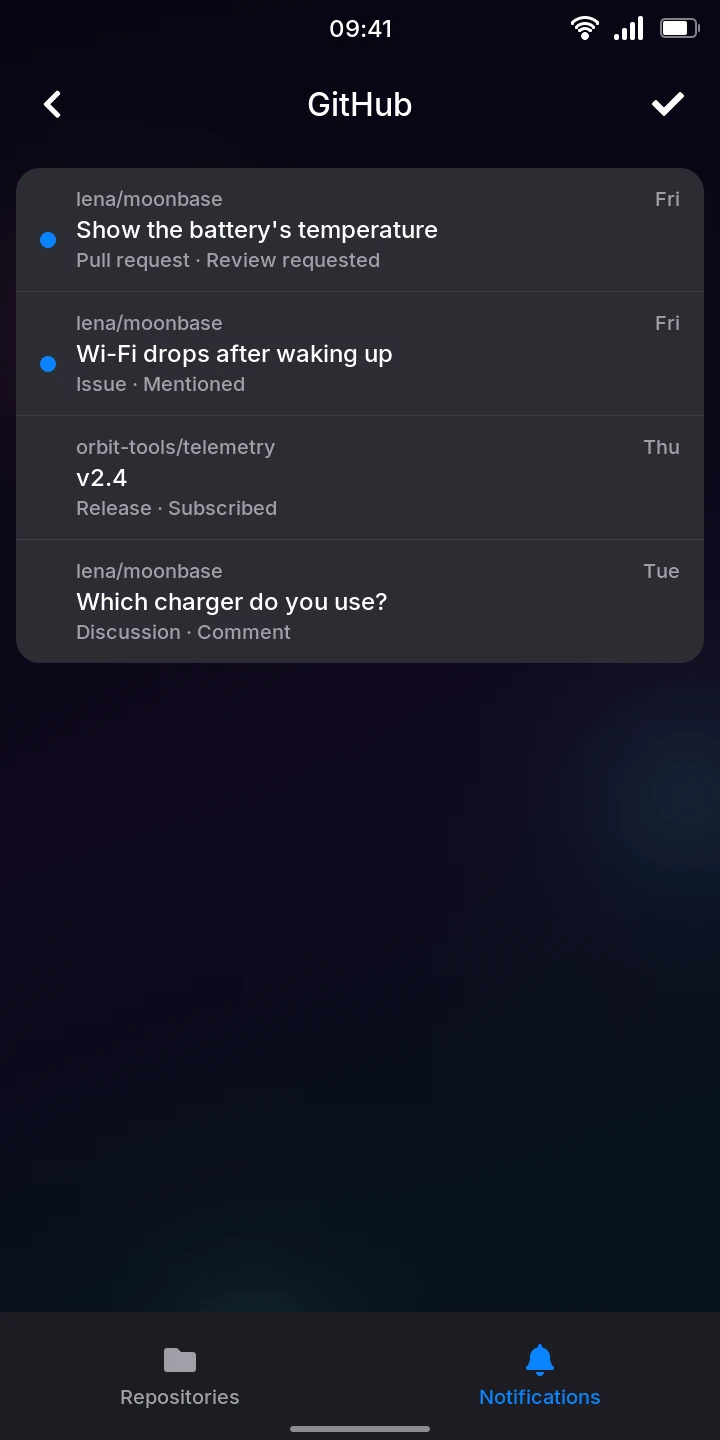
The list shows your inbox as on github.com, newest first, the ones you have read too. Each notification shows:
- the repository and when it last changed (the time today, the day this week, the date before),
- the title of the pull request, issue, release or discussion,
- what it is and why you got it: Pull request · Review requested, Issue · Mentioned, Release · Subscribed…
A blue dot marks the unread ones. Tap one to mark it read on GitHub; to mark your whole inbox read, not only the notifications listed, tap the check mark at the top right. A notification of something the app does not open (a release, a commit, a security alert) is only marked read.
To clear a notification, swipe it to the left: it is marked Done and leaves the list, as it leaves your inbox on github.com. It comes back by itself when there is something new on it. A short swipe brings it back in place.
No notifications means your inbox is empty.
Pull requests, issues and discussions
Tap the notification of a pull request, an issue or a discussion to open it (this also marks it read). A card at the top shows:
- its title and its key, such as elian/pinephone#7 (the repository and the number),
- for a pull request, who opened it and when, such as Opened by elian, Wed,
- its state: for a pull request Open, Draft, Merged or Closed; for an issue Open, Closed (done, in purple), Not planned or Duplicate; for a discussion Open, Answered, Closed (resolved, in purple), Outdated or Duplicate; a pull request's or an issue's with the same icon as its row in the list,
- for a pull request, its branches: github-app › main (the branch with the changes, then the branch it merges into); for an issue, its labels in their colors; for a discussion, its category, such as Q&A.
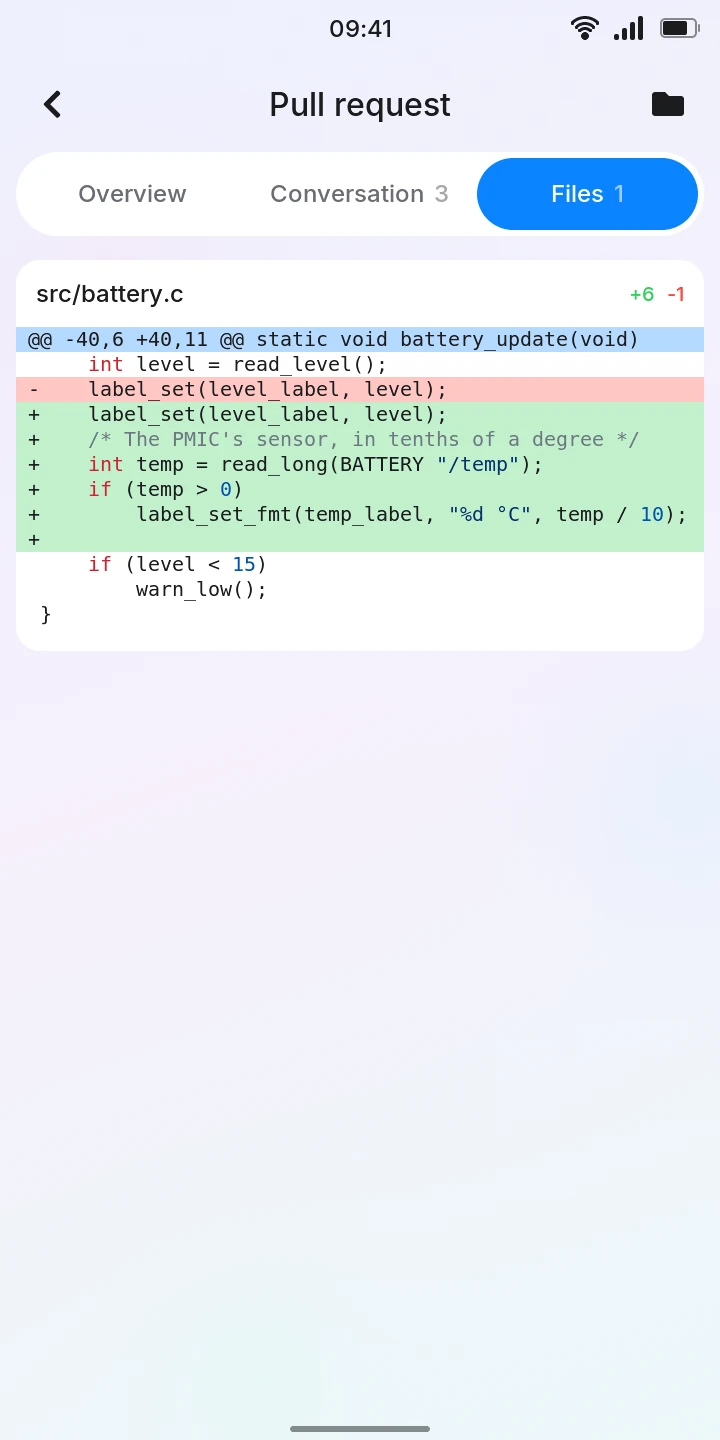
A pull request has three tabs at the top: Overview, Conversation, which shows how many comments and reviews it has, and Files, which shows how many files it changes. It opens on Overview, or on Conversation when the notification was about a comment or a mention of you or your team. Overview has, under the card:
- how its checks (GitHub Actions and other CI) went: 1 check failed, 2 checks pending or All checks passed. Tap it to see each check by name on a page of its own, the failed first, then the running, passed and skipped or cancelled ones.
- its milestone, such as Milestone v1.0 (see Milestones),
- its description, across the screen, with its formatting (as messages have, see below),
- for an open pull request in a repository you can push to, the green Merge pull request button at the bottom (see Merging a pull request).
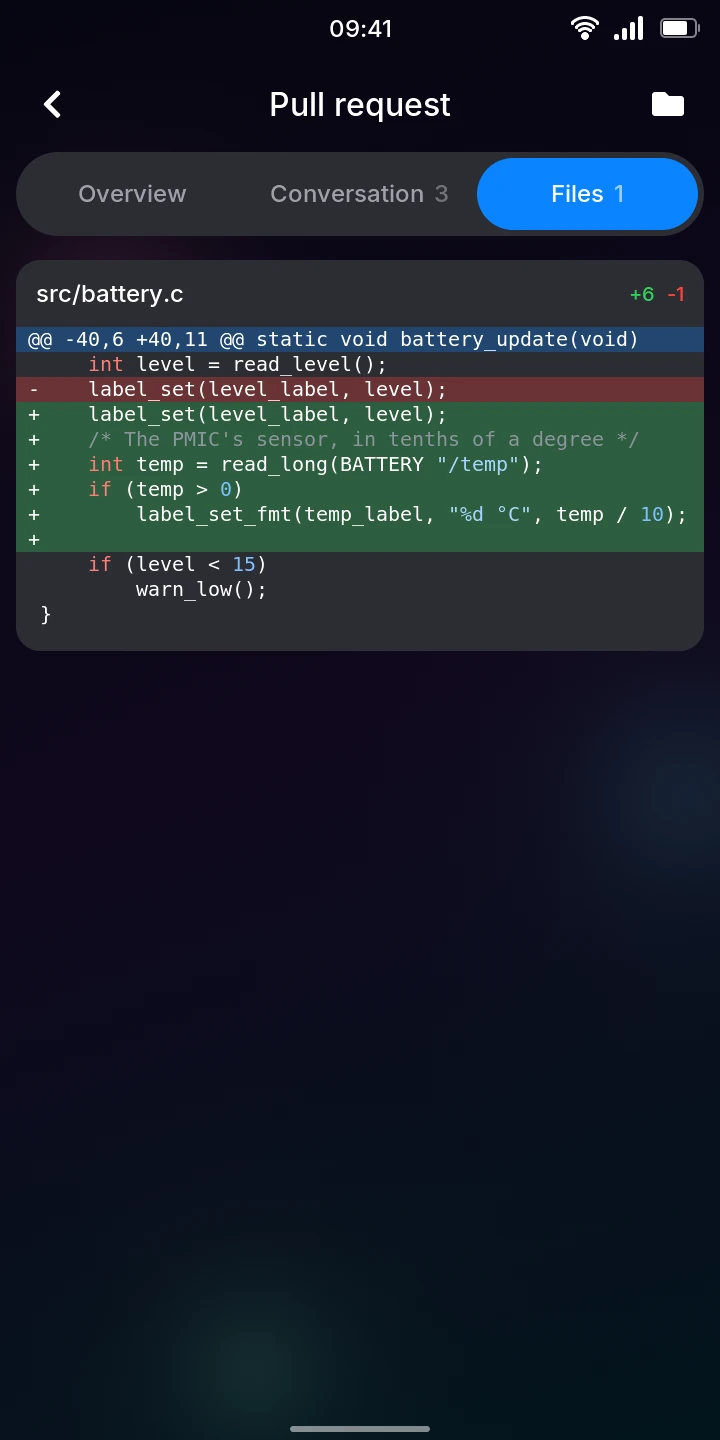
Files lists the files the pull request changes, each with its name (a renamed file's old and new names), how many lines it adds in green and removes in red, then its changes: added lines on green, removed lines on red, and in blue where each part of the file starts. The code is colored as on github.com (keywords, strings, numbers and comments) for C and C++, JavaScript and TypeScript, Python, shell scripts, Rust, Go and Nix. Java, Kotlin, C#, Swift, CSS, JSON, Ruby, YAML, TOML, Lua, SQL, Makefiles and a few others have only their comments and strings colored; other files, such as Markdown or HTML, are not colored. Swipe sideways to see long lines. A file with many changes shows only its name: tap it to see them, and again to hide them. A file shows its first 3000 lines, then how many more there are. A picture or another binary file says Binary file not shown, a file GitHub sends no changes for Diff too large to show, and a renamed file with nothing else changed File renamed without changes. The first 100 files show.
An issue or a discussion has no tabs: its milestone (an issue's) comes under the card, then its conversation, its description first.
To see what changed since you opened a pull request or an issue (new comments, its checks, its state), pull any of its tabs down from the top, as the lists.
To see the repository of a pull request or an issue, tap the folder at the top right. It opens the repository as in Repositories, with its README, whoever owns it. Repository not found means GitHub does not show it to you (it is private, or was deleted).
The conversation shows as in Messages, the others' messages across the screen: the comments and a pull request's reviews in the order
they came, under the day they came (Today, Yesterday, the day's name this week, its
date before). Each comment shows who wrote it and the time; yours are on the right in blue. A
review shows as a line with its icon, such as alice approved
in green, bob requested changes in red,
carol reviewed (a review with comments only) or
dan reviewed (dismissed), followed by its text if it has any. No comments yet means nobody has commented on the pull request. In a
discussion, the comments show each with its date, and the replies to a comment come
right after it, set in a little and saying whose comment they answer (bob, replying to
alice), and the comment chosen as the answer has Answer above
it. Each message is one bubble (a very long one is
cut short), with its formatting: headings, bold, italic, code (in a fixed-width font,
as code blocks and the changes in Files), links (blue, underlined; they cannot be opened
yet), struck-through text, lists and task lists
(a box, ticked when done), quotes (a bar on the left), code blocks (a lighter box: swipe
sideways to see long lines), tables (a grid, the header in
bold; swipe sideways when wider than the bubble) and lines between sections. Line
breaks stay where they were written, and emoji names such as :white_check_mark: show as the
emoji (✅), as on github.com.
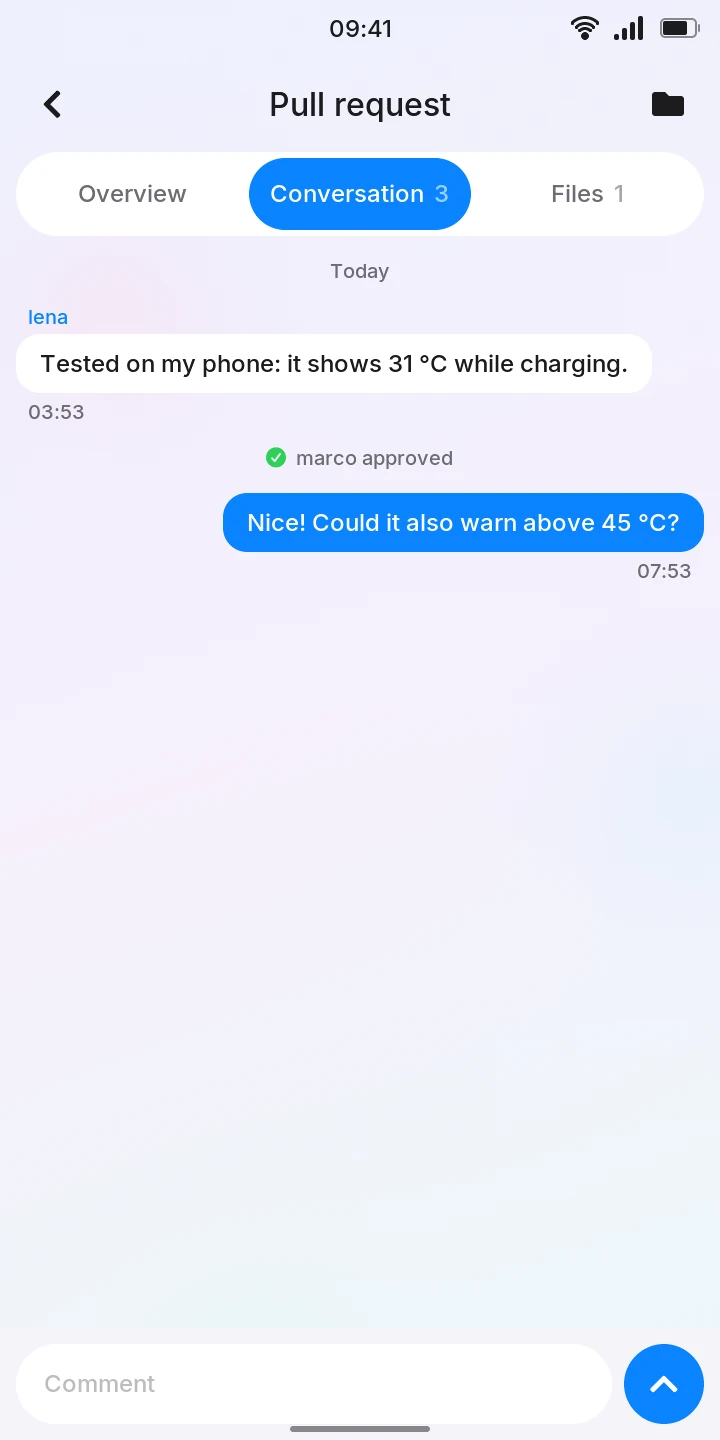
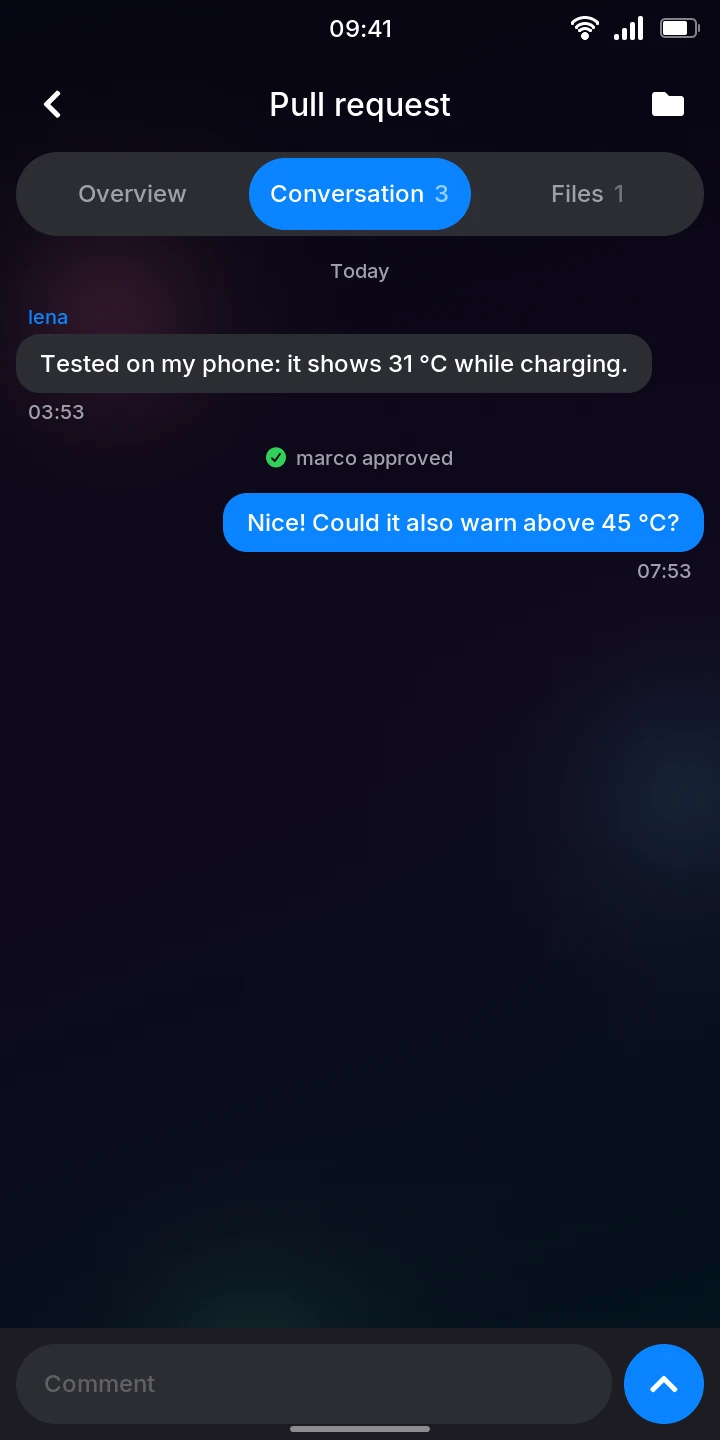
Messages with HTML, such as the reports bots post, show as GitHub lays them out: tables, code in the fixed-width font, colors and pictures (PNG, JPEG and WebP; other pictures, such as most badges, are left out). When a table is wider than the bubble, swipe it sideways. A very long one is cut short.
To comment, tap the Comment field at the bottom, type, then tap the arrow. Your comment shows Sending... until GitHub has it. If GitHub refuses it, or the phone has no internet (Not sent: no connection), Not sent says why, and your text goes back into the field so you can try again. One comment is sent at a time: while one is sending, the next stays in the field. In a discussion, a comment goes at the end, not as a reply to another comment.
Merging a pull request
When a pull request is open (not a draft) and you can push to its repository, the bottom of its Overview shows a green Merge pull request button. Tap it, then choose how to merge, with GitHub's names: Create a merge commit, Squash and merge or Rebase and merge. Only the ways the repository allows show. Nothing is merged until you choose one; Cancel puts the button back.
It says Merging..., then the pull request shows Merged. The phone merges the changes it showed you: if someone pushed to the branch since you opened the pull request, GitHub refuses. If GitHub refuses (checks that must pass failed, a review is required, the branch changed), Not merged says why, and the button is back to try again once it is fixed. When the branch has conflicts with the one it goes into, Overview says This branch has conflicts instead of the button: solve them on a computer.
The token needs the repo scope to merge.
Milestones
A pull request's or an issue's milestone shows in a row under its card. When you can triage its repository (you can push to it, or were given the triage role), the row also shows when there is none (No milestone), with a arrow: tap it to choose another milestone. The list shows the repository's open milestones, the soonest due first, each with its due date (Due 30 Nov 2026) if it has one; the current one is ticked. Tap one to set it, or No milestone to remove it. No open milestones means the repository has none to choose from.
Back on the pull request or issue, the milestone you chose shows dimmed until GitHub has it. If GitHub refuses, Milestone not set says why and the milestone stays as it was.
GitHub's notification does not say which discussion it is about, so the app looks for the latest discussion of that repository with the same title. Discussion not found means there is none: it was deleted or renamed, or it is in a private repository and the token lacks the repo scope.
Limitations
- The latest 50 notifications only. Only pull requests, issues and discussions open: releases and the rest do not yet.
- In a pull request or an issue, the first 100 comments and the first 100 reviews; an issue shows its first 8 labels, a pull request its first 100 checks.
- In a discussion, the first 100 comments and the first 100 replies to each; no replying to a comment, no reactions or polls.
- In a pull request, the first 100 changed files; no commits or comments on lines of code yet, and no approving or closing. Merging cannot change the commit's message or delete the branch afterwards.
- Of milestones, the 100 open ones due soonest; no creating one, nor choosing a closed one.
- No saving or unsubscribing: do these on the website.
- The 1000 repositories you pushed to last only, the first 100 organizations, and an organization's 1000 repositories pushed to last. A repository shows only its name, description, address, stars, forks, README, and its issues and pull requests: no files, and the links in it cannot be opened.
- Of a repository's open or closed issues or pull requests, the newest 1000 only (GitHub's search gives no more); one opened or closed a moment ago may take a minute to show.
- The lists do not refresh by themselves (pull them down), and the phone does not tell you about new notifications. All repositories and an organization's repositories cannot be pulled down: go back and open them again.
- Without internet, only Repositories, Notifications and the bookmarks show what they loaded last; a repository, its lists, pull requests and issues need a connection.